This Blog is discontinued, its only read-only

Showing posts with label Enterprise Manager 13c. Show all posts

Friday, April 24, 2020

Oracle Enterprise Manager 13.4 - New Add-On Plug-ins available

Oracle released some new Add-On Plug-ins for the Oracle Enterprise Manager 13.4.x

Following new Add-On Plug-Ins are available:

  • Enterprise Manager for Oracle Database Appliance
  • Enterprise Manager for TimesTen
  • Enterprise Manager for Oracle GoldenGate
  • Enterprise Manager for Oracle Unified Directory
  • Enterprise Manager for Utilities (TUGBU)
  • Enterprise Manager for Peoplesoft

The installation files for the above mentioned Add-On Plug-Ins can be found under: https://www.oracle.com/enterprise-manager/downloads/oem-v134-update-plugins-downloads.html


Friday, January 31, 2020

Enterprise Manager 13.4 is available

The latest release of the Oracle Enterprise Manager 13.4.0.0.0 is now available for download in Oracle Technology Network:

https://www.oracle.com/enterprise-manager/downloads/cloud-control-downloads.html


The documentation is currently not available, but I hope it will be published soon.

One of the positive aspects of the new Oracle Enterprise Manager 13c Release 4 (13.4.0.0.0) is, that the underlying Oracle WebLogic Server is now a 12.2.1.3.0 release, not longer a 12.1.3 release :-)

So, happy download and enjoy the upgrade ...

Wednesday, May 8, 2019

No Metrics visible for Standalone Oracle HTTP Server in Cloud Control 13c

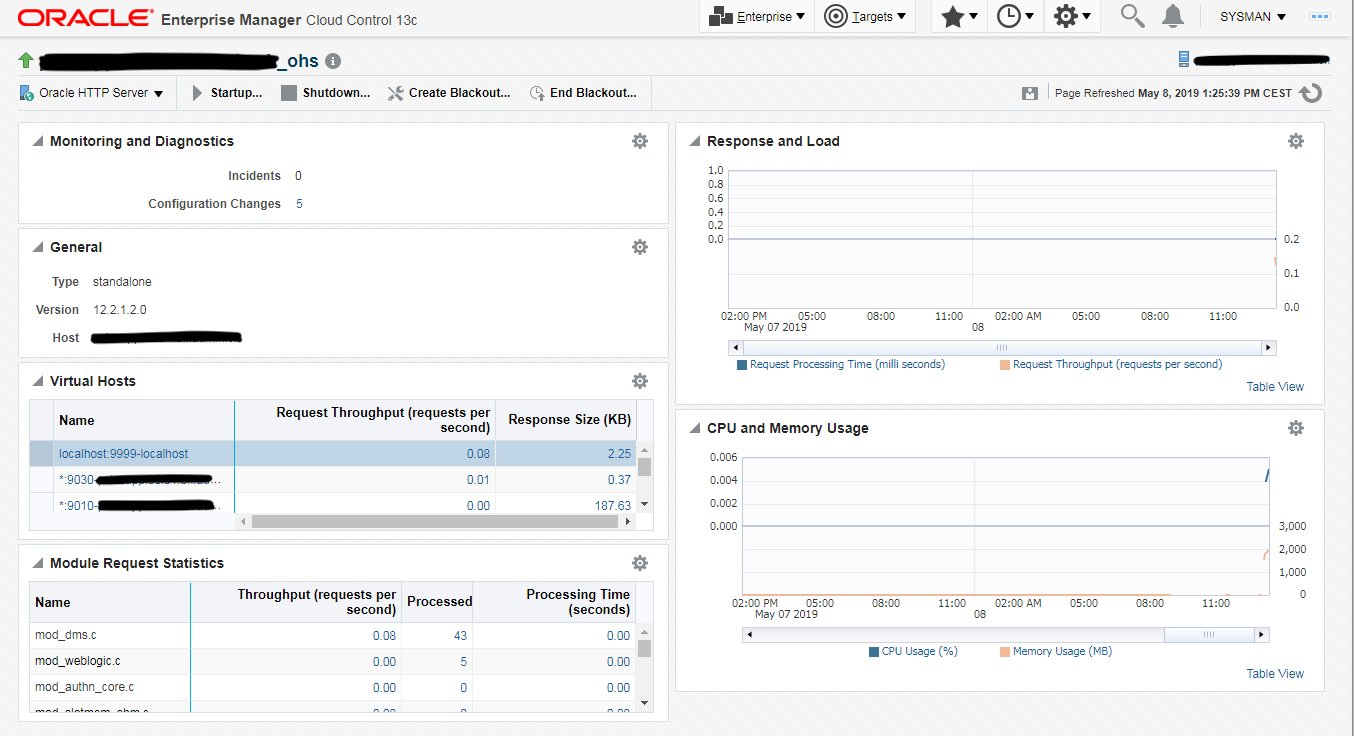
Currently I had the problem within Oracle Cloud Control 13c (13.3), that when I added an Oracle HTTP Server Standalone 12.2.1.x, Cloud Control 13c was not able to display any kinds of metrics from the Oracle HTTP Server.


As you can see from the above screenshot, Cloud Control was able to show me the correct status (UP), but Cloud Control could not see any metrics or even no configured Virtual Hosts.

The problem is within the Oracle HTTP Server 12.2.1.x, as the Oracle HTTP Server doesn't contain all required dms jar files.

To solve this problem, simply apply the patch 22860384, which is available for following Oracle HTTP Server Releases:
  • 12.2.1.0.0
  • 12.2.1.1.0
  • 12.2.1.2.0


Download the patch for your Oracle HTTP Server Release, copy the patch to the server on which your Oracle HTTP Server is running and apply the patch:

# Stop your Oracle HTTP Server
$ cd $DOMAIN_HOME/bin
$ ./stopComponent <OHS Component Name>

# extract the zip file and go into the subdirectory 22860384
$ cd 22860384
$ $ORACLE_HOME/OPatch/opatch apply

Oracle Interim Patch Installer version 13.9.1.0.0
Copyright (c) 2019, Oracle Corporation.  All rights reserved.


Oracle Home       : /appl/oracle/product/fmw-webtier-12.2.1.2.0
Central Inventory : /appl/oracle/oraInventory
   from           : /appl/oracle/product/fmw-webtier-12.2.1.2.0/oraInst.loc
OPatch version    : 13.9.1.0.0
OUI version       : 13.9.1.0.0
Log file location : /appl/oracle/product/fmw-webtier-12.2.1.2.0/cfgtoollogs/opatch/opatch2019-05-08_13-21-31PM_1.log


OPatch detects the Middleware Home as "/appl/oracle/product/fmw-webtier-12.2.1.2.0"

Verifying environment and performing prerequisite checks...
OPatch continues with these patches:   22860384

Do you want to proceed? [y|n]
y
User Responded with: Y
All checks passed.

Please shutdown Oracle instances running out of this ORACLE_HOME on the local system.
(Oracle Home = '/appl/oracle/product/fmw-webtier-12.2.1.2.0')


Is the local system ready for patching? [y|n]
y
User Responded with: Y
Backing up files...
Applying interim patch '22860384' to OH '/appl/oracle/product/fmw-webtier-12.2.1.2.0'
ApplySession: Optional component(s) [ oracle.jmx, 12.2.1.0.0, higher version 12.2.1.2.0 found. ]  not present in the Oracle Home or a higher version is found.

Patching component oracle.jrf.thirdparty.jee, 12.2.1.2.0...

Patching component oracle.jrf.thirdparty.jee, 12.2.1.2.0...
Patch 22860384 successfully applied.
Log file location: /appl/oracle/product/fmw-webtier-12.2.1.2.0/cfgtoollogs/opatch/opatch2019-05-08_13-21-31PM_1.log

OPatch succeeded.

# Startup your Oracle HTTP Server
$ cd $DOMAIN_HOME/bin
$ ./startComponent <OHS Component Name>

Now wait some minutes or if you are not really patient, perform on the Oracle Cloud Control Agent 13 multiple times "emctl upload agent"

After some time you should be able now to see in your configured Oracle HTTP Server Target in the Oracle Cloud Control 13c all metrics and even configured Virtual Hosts.


Thursday, April 4, 2019

Enterprise Manager 13c - Database Usage Tracking Report Bug with FTP destination

Within Oracle Enterprise Manager 13c you have a nice Feature under the BI Publisher Reports to generate Database Usage Tracking Reports and to deliver them to a FTP Server, called BurstToFTP.


Unfortunatelly if you follow the very good official step-by-step documentation on how to setup and to configure the Database Usage Tracking Report you will not be able to get your Database Usage Tracking Reports under your FTP Server :-(


After you are done with the above setup and configuration steps and you perform an execution of the Database Usage Tracking Report, you will receive following error:

[INSTANCE_ID=.1515472353767] [DELIVERY_ID=1075]Error deliver document to FTP::Exception happened when calling deliver API::Error deliver document to FTP::FILE=[::Exception happened when calling deliver API::oracle.xdo.delivery.DeliveryException: oracle.xdo.delivery.DeliveryException: SFTP Client cannot be openedoracle.xdo.service.delivery.DeliveryException: oracle.xdo.delivery.DeliveryException: oracle.xdo.delivery.DeliveryException: SFTP Client cannot be op 

If you are checking the corresponding bipublisher.log under gc_inst/user_projects/domains/GCDomain/servers/BIP/logs/bipublisher you will find following error messages:

[2019-02-01T09:24:22.148+01:00] [BIP] [WARNING] [] [oracle.xdo] [tid: 168606] [userId: BISystemUser] [ecid: cdc36ce1-e46c-486e-93a8-cee32db72219-00000004,0:1070] [APP: bipublisher#11.1.1]  !!!!!!! GenericDeliveryListener.onMessage :: DeliveryProcessor.processDelivery exception::[INSTANCE_JOB_ID=1529]::[JOB_ID=1583]::[OUTPUT_ID=1402]::[DELIVERY_ID=1391]::[STATUS=FAILED_DELIVERY]::Error deliver document to FTP::Exception happened when calling deliver API::Error deliver document to FTP::FILE=[::Exception happened when calling deliver API::oracle.xdo.delivery.DeliveryException: oracle.xdo.delivery.DeliveryException: SFTP Client cannot be openedoracle.xdo.service.delivery.DeliveryException: oracle.xdo.delivery.DeliveryException: oracle.xdo.delivery.DeliveryException: SFTP Client cannot be opened[[
        at oracle.xdo.service.delivery.impl.DeliveryServiceImpl.deliverToSFTP(DeliveryServiceImpl.java:810)
        at oracle.xdo.enterpriseScheduler.delivery.FTPProcessor.deliver(FTPProcessor.java:255)
        at oracle.xdo.enterpriseScheduler.delivery.FTPProcessor.processDelivery(FTPProcessor.java:123)
        at oracle.xdo.enterpriseScheduler.util.GenericDeliveryListener.onMessage(GenericDeliveryListener.java:120)
        at oracle.xdo.enterpriseScheduler.util.CheckpointEnabledListener.onMessage(CheckpointEnabledListener.java:25)
        at oracle.xdo.enterpriseScheduler.jmswrapper.client.JMSMessageConsumer.processMessage(JMSMessageConsumer.java:231)
        at oracle.xdo.enterpriseScheduler.jmswrapper.client.ThreadedMessageDispatcher$DispatchWorker.run(ThreadedMessageDispatcher.java:157)
        at java.util.concurrent.ThreadPoolExecutor.runWorker(ThreadPoolExecutor.java:1145)
        at java.util.concurrent.ThreadPoolExecutor$Worker.run(ThreadPoolExecutor.java:615)
        at java.lang.Thread.run(Thread.java:745)
Caused by: oracle.xdo.delivery.DeliveryException: oracle.xdo.delivery.DeliveryException: SFTP Client cannot be opened
        at oracle.xdo.delivery.ssh2.SFTPDeliveryRequestHandler.submitRequest(SFTPDeliveryRequestHandler.java:528)
        at oracle.xdo.delivery.AbstractDeliveryRequest.submit(AbstractDeliveryRequest.java:1513)
        at oracle.xdo.service.delivery.impl.DeliveryServiceImpl.deliverToSFTP(DeliveryServiceImpl.java:804)
        ... 9 more

The Problem occurs under Oracle Enterprise Linux and Redhat Enterprise Linux.

This is a know bug and luckily there has been a Patch released for this issue.

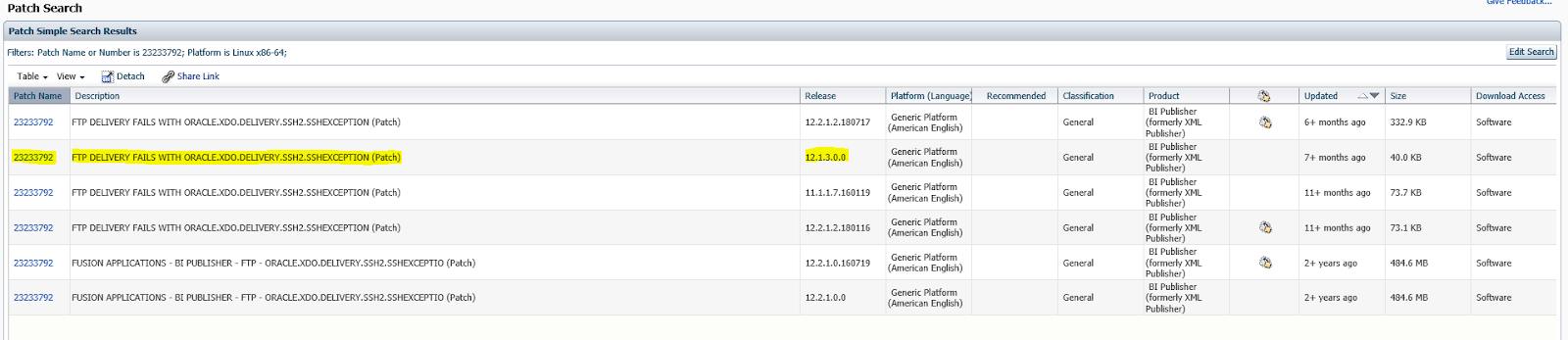
You will need to download the Patch 23233792: FTP DELIVERY FAILS WITH ORACLE.XDO.DELIVERY.SSH2.SSHEXCEPTION for 12.1.3.0


After you applied the Patch to your Oracle Cloud Control 13c, the BurstToFTP Feature will work without problems.


Monday, March 18, 2019

Enterprise Manager 13c - Resolve Pending Status of Systems Infrastructure Server Components

From time to time you can observe, that some Systems Infrastructure Server Components are turning into a "Pending Status". Mostly the reason for this status change is not clear, a restart of the underlying Oracle Agents also doesn't resolve this pending state.


 The simplest solution to get rid of the pending state is to remove the Systems Infrastructure Server Component and to re-add it.

For this just connect with the oracle user to your server on which your Oracle Cloud Control 13c is running and perform following emcli commands:

# At first login with sysman to your emcli
oracle@server> emcli login -username=sysman
Enter password :

Login successful

# Perform a sync
oracle@server> emcli sync
Synchronized successfully

# Remove the Systems Infrastructure Server Component which is in pending state
oracle@server> emcli delete_target \
                  -name="<yourserver>.<domainname>/server" \
                  -type=oracle_si_server_map

# For example:
oracle@server> emcli delete_target \
                  -name="dbserver1.mydomain.com/server" \
                  -type=oracle_si_server_map

Target "dbserver1.mydomain.com/server:oracle_si_server_map" deleted successfully

# Add the above remove Systems Infrastructure Server Component once again
oracle@server> emcli add_target -name='<yourserver>.<domainname>/server' \
                  -type='oracle_si_server_map' \
                  -host='<yourserver>.<domainname>' \
                  -access_point_name='<yourserver>.<domainname>/server_os' \
                  -access_point_type=oracle_si_server_os \
                  -properties='dispatch.url!local://localhost' \
                  -subseparator=properties='!'

# For example:
oracle@server> emcli add_target -name='dbserver1.mydomain.com/server' \
                  -type='oracle_si_server_map' \
                  -host='dbserver1.mydomain.com' \
                  -access_point_name='dbserver1.mydomain.com/server_os' \
                  -access_point_type=oracle_si_server_os \
                  -properties='dispatch.url!local://localhost' \
                  -subseparator=properties='!'

Target "dbserver1.mydomain.com/server_os:oracle_si_server_os" added successfully

After that wait some moments and check once again the status of your Systems Infrastructure Server Component in Enterprise Manager 13c and you will see that the status turned to be ok.


Tuesday, January 8, 2019

Enterprise Manager 13.3 - Customize Login Page

Since Oracle Enterprise Manager 13.3 you have the option to customize the Login Page with your own logo image (size of the image is fixed with width of 200px and height of 70px) and a free text field.

In order to customize your login page you have to perform following steps.

At first you will need to activate the http port for your WebLogic Admin Server of your Enterprise Manager 13.3 environment.

Connect with a browser to your WebLogic Server Console, normally https://<yourserver>:7102/console and login with the weblogic user.

Select your EMGC_ADMINSERVER under the Domain Structure "GCDomain/Environment/Servers"


Go to the "Configuration/General" and activate under the Change Center the Lock & Edit button


Set the checkbox in front of "Listen Port Enabled", leave the defined http port to the pre-filled value of 7001 and click the "Save" button to save your changes.


Finally click in the Change Center the "Active Changes" button, there is no restart required, the http port 7001 will be immediately available.


As next you will have to create on the server hosting your Enterprise Manager 13.3 a directory for your image file (possible formats are: jpeg, jpg, png and gif) and a simple web.xml file.

# Create the required directory for your image file
mkdir -p /u00/app/oracle/admin/oms/logo/WEB-INF

# Place your image file into the folder /u00/app/oracle/admin/oms/logo
# Create under /u00/app/oracle/admin/oms/logo/WEB-INF a web.xml
# with following content

<?xml version="1.0" encoding="UTF-8"?>
<!DOCTYPE web-app PUBLIC
"-//Sun Microsystems, Inc.//DTD Web Application 2.3//EN" 
"http://java.sun.com/j2ee/dtds/web-app_2_3.dtd">
<web-app>
</web-app>

Get back to your WebLogic Console and navigate in the Domain Structure to "GCDomain/Environment/Deployments" and click in the Change Center the "Lock & Edit" button.


Click the "Install" button in order to install the above create folder structure as application


Place under Path your above created directory, which contains the image file and the subdirectory WEB-INF with the web.xml, in my case /u00/app/oracle/admin/oms/logo and click the "Next" button


In the next deployment screen leave the defaults and click the "Next" button.


In the following deployment screen choose the EMGC_ADMINSERVER as deployment target and proceed with the "Next" button.


In the following deployment screen leave the defaults and finish the deployment with the "Finish" button.
Hint: the context of your deployment will the same as your created directory name, in my case "logo"


To activate the deployment click under the Change Center the "Activate Changes" button.


Now you have to validate if your deployment is already active or still in prepared state, under the list of deployments scroll down to your deployment, in my case it's named logo (derived from the directory name you have created.

Normally the state will be "prepared", so click on the deployed application


Navigate to the "Control" tab, set the checkbox in front of logo and start the application

After a successful start of your application you should see the state as Active.


Now you can test if you can access with a browser the image file under your deployed application.

http://<yourserver>:7001/logo/<your_image_file>

Next step is to set with the emctl utility the property oracle.sysman.core.uifwk.loginPageLogo, login to your server hosting the Enterprise Manager 13.3 and execute following command:

emctl set property -name oracle.sysman.core.uifwk.loginPageLogo –value 'http://<yourserver>:7001/<context>/<image_file>' -sysman_pwd <sysman_password>

# For example
emctl set property -name oracle.sysman.core.uifwk.loginPageLogo –value 'http://oraem13c.domain.com:7001/logo/logo.png' -sysman_pwd Oracle13c

After the above command is no restart of your OMS required.

In case you want to set the free text for your login page you will need to execute following command on your server hosting the Enterprise Manager 13.3 to set the property oracle.sysman.core.uifwk.loginPageInformationText

emctl set property -name oracle.sysman.core.uifwk.loginPageInformationText -value 'You are connected to the Demo Cloud Control 13c (13.3)'

When you access your Enterprise Manager 13.3 Login Page now, you will see on the top left your logo image and beside the Login Button your defined free text field.


Friday, July 6, 2018

Documentation for Oracle Enterprise Manager 13c Release 3 (13.3.0.0) available

Since a few days the latest Release of Oracle Enterprise Manager 13c Release 3 (13.3.0.0) is available for download (see my blogpost "Oracle Enterprise Manager 13c Release 3 (13.3.0.0) available" ) but the corresponding documentation was not yet available.

But now Oracle also uploaded the documentation for Oracle Enterprise Manager 13c Release 3 (13.3.0.0), which can be found under https://docs.oracle.com/cd/cloud-control-13.3/index.html


Under the section "What's New" you can find all new features of the latest Enterprise Manager 13c Release 3 (13.3.0.0).
Some highlights are:

  • Customization of the Enterprise Manager Login Page
  • Fusion Middleware Section:
    • MSI Startup and Shutdown possibilities for WebLogic Managed Servers while the AdminServer is unavailable
    • Now you can start the Admin Server of a WebLogic Server Domain through the Node Manager

The full list of the New Features can be found under https://docs.oracle.com/cd/cloud-control-13.3/EMCON/GUID-503991BC-D1CD-46EC-8373-8423B2D43437.htm#EMCON-GUID-503991BC-D1CD-46EC-8373-8423B2D43437


Wednesday, July 4, 2018

Oracle Enterprise Manager 13c Release 3 (13.3.0.0) available

The lastest Release of Oracle Enterprise Manager 13c Release 3 (13.3.0.0) is available for download under Oracle Technology Network: https://www.oracle.com/technetwork/oem/enterprise-manager/downloads/index.html


The Oracle Enterprise Manager 13c Release 3 (13.3.0.0) is available for following Operating Systems:

  • Linux x86-64 (64-bit)
  • Windows x86-64 (64-bit)
  • Solaris Operating System (SPARC)
  • Solaris Operating System (x86-64)
  • IBM AIX on POWER Systems (64-bit)
  • HP-UX Itanium (64-bit)
Unfortunately the Documentation for Oracle Enterprise Manager 13c Release 3 (13.3.0.0) is currently not yet uploaded under https://docs.oracle.com/en/enterprise-manager/ . I hope it will be uploaded within the next days.


Monday, August 21, 2017

Configure Single Sign On for Cloud Control 13c against Active Directory

In many cases you want to use your Microsoft Active Directory Login to be authenticated against your Oracle Cloud Control 13c.

Here is a step by step solution how to implement Single Sign On for your Oracle Cloud Control against Microsoft Active Directory.

Lets assume following Environment:

  • AD Domain = DEMO.COM
  • Microsoft AD Server = adserver.demo.com
  • AD LDAP Port = 389
  • Cloud Control 13c Server = cloudcontrol13c.demo.com

Windows Steps


Connect to the Windows Server Hosting your Active Directory and execute following steps

1. Create a corresponding Service Account for the Oracle Management Server (OMS) in your Active Directory:


Name the to be created Service Account = your Cloud Control Server
dsadd user="cn=<ServiceAccountName>,cn=users,dc=<Domain>,dc=<TLD>" -disabled no -pwd <Password for ServiceAccountName> -canchpwd no -mustchpwd no -pwdneverexpirer yes

# For Example
dsadd user="cn=cloudcontrol13c,cn=users,dc=demo,dc=com" -disabled no -pwd Welcome1 -canchpwd no -mustchpwd no -pwdneverexpirer yes

2. Create a keytab file:


ktpass -princ HTTP/<ServiceAccountName>.<Domain>.<TLD>@;.<Domain>.<TLD> -mapuser <ServiceAccountName> -crypto all -ptype KRB5_NT_PRINCIPAL -out c:\temp\krb5.keytab

# For Example:
ktpass -princ HTTP/cloudcontrol13c.demo.com@DEMO.COM -mapuser cloudcontrol13c -crypto all -ptype KRB5_NT_PRINCIPAL -out c:\temp\krb5.keytab

Afterwards transfer the above created keytab file named krb5.keytab to your Cloud Control 13c Server.

Cloud Control Steps


Now connect to your Server which is Hosting your Oracle Cloud Control 13c and perform following steps.

1. Create the Active Directory Authentication Provider


emctl config auth ad -ldap_host "<AD-Servername>" -ldap_port "<LDAP-PORT>" \
ldap_principal "cn=<ServiceAccountName>,cn=users,dc=<Domain>,dc=<TLD>" -ldap_credential "<Password for ServiceAccountName>" \
-user_base_dn "cn=users,dc=<Domain>,dc=<TLD>" -Group_base_dn "cn=groups,dc=<Domain>,dc=<TLD>" \
-sysman_pwd "<SYSMAN Password>"

# For Example:
emctl config auth ad -ldap_host "adserver.demo.com" -ldap_port "389" \
ldap_principal "cn=cloudcontrol13c,cn=users,dc=demo,dc=com" -ldap_credential "Welcome1" \
-user_base_dn "cn=users,dc=demo,dc=com" -Group_base_dn "cn=groups,dc=demo,dc=com" \
-sysman_pwd "Welcome1"

# Now restart your OMS
emctl stop oms -all
emctl start oms

After the restart of your OMS, connect to the WebLogic Server Console of your Oracle Cloud Control 13c, usually its the SSL Port 7101 (https://<CloudControlServer>:7101/console )
Select in the Domain Structure "Security Realms" and navigate to "Providers / Authentication"


Open the Authentication Provider EM_AD_Provider and navigate to "Configuration / Provider Specific"


Align following Attributes (activate at first in the Change Center the "Lock & Edit" Mode):

Original Attributes:
  • All Users Filter: <empty>
  • User From Name Filter: (&cn=%u) (objectclass=user))
  • User Name Attribute: cn
  • User Object Class: user
New Attributes:
  • All Users Filter: (&(sAMAccountName=*) (objectclass=user))
  • User From Name Filter: (&(sAMAccountName=%u) (objectclass=user))
  • User Name Attribute: sAMAccountName
  • User Object Class: user
Save the modifications and Activate them in the Change Center.

2. Create the JAAS Configuration File krb5Login.conf

The next step is to create the required JAAS Configuration File krb5Login.conf within the DOMAIN_HOME of your Cloud Control 13c.

# for Oracle (SUN) JDK
com.sun.security.jgss.krb5.initiate {
    com.sun.security.auth.module.Krb5LoginModule required
    principal="HTTP/cloudcontrol13c.demo.com@DEMO.COM"
    useKeyTab=true keyTab=/etc/krb5.keytab
    storeKey=true debug=true;
};
com.sun.security.jgss.krb5.accept {
    com.sun.security.auth.module.Krb5LoginModule required
    principal="HTTP/cloudcontrol13c.demo.com@DEMO.COM"
    useKeyTab=true keyTab=/etc/krb5.keytab
    storeKey=true debug=true;
};

# For IBM JDK (under AIX)
com.ibm.security.jgss.krb5.initiate {
    com.ibm.security.auth.module.Krb5LoginModule REQUIRED
    principal="http/cloudcontrol13c.demo.com"
    useKeytab="FILE:/etc/krb5.keytab"
    credsType=initiator
    debug=true;
};
com.ibm.security.jgss.krb5.accept {
    com.ibm.security.auth.module.Krb5LoginModule REQUIRED
    principal="http/cloudcontrol13c.demo.com"
    useKeytab="FILE:/etc/krb5.keytab"
    credsType=acceptor
    debug=true;
};

3. Align setDomainEnv.sh

Now we need to align the setDomainEnv.sh in the DOMAIN_HOME/bin directory. Search for the 2 lines:
EXTRA_JAVA_PROPERTIES="-Djavax.management.builder.initial=weblogic.management.jmx.mbeanserver.WLSMBeanServerBuilder ${EXTRA_JAVA_PROPERTIES}"
export EXTRA_JAVA_PROPERTIES
and add below this 2 lines following block:

if [ "${SERVER_NAME}" = "EMGC_OMS1" ] ; then
     EXTRA_JAVA_PROPERTIES="-Djava.security.krb5.realm=%lt;Domain>.<TLD> -Djava.security.krb5.kdc=<AD-Servername> -Djava.security.auth.login.config=<Path to krb5Login.conf>/krb5Login.conf -Djavax.security.auth.useSubjectCredsOnly=false -Dweblogic.security.enableNegotiate=true ${EXTRA_JAVA_PROPERTIES}"
     export EXTRA_JAVA_PROPERTIES
fi

# For Example:
if [ "${SERVER_NAME}" = "EMGC_OMS1" ] ; then
     EXTRA_JAVA_PROPERTIES="-Djava.security.krb5.realm=DEMO.COM -Djava.security.krb5.kdc=adserver.demo.com -Djava.security.auth.login.config=/u00/app/oracle/product/gc_inst_13cR1/user_projects/domains/GCDomain/krb5Login.conf -Djavax.security.auth.useSubjectCredsOnly=false -Dweblogic.security.enableNegotiate=true ${EXTRA_JAVA_PROPERTIES}"
     export EXTRA_JAVA_PROPERTIES
fi

5. Configure Single Sign On within OMS

The next step is to create an external role within OMS, this external role must be named exactly the same as your corresponding AD Group for the OMS Users

emcli create_role -name="oracle_dba" -type="EXTERNAL_ROLE" -desc="Active Directory Group for oracle_dba"

Now configure the SSO for the OMS

emctl set property -name oracle.sysman.core.security.sso.type -value "OTHER"
emctl set property -name oracle.sysman.core.security.auth.is_external_authentication_enabled -value "true"
emctl set property -name oracle.sysman.emSDK.sec.DirectoryAuthenticationType -value "SSO"
emctl set property -name oracle.sysman.core.security.auth.autoprovisioning -value "true"

After that perform a restart of your OMS:

emctl stop oms -all
emctl start oms

Now, when you are connecting the first time to the Cloud Control 13c and logging in with your AD-User, there will be automatically created the SSO User within your Cloud Control 13c and you can connect with your AD-User and corresponding AD-Password.

Thursday, October 6, 2016

Oracle Enterprise Manager 13.2.0.0 available

Since yesterday the new release of the Oracle Enterprise Manager 13.2.0.0 is available for download on Oracle Technology Network under following link: http://www.oracle.com/technetwork/oem/enterprise-manager/downloads/index.html


The new Oracle Enterprise Manager 13.2.0.0 is available for following Operating Systems:

  • Linux x86-64
  • Windows x86-64
  • Solaris Operating System (SPARC)
  • Solaris Operating System (x86-64)
  • IBM AIX on POWER Systems (64-bit)
  • HP-UX Itanium (64-bit)
As well there are matching Database Templates available for the pre-configured Repository Database. For the new Oracle Enterprise Manager 13.2.0.0 you get this time Database Templates for Single Database and as well Database Templates for PDB


The documentation for the new Oracle Enterprise Manager 13.2.0.0 can be found under http://docs.oracle.com/cd/E73210_01/index.htm


The most new features are implemented for the Oracle Fusion Middleware stack, which is in my opinion the best :-) Some of the new features are:

  • Start and stop operations can be performed against the Oracle WebLogic Node Manager directly from the Enterprise Manager 13.2.0.0 console
  • SOA Management:
    • Heat Map for SOA Composites
    • Integration of Integrate Workload Statistics (IWS)
  • Multitenancy Management of Oracle WebLogic directly from Enterprise Manager 13.2.0.0 console
Happy download and testing :-)


Wednesday, May 18, 2016

Audit Activities of WebLogic Server in Enterprise Manager 13c

In Oracle Enterprise Manager 13c were introduced a nice new feature for auditing activities of Oracle WebLogic Server events.

Before you can audit your activities like Domain login, Domain logout and Domain updates, you have to enable them via a simple emcli command.

Logon to your server which is hosting your Oracle Management Server (OMS) and perform following steps:

[oracle@em13c]# emcli login -username=sysman
Enter Password:
Login successful
[oracle@em13c]# emcli update_audit_settings \
-operations_to_enable="WEBLOGIC_DOMAIN_UPDATE_INVOKE;WEBLOGIC_DOMAIN_LOGIN;WEBLOGIC_DOMAIN_LOGOUT"
Successfully updated the audit settings.

From now on all Domain login, logout and updates events will be monitored and can be inspected within Oracle Enterprise Manager 13c.

The Audit Data can be found under "Setup / Security / Audit Data"


Within the Audit Data you will find 3 main sections:

  • Search Section were you can define your searches
  • A list view of Audit Records according to your defined search
  • Audit Record Details for your marked Audit Record of the list view


For Audit Records concerning Oracle WebLogic Domain activities, you should redefine your search under the search field "Operation", so that you select only the 3 available Operations related to WebLogic Domain and afterwards click the button "Search"


Now you will see in your List View in the center just the Audit Records related to Oracle WebLogic Domain targets. When you select a Audit Record in the List View you will see below the Audit Record Details for the selected Audit Record. Here you can see different tabs:
  • General: Timestamp, Administrator, Operation Type, Status and so on
  • Client Information: Contains different client informations like browser, client IP and Session ID
  • OMS Information: Hostname and IP of the Oracle Management Server (OMS)
  • Operation Specific Information: Contains detailed informations about the underlying activity.


The Audit Record Details tab "Operation Specific Information" is quite interesting, as we can see here very detailed informations about the performed activity.
You will find here informations about the Object Name, Target Name, Target Type, Operations Type, Message, which contains in case of an update operations the MBean, Processing Time of the Operations and possible Input Parameters. In the "Input Parameters" you will find your modified values for the underlying operation, so you can track down what has been changed exactly. Really nice :-) but one thing you should consider, the Input Parameters will be displayed in plain text, even if you are changing the password within a Data Source, you can see for the corresponding Audit Record Detail in the field Input Parameters the value of your password :-( not really cool ....


But nevertheless, the Audit Data Feature for Oracle WebLogic Server is really cool :-)

Saturday, December 19, 2015

Enterprise Manager 13c Presentations on Oracle Technology Network

As everybody already know that the latest version of Oracle Enterprise Manager 13c (13.1.0.0) has been released yesterday (see also my post from 18th December 2015), Oracle has uploaded several interesting presentations around the new Oracle Enterprise Manager 13c.

The presentations are covering various topics around the Oracle Enterprise Manager 13c (some presentations are also still covering Enterprise Manager 12c):

  • General
  • Cloud Management
  • Middleware Management
  • Database Management
  • Installation & Upgrade | Best Practices
  • and so on ...


The presentations can be found under: http://www.oracle.com/technetwork/oem/downloads/em-oow2015-2789798.html


Friday, December 18, 2015

Oracle Enterprise Manager 13c available

Seems its early Christmas :-) the new release of the Oracle Enterprise Manager 13c (13.1.0.0) is available for download in the Oracle Technology Network http://www.oracle.com/technetwork/oem/enterprise-manager/downloads/index.html


The new Oracle Enterprise Manager 13c is available for:


  • Linux x86-64
  • Windows x86-64
  • Solaris (SPARC)
  • Solaris (x86-64)
  • IBM AIX on POWER Systems
  • HP-UX Itanium


Happy download :-)

Oracle Enterprise Manager 13c - First Video on Oracle Learning Library YouTube Channel

I just discovered that since today (18th December 2015) is a first Oracle Learning Library video for the Oracle Enterprise Manager 13c (!!!!!) available.


Enjoy watching it :-)