This Blog is discontinued, its only read-only

Showing posts with label SOA 12c. Show all posts

Monday, March 30, 2020

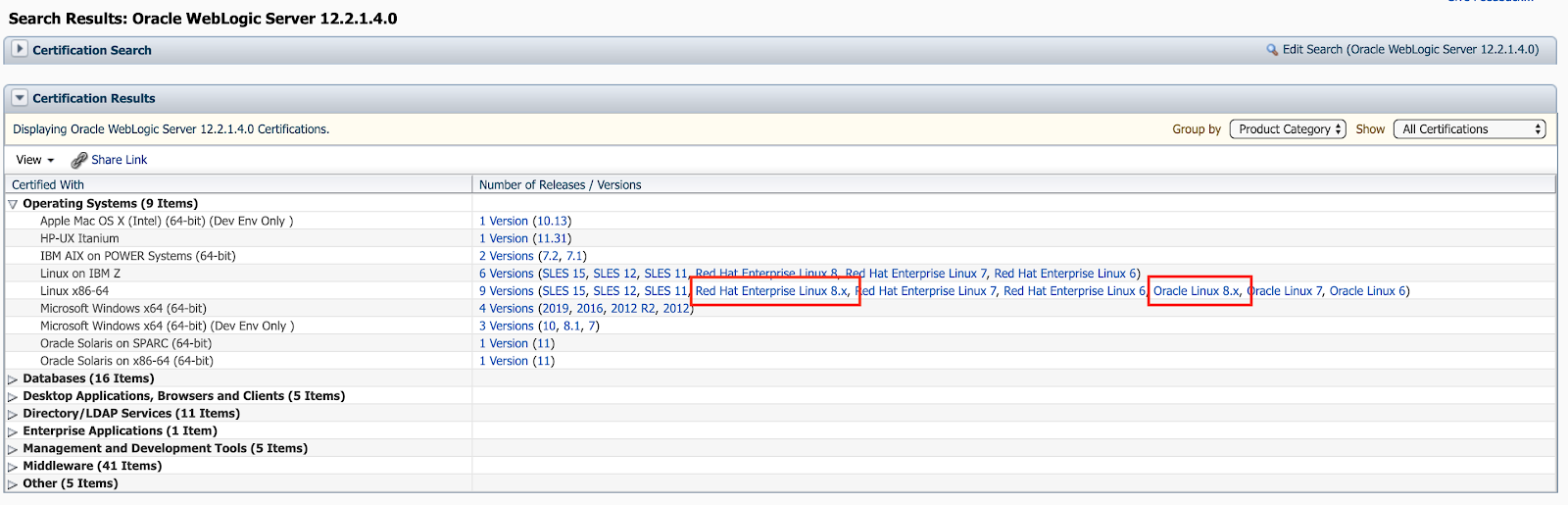
Oracle Fusion Middleware 12.2.1.4.0 certified with Linux 8

Currently Oracle certified the Oracle Fusion Middleware 12.2.1.4.0 Components for the use of Linux 8, which includes the Oracle Linux 8 and the Red Hat Enterprise Linux 8.

You can find the newly added certifications in My Oracle Support (https://support.oracle.com) under the tab Certifications:

Oracle WebLogic 12.2.1.4.0 Certification:


Oracle Forms & Reports 12.2.1.4.0 Certification:


Oracle SOA Suite 12.2.1.4.0 Certification:


Moreover you can find the corresponding Oracle Fusion Middleware 12c Certifications under https://www.oracle.com/middleware/technologies/fusion-certification.html and there the Excel Sheet https://www.oracle.com/technetwork/middleware/fmw-122140-certmatrix-5763476.xlsx which contains the newly added certification for Linux 8 (Oracle Linux 8 and Red Hat Enterprise Linux 8).

Under the "Oracle Fusion Middleware System Requirements and Specifications" documentation for 12.2.1.4.0 in the section "Linux Operating System Requirements" (https://docs.oracle.com/en/middleware/fusion-middleware/12.2.1.4/sysrs/system-requirements-and-specifications.html#GUID-37C51062-3732-4A4B-8E0E-003D9DFC8C26) you can find all required packages to be installed.
Take note that 2 of them are EL7 packages (compat-libcap1-1.10-7.el7.x86_64 and compat-libstdc++-33-3.2.3-72.el7.x86_64), which are not longer present in the Linux 8 distributions, so when you install your Fusion Middleware 12.2.1.4.0 components just ignore the warnings/failure for the 2 EL7 packages by using the Skip button in the graphical installer.


Friday, June 28, 2019

Oracle 19c Certified for Oracle Fusion Middleware 12.2.1.2.0 and 12.2.1.3.0

Since a few days Oracle updated the Certified Matrix for the Oracle Fusion Middleware Products concerning certified Oracle Databases.

Now Oracle 19c (19.3+) is certified with Oracle Fusion Middleware 12.2.1.2.0 and 12.2.1.3.0.

For example Oracle WebLogic Server 12.2.1.3.0 / 12.2.1.2.0 can use an Oracle 19c Database as target database for AppData, Repository Creation Utility (RCU) and WLS Features.


The same applies to Oracle Forms & Repors 12.2.1.3.0 / 12.2.1.2.0.


As well for Oracle SOA Suite 12.2.1.3.0 / 12.2.1.2.0


The complete certification matrix can be retrieved either in My Oracle Support https://support.oracle.com under the tab "Certifications" or on the Oracle Technical Resources (formerly Oracle Technology Network) website https://www.oracle.com/technetwork/middleware/ias/downloads/fusion-certification-100350.html


Wednesday, March 21, 2018

Oracle SOA Suite 12c - Purge

Many people struggle with the configuration and execution of the SOA Purge functionality under Oracle SOA Suite 12c.

Oracle provided with SOA Suite 12c a nice web interface for enabling, and scheduling the AutoPurge functionality within the Enterprise Manager Fusion Middleware Control 12c.

But in case you just enable, schedule and define your retention time for the AutoPurge within this web interface nothing will be happen :-( You have to modify in addition some MBeans in order to enable and execute your AutoPurge Schedules correctly.

Simply login to your Enterprise Manager Fusion Middleware Control 12c (usually http://servername:/em), open the Target Navigation, navigate to "SOA/soa-infra" (in case you got a clustered environment, simply pick one of the available soa-infra, changes will be valid for all cluster members):


Under your soa-infra open the menu "SOA Infrastructure / SOA Administration / Auto Purge"


In the Auto Purge option you will have to define multiple sections.

  • Pick your "Auto Purge Job":
    • SOA Flow Purge Job 1
    • SOA Flow Purge Job 2
    • SOA In-Memory Flow Purge Job
    • Integration Workload Statistics Purge Job
    • Health Check Purge Job
  • Activate the "Enable" button
  • Define your "Job Schedule"
  • Set your "Retain Data"
  • Hit the Apply Button
  • Finally click the Link "More Auto Purge Configuration Properties...": this will bring you to the System MBean Browser to set the necessary options, so that your Auto Purge Job will really do something :-)


In the System MBean Browser you will be pointed directly to the Application Defined MBeans: AutoPurgeJobConfig:purge.
There you will find the Attribute "PurgeJobDetails", simply click it


Under the Attribute PurgeJobDetails you will see under the Key following Structure:

  • PurgeJobDetails
    • DELETE_INSTANCES_AUTO_JOB1
    • DELETE_INSTANCES_AUTO_JOB2
    • DELETE_INMEMORY_JOB1
    • DELETE_AWR_JOB1
    • DELETE_HC_JOB1
Open the DELETE_INSTANCES_AUTO_JOB1


Below the DELETE_INSTANCES_AUTO_JOB1 you will need to align the Key / Element pairs:

  • maxCreationPeriodDays, default value is -1, which means it's DISABLED !!!
  • minCreationPeriodDays, default value is -1, which means it's DISABLED !!!
  • purgePartitionedComponent, default is false, which means you don't have Partitions in your Metadata Repository tables


In my case, I have defined a retentionPeriod of 7 (under the Auto Purge Option, it's called Retain Data), so I have to set my maxCreationPeriodDays to retentionPeriod + 1 = 8 and my minCreationPeriodDays I define with 250. In case your SOA Metadata Repository was created with the profile LARGE in the Repository Creation Utility (rcu), you will have Partitions in several Metadata Repository tables, so you will need to align the value for purgePartitionedComponent from false to true.


Finally go up to the top of the current page and hit the button "Apply" to save your changes.


Now your Auto Purge Job will really purge data in your SOA Metadata Repository. Either wait to the next scheduled execution or execute the Auto Purge Job manually.


In order to check the executions of your Auto Purge Jobs, you can easily query the table SOA_PURGE_HISTORY under your SOAINFRA schema. Under the columns START_TIME and END_TIME you will see the start and end time of the Purge Job, under the column T you can see if your Job execution was single or parallel loop, under the column THREAD you will find the number of parallel threads and under the column S you will find the status of your Job execution, C = Completed, R = Running

 select * from SOA_PURGE_HISTORY order by 1;
    JOB_NO START_TIME                     END_TIME                       T     THREAD S
---------- ------------------------------ ------------------------------ - ---------- -
       442 14-MAR-18 12.00.03.227904 AM   14-MAR-18 12.00.03.677408 AM   S          0 C
       462 15-MAR-18 12.00.00.795402 AM   15-MAR-18 12.00.01.217016 AM   S          0 C
       482 16-MAR-18 12.00.03.573783 AM   16-MAR-18 12.00.04.036468 AM   S          0 C
       483 17-MAR-18 12.00.02.378165 AM   17-MAR-18 12.00.02.863812 AM   S          0 C
       503 18-MAR-18 12.00.02.381384 AM   18-MAR-18 12.00.02.862942 AM   S          0 C
       523 19-MAR-18 12.00.01.608355 AM   19-MAR-18 12.00.02.016223 AM   S          0 C
       524 20-MAR-18 12.00.03.018806 AM   20-MAR-18 12.00.03.347581 AM   S          0 C
       543 21-MAR-18 12.00.02.885658 AM   21-MAR-18 12.00.03.341806 AM   S          0 C
       544 21-MAR-18 01.12.56.213402 PM   21-MAR-18 01.12.58.535938 PM   S          0 C

Enjoy your SOA Purging :-)


Thursday, July 27, 2017

Check Composite State of Oracle SOA Suite by Command Line

I was currently fighting a bit with the monitoring of Oracle SOA Suite 12c Composites.

The goal was to check the state of deployed Composites on an Oracle SOA Suite 12c with following requirements/dependencies:

  • No Oracle Cloud Control
  • Capture only Active Composites and not Retired Composites
After some discussions with colleagues and a lot of Google and serveral tests with Python Scripts in wlst, I came to following solution:

  • one main Pythin Script, called check_composite_state.py which is checking the State of a non retired given Composite Name for a given Partition|Folder and a given Managed Server
  • one property file called domain.properties which will be used by the Python Script in order to build the required connect string to the Admin Server of the SOA Suite
  • one wrapper Shell Script, which takes the required 3 Arguments (Name of Managed Server, Composite Name and Partition|Folder Name)

Property File domain.properties
# Replace the below given values with your settings
admin.url=wlssoa1:7001
admin.userName=weblogic
admin.password=Oracle12c

Python Script check_composite_state.py
# ============================================================
#
# Script: check_composite_state.py
#
# Author: Dirk Nachbar, http://dirknachbar.blogpost.com
#
# Purpose: Checks the state of a given Composite
#          for Oracle SOA Suite 12c
#
# ============================================================

import sys;
from java.util import Date
from java.text import SimpleDateFormat
from java.io import File
from java.io import FileOutputStream
from java.io import FileInputStream

# Load the WLS Connection Credential and establish the connection
propInputStream = FileInputStream("domain.properties")
configProps = Properties()
configProps.load(propInputStream)
adminURL=configProps.get("admin.url")
adminUserName=configProps.get("admin.userName")
adminPassword=configProps.get("admin.password")
managedServer=sys.argv[1]
compositeName=sys.argv[2]
partitionName=sys.argv[3]

# Initialization of Logfile
f = File('logs/' + compositeName + '.log')
fos = FileOutputStream(f)
theInterpreter.setOut(fos)

# Perform the Connect to the AdminServer of the SOA Suite
connect(adminUserName,adminPassword,adminURL)

domainRuntime()

for n in mbs.queryNames(ObjectName('oracle.soa.config:Location=' + managedServer + ',partition=' + partitionName + ',j2eeType=SCAComposite,name="' + compositeName + '",*'), None):
    RetiredFlag = mbs.getAttribute(n,'Mode')
    if RetiredFlag != 'retired':
        print 'Name: ' + mbs.getAttribute(n, 'Name')
        print 'Mode: ' + mbs.getAttribute(n,'Mode')
        print 'State: ' + mbs.getAttribute(n,'State')


Wrapper Shell Script check_composite_state.sh
In line 13 of the Script, align the Variable OracleHome to your Oracle Home Location
In line 66 of the Script, align the directory location were to find the check_composite_state.py Python Script
#!/bin/bash
# ============================================================
#
# Script: check_composite_state.sh
#
# Author: Dirk Nachbar, http://dirknachbar.blogspot.com
#
# Purpose: Wrapper Script to check the state of a given Composite
#          for Oracle SOA Suite 12c
#
# ============================================================

OracleHome=/data/oracle/product/fmw-soa-12.2.1.2.0

#---------------------------------------------------------------------
Usage()
#
# PURPOSE: Displays the Usage of the script
#---------------------------------------------------------------------
{
cat << EOF
Usage: check_composite_state.sh -s <ManagedServer> -c <CompositeName> -p <Partition|Folder>
       Monitoring script for SOA Suite Composite

Parameters:
   -s: Name of the Managed SOA Server
   -c: Name of Composite to be checked
   -p: Name of Parition | Folder

e.g. check_composite_state.sh -s soa_server1 -c PayPal -p default

EOF
exit 1
}

#---------------------------------------------------------------------
CheckParams()
#
# PURPOSE: Checks the input Parmeter
#---------------------------------------------------------------------
{
    if [ "${ManagedServer}" = "" ] ; then
        echo "ERR: Missing parameter(s), the flags -s must be used."
        Usage
    fi

    if [ "${CompositeName}" = "" ] ; then
        echo "ERR: Missing parameter(s), the flags -c must be used."
        Usage
    fi

    if [ "${Partition}" = "" ] ; then
        echo "ERR: Missing parameter(s), the flags -p must be used."
        Usage
    fi

}

#---------------------------------------------------------------------
CallCheckCompositeState()
#
# PURPOSE: Calls the check_composite_state.py Script
#---------------------------------------------------------------------
{

${OracleHome}/oracle_common/common/bin/wlst.sh /home/oracle/check_composite_state.py ${ManagedServer} ${CompositeName} ${Partition}

}

#---------------------------------------------------------------------
# MAIN
#---------------------------------------------------------------------

ManagedServer=''
CompositeName=''
Partition=''

while getopts s:c:p:h: CurOpt; do
    case ${CurOpt} in
        s) ManagedServer="${OPTARG}" ;;
        c) CompositeName="${OPTARG}" ;;
        p) Partition="${OPTARG}"     ;;
        h) Usage           exit 1    ;;
        ?) Usage           exit 1    ;;
    esac
done
shift $((${OPTIND}-1))

if [ $# -ne 0 ]; then
    Usage
fi

# Check Input Parameters
CheckParams

# Start the Check State of Composite
CallCheckCompositeState

Create the 3 above provided files in one location, align the said Variables and/or directory location and create a subdirectory called "logs" in the directory. Than call the Wrapper Shell Script with following options:
#
# ./check_composite_state.sh -s <Name of Managed Server> -c <Composite Name> -p <Partition|Folder>
# for example:
./check_composite_state.sh -s soa_server1 -c PayPal -p default


Under the directory logs you will find an outfile with naming convention CompositeName.log with the Status of your Composite
cd logs
cat PayPal.log

Connecting to t3://wlssoa1:7001 with userid weblogic ...
Successfully connected to Admin Server "DEVAdminServer" that belongs to domain "dev_domain".

Warning: An insecure protocol was used to connect to the server.
To ensure on-the-wire security, the SSL port or Admin port should be used instead.

Location changed to domainRuntime tree. This is a read-only tree
with DomainMBean as the root MBean.
For more help, use help('domainRuntime')

Name: PayPal [1.0]
Mode: active
State: on


Happy Composite State Checking ... :-)

Thursday, February 9, 2017

SOA 12.2.1.2.0: Schedule your Integration Workload Statistics (IWS) Report by Command Line

From Oracle SOA Suite 12.2.1 on, Oracle added a nice feature - The Integration Workload Statistics, which you can compare to an Oracle Database AWR report for your SOA Suite.

Kevin King from AVIO Consulting has released for this a really good blog post about the IWS http://www.avioconsulting.com/blog/no-more-hidden-soa-performance-problems

As I am more coming from the Administration site, I prefer to have script-based solutions.

Here I will show you how to scheduled an automated way for the generation of your Integration Workload Statistics including mailing of the report for UNIX platforms:

On your server which is hosting your SOA suite simply perform following steps as SOA Suite Software owner:


cd $HOME
mkdir -p iws_report/logs
cd iws_report

Create in the new folder $HOME/iws_report a script called create_soa_iws_report.ksh with following content:

#!/bin/ksh
#
# Author: Dirk Nachbar
#
# Purpose: Script to create an IWS Report for a given SOA Domain
#          and Managed Server
#
#---------------------------------------------------------------------


#---------------------------------------------------------------------
# CONSTANTS
#---------------------------------------------------------------------
MyName="$(basename $0)"
# Align the value for your Middleware Home directory
MW_HOME=/u00/app/oracle/product/fmw-soa-12.2.1.2.0
WorkDir=`pwd`


#---------------------------------------------------------------------
Usage()
#
# PURPOSE: Verwendung
#---------------------------------------------------------------------
{

  echo "ERR: create_soa_iws_report.ksh called with wrong parameters"
  cat <<_EOI

SYNOPSIS
       create_soa_iws_report.ksh  -d <Domain_Name> -s <ManagedServer> 
               -t <Number of Hours to look back>
               
DESCRIPTION
       
Creation of IWS Report for a given SOA Domain and Managed Server

_EOI


    exit 1
}

#---------------------------------------------------------------------
CheckParams()
#
# PURPOSE: Checks the input Parmeters 
#---------------------------------------------------------------------
{
    if [ "${TheDomain}" = "" ] ; then
        echo "ERR: Missing parameter(s), the flags -d must be used."
        Usage
    fi

    if [ "${TheManagedServer}" = "" ] ; then
        echo "ERR: Missing parameter(s), the flags -s must be used."
        Usage
    fi

    if [ "${TheHoursBack}" = "" ] ; then
        echo "ERR: Missing parameter(s), the flags -t must be used."
        Usage
    fi

}


#---------------------------------------------------------------------
CreateIWSReport()
#
# PURPOSE: Creates an IWS Report for the given ManagedServer
#
#---------------------------------------------------------------------
{

echo "STARTING: Creating IWS Report for ${TheDomain} / ${TheManagedServer} over the last ${TheHoursBack} hours"
HighDate="$(date '+%Y-%m-%dT%H:%M:%S+0200')"

LowDate=$(eval "date '+%Y-%m-%dT%H:%M:%S+0200' -d '${TheHoursBack} hours ago'")

LogFileDate="$(date '+%Y-%m-%d_%H:%M:%S')"

export TheLogFile=${WorkDir}/logs/iws_report_${TheDomain}_${TheManagedServer}_${LogFileDate}.html


${MW_HOME}/oracle_common/common/bin/wlst.sh ${WorkDir}/soa_iws_report.py ${TheManagedServer} ${LowDate} ${HighDate}

echo "DONE: Creating IWS Report for ${TheDomain} / ${TheManagedServer} over the last ${TheHoursBack} hours"
echo "INFO: IWS Report = ${TheLogFile}"


}

#---------------------------------------------------------------------
MailIWSReport()
#
# PURPOSE: Mail the prior create IWS Report 
#
#---------------------------------------------------------------------
{

# Getting the Email Recipients
ConfigFile=${TheManagedServer}.properties

TheMailRecipients="$(cat ${WorkDir}/${ConfigFile} | grep -i "^mailrecipients=" | head -n 1 | cut -d= -f2-)"
TheEmailSubject="IWS for ${TheDomain} - ${TheManagedServer}"

echo "STARTING: Mail the IWS Report ${TheLogFile}"

echo "IWS Report" | mailx -s "${TheEmailSubject}" -a ${TheLogFile} ${TheMailRecipients}

echo "DONE: Mail the IWS Report ${TheLogFile}"

}


#---------------------------------------------------------------------
# MAIN
#---------------------------------------------------------------------

TheDomain=""
TheManagedServer=""
TheHoursBack=""

while getopts d:s:t:h: CurOpt; do
    case ${CurOpt} in
        d) TheDomain="${OPTARG}"        ;;
        s) TheManagedServer="${OPTARG}" ;;
        t) TheHoursBack="${OPTARG}"     ;;
        h) Usage           exit 1       ;;
        ?) Usage           exit 1       ;;
    esac
done
shift $((${OPTIND}-1))

if [ $# -ne 0 ]; then
    Usage
fi


CheckParams

CreateIWSReport

MailIWSReport


Create in the folder $HOME/iws_report a property file with following naming convention <your_managed_server_name>.properties and fill it with following content:

domain.name=<your_domain_name>
soa.url=<your_server_name>:<port_of_your_managed_server>
admin.userName=weblogic
admin.password=<password_of_weblogic_user>
mailrecipients=<email>


Moreover we need in the $HOME/iws_report directory a Python script named soa_iws_report.py with following content:

# ============================================================
#
# Script: soa_iws_report.py
#
# Author: Dirk Nachbar
#
# Purpose: Generates an IWS Report based on input time range
#
# ============================================================

import sys, os, getopt
from java.util import Date
from java.text import SimpleDateFormat
from java.io import File
from java.io import FileOutputStream
from java.io import FileInputStream

# Load the WLS Connection Credential and establish the connection
propInputStream = FileInputStream(sys.argv[1]+".properties")
# propInputStream = FileInputStream("domain.properties")
configProps = Properties()
configProps.load(propInputStream)
domainName=configProps.get("domain.name")
soaURL=configProps.get("soa.url")
adminUserName=configProps.get("admin.userName")
adminPassword=configProps.get("admin.password")
LogFile=os.environ['TheLogFile']

connect(adminUserName,adminPassword,soaURL)

getSoaIWSReportByDateTime(sys.argv[1], 0, sys.argv[2], sys.argv[3], 'default', None, 10, 'html', LogFile)
disconnect()


After that validate that the IWS is activated, either by Enterprise Manager Fusion Middleware or with wlst:

cd $ORACLE_HOME/oracle_common/common/bin
./wlst.sh
Initializing WebLogic Scripting Tool (WLST) ...

Welcome to WebLogic Server Administration Scripting Shell

Type help() for help on available commands

wls:/offline> connect('weblogic','<your_weblogic_password>','<your_server_name>:<port_of_your_managed_server>')

# Check the current status of the IWS
wls:/demo_domain/serverConfig/> getSoaIWSStatisticsLevel()

Successfully executed the command. SOA IWS Statistics Level is : OFF

# Check the current Snapshot Interval for IWS
wls:/demo_domain/serverConfig/> getSoaIWSSnapshotInterval()

Successfully executed the command. SOA IWS Snapshot Interval is : 10 minutes.

# List all available Statistics Levels
wls:/demo_domain/serverConfig/> getSoaIWSStatisticsLevelList()

Successfully executed the command. SOA IWS Statistics Level List : 
--------------------------------------------------------------
FINEST
NORMAL
BASIC
MINIMUM
OFF
--------------------------------------------------------------

# Set your IWS Statistics Level, e.g. NORMAL
wls:/demo_domain/serverConfig/> setSoaIWSStatisticsLevel('NORMAL')

# Validate your IWS Statistics Level
wls:/demo_domain/serverConfig/> getSoaIWSStatisticsLevel()

Successfully executed the command. SOA IWS Statistics Level is : NORMAL

wls:/demo_domain/serverConfig/> exit()


Perform some activities on your SOA Suite and after some time run the create_soa_iws_report.ksh:

cd $HOME/iws_report
./create_soa_iws_report.ksh
ERR: Missing parameter(s), the flags -d must be used.
ERR: create_soa_iws_report.ksh called with wrong parameters

SYNOPSIS
       create_soa_iws_report.ksh  -d <domain_name> -s <managedserver> 
               -t <Number of Hours to look back>
               
DESCRIPTION
       
Creation of IWS Report for a given SOA Domain and Managed Server

./create_soa_iws_report.ksh -d demo_domain -s soa_server1 -t 1

STARTING: Creating IWS Report for demo_domain / soa_server1 over the last 1 hours

Initializing WebLogic Scripting Tool (WLST) ...

Welcome to WebLogic Server Administration Scripting Shell

Type help() for help on available commands

Connecting to t3://soaserver1:7004 with userid weblogic ...
Successfully connected to managed Server "soa_server1" that belongs to domain "demo_domain".

Warning: An insecure protocol was used to connect to the server. 
To ensure on-the-wire security, the SSL port or Admin port should be used instead.


Successfully executed the command. Report generated in the file given.

Disconnected from weblogic server: soa_server1
DONE: Creating IWS Report for demo_domain / soa_server1 over the last 1 hours
INFO: IWS Report = /home/oracle/iws_report/logs/iws_report_demo_domain_soa_server1_2017-02-09_15:58:23.html
STARTING: Mail the IWS Report /home/oracle/iws_report/logs/iws_report_demo_domain_soa_server1_2017-02-09_15:58:23.html
DONE: Mail the IWS Report /home/oracle/iws_report/logs/iws_report_demo_domain_soa_server1_2017-02-09_15:58:23.html


Now you should find in your Inbox for your Mail your IWS Report and under the $HOME/iws_report/logs directory the generated HTML IWS Report.

Friday, December 9, 2016

Install and Configure Oracle SOA Suite 12c with 2 different Linux Users

I am currently involved in a project were one requirement is, that the Oracle Software (WebLogic Server and Oracle SOA Suite) is installed by one Linux User and the on top to be used Oracle SOA Domain should be created and started as another Linux User.

In general that's according to the Oracle Documentation for Oracle SOA Suite 12.2.1.2.0 possible


But there is a small and important note: Certain domain files do not have the group permissions. For example, cwallet.sso.

Oracle is just providing one file (cwallet.sso) out of certain files which are lacking from the correct group permission.

Before you run in the same try-and-error procedure to find out the complete list of files which needs to be aligned, here are my list of files, which I aligned and afterwards I could create my SOA Domain under a second Linux User.

Let's assume following scenario:

  • Oracle Software Owner is: oracle
  • Primary Group of User oracle is: oinstall
  • SOA Domain Owner is: soa
  • Primary Group of User soa is: oinstall

Connect as Oracle Software Owner oracle and perform following chmod commands

chmod 660 $ORACLE_HOME/oracle_common/modules/oracle.jps/domain_config/wls/system-jazn-data.xml
chmod 660 $ORACLE_HOME/oracle_common/modules/oracle.jps/domain_config/cwallet.sso
chmod 660 $ORACLE_HOME/oracle_common/modules/oracle.jps/domain_config/audit-store.xml

After the above alignments you can start to create your SOA Domain with $ORACLE_HOME/oracle_common/common/bin/config.sh as Linux User soa.


Sunday, October 25, 2015

Several New Oracle Fusion Middleware Components 12.2.1 available

Oracle has been busy releasing several new Release for various Oracle Fusion Middleware Components on Friday 23rd October 2015

Oracle WebLogic Server is now available as Release 12.2.1
Download can be found here: http://www.oracle.com/technetwork/middleware/weblogic/downloads/index.html

  • There are in general 3 options available for the latest Oracle WebLogic Server 12.2.1
    • Quick Installer for Developers for Windows, Linux and MAC OS X
    • Generic Installer
    • Fusion Middleware Infrastructure Installer
Oracle Forms & Reports is now also available in the Release 12.2.1
Download can be found here:

  • The latest Oracle Forms & Reports 12c (12.2.1) is available for following Operating Systems:
    • Windows 64bit
    • Linux x86-64
    • Oracle Solaris on SPARC (64bit)
    • Oracle Solaris on Intel (x86-84)
    • HP UX Itanium
    • IBM AIX on Power Systems (64bit)
Oracle Business Intelligence Enterprise Edition (OBIEE) is also released for 12.2.1.0.0
Download can be found here:

Oracle WebCenter has also been release with 12.2.1.
Oracle SOA Suite comes also along in a new release with 12.2.1


Happy Download :-)