This Blog is discontinued, its only read-only

Showing posts with label Oracle HTTP Server. Show all posts

Wednesday, May 8, 2019

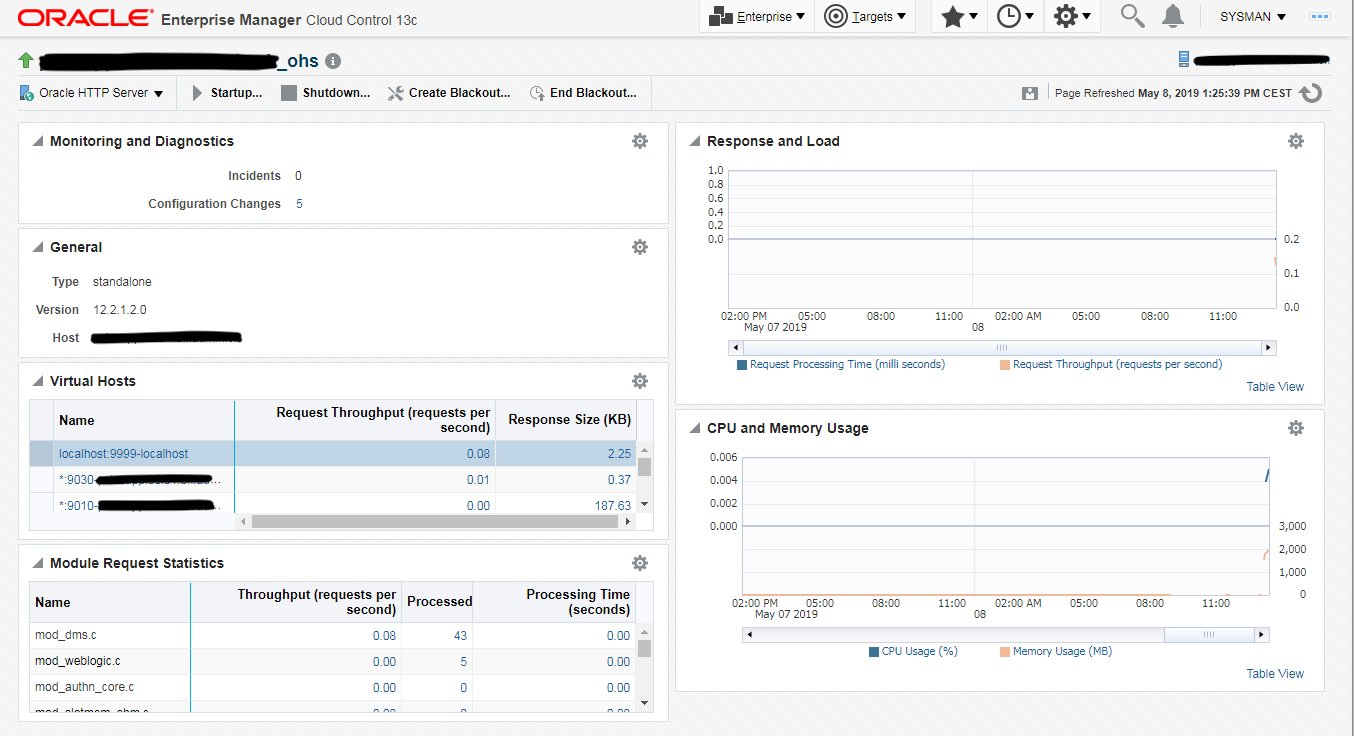
No Metrics visible for Standalone Oracle HTTP Server in Cloud Control 13c

Currently I had the problem within Oracle Cloud Control 13c (13.3), that when I added an Oracle HTTP Server Standalone 12.2.1.x, Cloud Control 13c was not able to display any kinds of metrics from the Oracle HTTP Server.


As you can see from the above screenshot, Cloud Control was able to show me the correct status (UP), but Cloud Control could not see any metrics or even no configured Virtual Hosts.

The problem is within the Oracle HTTP Server 12.2.1.x, as the Oracle HTTP Server doesn't contain all required dms jar files.

To solve this problem, simply apply the patch 22860384, which is available for following Oracle HTTP Server Releases:
  • 12.2.1.0.0
  • 12.2.1.1.0
  • 12.2.1.2.0


Download the patch for your Oracle HTTP Server Release, copy the patch to the server on which your Oracle HTTP Server is running and apply the patch:

# Stop your Oracle HTTP Server
$ cd $DOMAIN_HOME/bin
$ ./stopComponent <OHS Component Name>

# extract the zip file and go into the subdirectory 22860384
$ cd 22860384
$ $ORACLE_HOME/OPatch/opatch apply

Oracle Interim Patch Installer version 13.9.1.0.0
Copyright (c) 2019, Oracle Corporation.  All rights reserved.


Oracle Home       : /appl/oracle/product/fmw-webtier-12.2.1.2.0
Central Inventory : /appl/oracle/oraInventory
   from           : /appl/oracle/product/fmw-webtier-12.2.1.2.0/oraInst.loc
OPatch version    : 13.9.1.0.0
OUI version       : 13.9.1.0.0
Log file location : /appl/oracle/product/fmw-webtier-12.2.1.2.0/cfgtoollogs/opatch/opatch2019-05-08_13-21-31PM_1.log


OPatch detects the Middleware Home as "/appl/oracle/product/fmw-webtier-12.2.1.2.0"

Verifying environment and performing prerequisite checks...
OPatch continues with these patches:   22860384

Do you want to proceed? [y|n]
y
User Responded with: Y
All checks passed.

Please shutdown Oracle instances running out of this ORACLE_HOME on the local system.
(Oracle Home = '/appl/oracle/product/fmw-webtier-12.2.1.2.0')


Is the local system ready for patching? [y|n]
y
User Responded with: Y
Backing up files...
Applying interim patch '22860384' to OH '/appl/oracle/product/fmw-webtier-12.2.1.2.0'
ApplySession: Optional component(s) [ oracle.jmx, 12.2.1.0.0, higher version 12.2.1.2.0 found. ]  not present in the Oracle Home or a higher version is found.

Patching component oracle.jrf.thirdparty.jee, 12.2.1.2.0...

Patching component oracle.jrf.thirdparty.jee, 12.2.1.2.0...
Patch 22860384 successfully applied.
Log file location: /appl/oracle/product/fmw-webtier-12.2.1.2.0/cfgtoollogs/opatch/opatch2019-05-08_13-21-31PM_1.log

OPatch succeeded.

# Startup your Oracle HTTP Server
$ cd $DOMAIN_HOME/bin
$ ./startComponent <OHS Component Name>

Now wait some minutes or if you are not really patient, perform on the Oracle Cloud Control Agent 13 multiple times "emctl upload agent"

After some time you should be able now to see in your configured Oracle HTTP Server Target in the Oracle Cloud Control 13c all metrics and even configured Virtual Hosts.


Monday, April 10, 2017

Silent Installation and Configuration of Standalone Oracle HTTP Server

Currently I am working in a project for which will be needed the Oracle HTTP Server (OHS) in a Standalone Mode as a frontend Web Server for a Oracle SOA 12.2.1.2.0 environment.

As I am not really a fan of clicking through several installers and configuration wizards, I have created some scripts for a complete silent installation of the Standalone Oracle HTTP Server 12.2.1.2.0 and on top a silent configuration of the standalone Domain for the Oracle HTTP Server.

Silent Installation of the Oracle HTTP Server Software

For the following example, we will use following naming convention:
  • MW_HOME=/u00/app/oracle/product/fmw-webtier-12.2.1.2.0
  • JAVA_HOME=/u00/app/oracle/product/jdk1.8.0_121
  • DOMAIN_HOME=/u00/app/oracle/user_projects/domains/ohs_domain
Download at first the required installation software from Oracle Technology Network http://www.oracle.com/technetwork/middleware/webtier/downloads/index.html and transfer the installation software to your target server, e.g. /u00/app/oracle/tmp.


Make sure you that you have a JDK 1.8 on your server, I prefer to install the JDK under the Oracle user, e.g. /u00/app/oracle/product/jdk1.8.0_121

Connect to your server as oracle user and create following files under the directory /u00/app/oracle/tmp

webtier.rsp
[ENGINE]
Response File Version=1.0.0.0.0
[GENERIC]
ORACLE_HOME=/u00/app/oracle/product/fmw-webtier-12.2.1.2.0
INSTALL_TYPE=Standalone HTTP Server (Managed independently of WebLogic server)
DECLINE_SECURITY_UPDATES=true
SECURITY_UPDATES_VIA_MYORACLESUPPORT=false

oraInst.loc
inst_group=oinstall
inventory_loc=/u00/app/oracle/oraInventory

Now we can extract the installation software and install the Oracle HTTP Server in silent mode
oracle@server> cd /u00/app/oracle/tmp
oracle@server> unzip fmw_12.2.1.2.0_ohs_linux64_Disk1_1of1.zip
oracle@server> ./fmw_12.2.1.2.0_ohs_linux64.bin -jreLoc /u00/app/oracle/product/jdk1.8.0_121 -silent -responseFile /u00/app/oracle/tmp/webtier.rsp -invPtrLoc /u00/app/oracle/tmp/oraInst.loc

0%...................................................................................................100%
Launcher log file is /tmp/OraInstall2017-04-10_12-39-12PM/launcher2017-04-10_12-39-12PM.log.
Checking if CPU speed is above 300 MHz.   Actual 2194.918 MHz    Passed
Checking swap space: must be greater than 512 MB.   Actual 3071 MB    Passed
Checking if this platform requires a 64-bit JVM.   Actual 64    Passed (64-bit not required)
Checking temp space: must be greater than 300 MB.   Actual 8528 MB    Passed
. . .
. . .
Percent Complete : 90
Visit http://www.oracle.com/support/policies.html for Oracle Technical Support policies.
Percent Complete : 100

The installation of Oracle HTTP Server 12.2.1.2.0 completed successfully.
Logs successfully copied to /u00/app/oracle/oraInventory/logs.

Now we have installed the Oracle HTTP Server Software.

Silent Configuration of the Standalone Domain for the Oracle HTTP Server

The next step is to configure in a silent way the required Standalone Domain for our Oracle HTTP Server.

For this I have 3 scripts:

  • setLocalEnv.sh = contains all necessary Environment Variables for the creation of the Standalone Domain
  • cr_ohs_domain.sh = Wrapper Script to source the setLocalEnv.sh and execute the cr_ohs_domain.py
  • cr_ohs_domain.py = Python Script to create the Standalone Domain for the Oracle HTTP Server

setLocalEnv.sh
#
# Author: Dirk Nachbar
#
# http://dirknachbar.blogspot.com
#
# Environment Script for silent Standalone OHS Domain Creation
# 
#
export SCRIPT_HOME=$PWD
export MW_HOME=/u00/app/oracle/product/fmw-webtier-12.2.1.2.0
export WLST_HOME=$MW_HOME/oracle_common/common/bin
export JAVA_HOME=/u00/app/oracle/product/jdk1.8.0_121
export DOMAIN_NAME=ohs_domain
export DOMAIN_HOME=/u00/app/oracle/user_projects/domains/$DOMAIN_NAME
export NM_LISTENADDRESS=`hostname -f`
export NM_TYPE=SSL
export NM_PORT=5557
export NM_USERNAME=nodemanager
export NM_PASSWORD=welcome1
export NM_HOME=$DOMAIN_HOME/nodemanager
export OHSINSTANCENAME=ohs1
export OHSADMINPORT=9999
export OHSHTTPPORT=7777
export OHSHTTPSPORT=4443

The above Environment Variables are all self-explained, you may align them to your specific needs.
cr_ohs_domain.sh
#!/bin/sh
#
# Author: Dirk Nachbar
#
# http://dirknachbar.blogspot.com
#
# Shell Script Wrapper for Silent Standalone OHS Domain Creation
#

start_time=$(date +%s)

. $PWD/setLocalEnv.sh

echo "============================================="
echo " Program: cr_ohs_domain.sh              ....."
echo "============================================="

if [ -z "${WLST_HOME}" ]; then
   echo " Environment not correctly set - please verify"
   exit 1
fi

if ! test -d "${DOMAIN_HOME}"; then
   echo "============================================="
   echo " Domain will be installed               ....."
   echo "============================================="
   if [ -z "${MW_HOME}" -o -z "${JAVA_HOME}" -o -z "${DOMAIN_NAME}" -o -z "${DOMAIN_HOME}" -o -z "${NM_LISTENADDRESS}" -o -z "${NM_TYPE}" -o -z "${NM_PORT}" -o -z "${NM_USERNAME}" -o -z "${NM_PASSWORD}" -o -z "${NM_HOME}" -o -z "${OHSADMINPORT}" -o -z "${OHSHTTPPORT}" -o -z "${OHSHTTPSPORT}" ]; then
      echo " Environment not set - Exit"
      exit 1
   fi

   # In case we are facing problems with /dev/random
   export CONFIG_JVM_ARGS=-Djava.security.egd=file:/dev/./urandom:$CONFIG_JVM_ARGS

   ${WLST_HOME}/wlst.sh ${SCRIPT_HOME}/cr_ohs_domain.py

   # Set End Time
   finish_time=$(date +%s)
   echo "Finished"
   echo "Domain Build Time: $(( $((finish_time - start_time))/60))  minutes."
 else
   echo "Domain is already installed ..."
fi

cr_ohs_domain.py
#!/usr/bin/python
#
# Author: Dirk Nachbar
#
# http://dirknachbar.blogspot.com
#

import os, sys

v_mwHome=os.environ['MW_HOME']
v_jdkHome=os.environ['JAVA_HOME']
v_domainHome=os.environ['DOMAIN_HOME']
v_domainName=os.environ['DOMAIN_NAME']
v_NMUsername=os.environ['NM_USERNAME']
v_NMPassword=os.environ['NM_PASSWORD']
v_NMHome=os.environ['NM_HOME']
v_NMHost=os.environ['NM_LISTENADDRESS']
v_NMPort=os.environ['NM_PORT']
v_NMType=os.environ['NM_TYPE']
v_OHSInstanceName=os.environ['OHSINSTANCENAME']
v_OHSAdminPort=os.environ['OHSADMINPORT']
v_OHSHTTPPort=os.environ['OHSHTTPPORT']
v_OHSHTTPSPort=os.environ['OHSHTTPSPORT']

readTemplate(v_mwHome +'/wlserver/common/templates/wls/base_standalone.jar')
addTemplate(v_mwHome +'/ohs/common/templates/wls/ohs_standalone_template.jar')

cd('/')
create(v_domainName, 'SecurityConfiguration') 
cd('SecurityConfiguration/' + v_domainName)
set('NodeManagerUsername',v_NMUsername)
set('NodeManagerPasswordEncrypted',v_NMPassword)
setOption('NodeManagerType', 'CustomLocationNodeManager');
setOption('NodeManagerHome', v_NMHome);
setOption('JavaHome', v_jdkHome )

cd('/Machines/localmachine/NodeManager/localmachine')
cmo.setListenAddress(v_NMHost);
cmo.setListenPort(int(v_NMPort));
cmo.setNMType(v_NMType);

delete(v_OHSInstanceName,'SystemComponent')
create (v_OHSInstanceName,'SystemComponent')
cd('/OHS/'+v_OHSInstanceName)
cmo.setAdminPort(v_OHSAdminPort)
cmo.setListenPort(v_OHSHTTPPort)
cmo.setSSLListenPort(v_OHSHTTPSPort)

writeDomain(v_domainHome) 

Now we can execute the cr_ohs_domain.sh which will create silently the Standalone Domain for our Oracle HTTP Server:

oracle@server> cd /u00/app/oracle/tmp
./cr_ohs_domain.sh

=============================================
 Program: cr_ohs_domain.sh              .....
=============================================
=============================================
 Domain will be installed               .....
=============================================

Initializing WebLogic Scripting Tool (WLST) ...

Welcome to WebLogic Server Administration Scripting Shell

Type help() for help on available commands

Finished
Domain Build Time: 1  minutes.

And thats it, now you can start your Oracle HTTP Server Instance named ohs1

oracle@server> cd /u00/app/oracle/user_projects/domains/ohs_domain/bin
oracle@server> ./startNodeManager > /dev/null 2>&1 &
oracle@server> ./startComponent.sh ohs1 storeUserConfig


Friday, April 7, 2017

Switching MPM Type for Oracle HTTP Server 12c

The Oracle HTTP Server (OHS) comes by default with the MPM (Multi-Processing Modules) Type event for Linux systems, but sometimes you need to change the MPM Type for example to prefork.

The Oracle HTTP Server comes by default with 4 MPM Types:
  • Worker: This is the default for non-Linux UNIX Platforms, e.g. Solaris, AIX ...
  • Event: This is the default for Linux Platforms
  • Prefork: This Type implements a non-threaded, pre-forking server, that handles request as an Apache HTTPD Server 1.3
  • WinNT: This is the default for Windows Platforms
For more details about the MPM Types see http://docs.oracle.com/middleware/12212/webtier/administer-ohs/man_server.htm#zzaszzohszzmpm

In case you need to switch the MPM Type, you need at first to check if you have a standalone OHS or a OHS in a WebLogic Server Domain, as the way to switch the MPM Type is depending on these 2 options.

Switching MPM for a standalone OHS:

Simply connect to your server as oracle user and perform following steps:
cd $DOMAIN_HOME/config/fmwconfig/components/OHS/<OHS_Componentname>/

# Open the Config File ohs.plugins.nodemanager.properties
# and add following line at the end
# depending on your desired MPM Type
# mpm = prefork
# mpm = worker
# mpm = event
mpm = prefork

After that restart your OHS with:
cd $DOMAIN_HOME/bin
./stopComponent.sh <OHS_Componentname>
./startComponent.sh <OHS_Componentname> 

Switching MPM for OHS in a WebLogic Domain

Simply connect to your server as oracle user and perform following steps:
$ORACLE_HOME/oracle_common/common/bin/wlst.sh
connect('weblogic', '<AdminPassword>', '<servername>:<Port>')
editCustom()
cd('oracle.ohs')
cd('oracle.ohs:type=OHSInstance.NMProp,OHSInstance=<OHS_Componentname>,component=OHS')
startEdit()
# Set here your desired MPM Type
# possible values are:
# - prefork
# - event
# - worker
# - winnt (only for Windows)
set('Mpm','prefork') 
save()
activate()

After that restart your OHS with:
cd $DOMAIN_HOME/bin
./stopComponent.sh <OHS_Componentname>
./startComponent.sh <OHS_Componentname> 


Tuesday, November 8, 2016

Running Oracle HTTP Server 12c with Privileged Port

In some cases you need to configure a privileged port (less than 1024, typically port 80) within your Oracle HTTP Server 12c Instance.

At first create your Oracle HTTP Server Instance with the wlst tool:

cd $ORACLE_HOME/oracle_common/common/bin
./wlst.sh
Initializing WebLogic Scripting Tool (WLST) ...

Welcome to WebLogic Server Administration Scripting Shell

Type help() for help on available commands
#
# Connect to the WebLogic Domain with your weblogic user,
# password and correct host and port
#
wls:/offline>connect('weblogic','welcome01', 'localhost:7001')
Connecting to t3://localhost:7001 with userid weblogic ...
Successfully connected to Admin Server "FRAdminServer" that belongs to domain "fr_domain".

Warning: An insecure protocol was used to connect to the server. 
To ensure on-the-wire security, the SSL port or Admin port should be used instead.

#
# Provide a unique name for the instanceName and
# provide the Machine Name of your WebLogic Server Domain
# The Machine Name be found within the WebLogic Server Console
# under "Environment / Machine"
#
wls:/fr_domain/serverConfig/> ohs_createInstance(instanceName='ohs2', machine='AdminServerMachine')
Location changed to edit custom tree. This is a writable tree with No root.
For more help, use help('editCustom')

Starting an edit session ...
Started edit session, be sure to save and activate your changes once you are done.
Saving all your changes ...
Saved all your changes successfully.
Activating all your changes, this may take a while ... 
The edit lock associated with this edit session is released once the activation is completed.
Activation completed
OHS instance "ohs2" was successfully created.
wls:/fr_domain/serverConfig/> exit()

As next navigate to your $DOMAIN_HOME/config/fmwconfig/components/OHS/instances/<Your_OHS_InstanceName>/ directory and modify the httpd.conf file as follows:

# Search for the Listen Directive and align to port 80
Listen 80

The next step will be to change the permissions of the $ORACLE_HOME/ohs/bin/launch executable, login as root user to your Server and perform following steps

# Do a backup copy of the current launch executable
cd $ORACLE_HOME/ohs/bin
cp -p launch launch.org
# Change ownership to root
chown root launch
# Change permissions to 4750
chmod 4750 launch
ls -la launch
-rwsr-x---. 1 root oinstall 34073 Oct  5  2015 launch

Now we can start the Oracle HTTP Server Instance, connect as oracle user to your server and perform following steps:

cd $DOMAIN_HOME/bin
# Start the above created Oracle HTTP Server Instance
# First time startup use the option "storeUserConfig"
# and provide the Node Manager password
# Afterwards you will not be prompted again,
# when you startup your Oracle HTTP Server Instance
#
./startComponent.sh ohs2 storeUserConfig
Starting system Component ohs2 ...

Initializing WebLogic Scripting Tool (WLST) ...

Welcome to WebLogic Server Administration Scripting Shell

Type help() for help on available commands

Reading domain from /u00/app/oracle/user_projects/domains/fr_domain
. . .
. . .
Successfully Connected to Node Manager.
Starting server ohs2 ...
Successfully started server ohs2 ...
Successfully disconnected from Node Manager.

Exiting WebLogic Scripting Tool.

Done

Now your Oracle HTTP Server Instance is using a privileged port under UNIX.

Important Notice : If you are running multiple Oracle HTTP Server Instances from one ORACLE_HOME, lets say ohs1 Instance is running on a non privileged port 7777 and ohs2 is running on a privileged port 80, both Oracle HTTP Server Instances are running under root !!! As there is only one launch executable which is now under ownership root.

Sunday, March 6, 2011

Switching Oracle HTTP Server to Port 80

If you are using the Oracle Webtier 11g (11.1.1.2.0 / 11.1.1.3.0 / 11.1.1.4.0) in your projects and specially the Oracle HTTP Server, you face normally the problem, that the Oracle HTTP Server is configured with a Listen Port of 7777 or something like this.
But endusers dont like to remember always the Port number of the Oracle HTTP Server, so the goal is to reconfigure the Oracle HTTP Server. Under a UNIX operating system you have to consider one important point for this task, all ports <1024 belongs to root and normally the Oracle Webtier is installed under a own user (normally user oracle) which don't have root privileges. So the ownership of the .apachectl binary must be changed.

Following steps must be done:
  • Shutdown your Oracle HTTP Server
  • Reconfigure the Listen Port
  • Change the .apachectl binary
  • Restart your Oracle HTTP Server and test
The first step is to shutdown the Oracle HTTP Server, this must be done with opmnctl. The binary you can find under your WebtierHome/instances/instance1/bin.
Connect as the Oracle software user (oracle) to your server

# assuming your MW_HOME is /u00/app/oracle/product/fmw-11.1.1 
export MW_HOME=/u00/app/oracle/product/fmw-11.1.1
cd $MW_HOME/Oracle_WT1/instances/instance1/bin
./opmnctl stopall


Second step is to configure the Listen Port for the Oracle HTTP Server to port 80

# assuming you are still connected as oracle user to your sevrer
cd $MW_HOME/Oracle_WT1/instances/instance1/config/OHS/ohs1
cp httpd.conf httpd.conf.save
vi httpd.conf
# Now go to the line with Listen <portnumber> (normally 777x)
# and replace the port number to port 80
Listen 80
# save the changes


The third step is to change the ownership and permissions of the .apachectl binary, this step must be done as root user:

# assuming you are connected to the server as root user
# use the MW_HOME from step 1
cd $MW_HOME/Oracle_WT1/ohs/bin
# be aware, we have to modify the hidden file .apachectl (the dot is correct) 
ls -la .apachectl
-rwxr-x--- 1 oracle oinstall 13278 Dec 17 03:54 .apachectl
chown root .apachectl
chmod 6750 .apachectl
ls -la .apachectl
-rwsr-s--- 1 root oinstall 13278 Dec 17 03:54 .apachectl

The last step is to startup your reconfigured Oracle HTTP Server, for this you must connect to your server as Oracle Software user:

cd $MW_HOME/Oracle_WT1/instances/instance1/bin
./opmnctl startall
# Then check the status with the option -l
# to see if your Oracle HTTP Server is up and
# the option -l display the used ports (see picture below)
./opmnctl status -l


The final test is, startup your browser and point to your Oracle HTTP Server