This Blog is discontinued, its only read-only

Showing posts with label Oracle WebLogic Server 12c. Show all posts

Monday, November 2, 2020

CVE-2020-14750 - Oracle WebLogic Server

 Today on 2nd November 2020 Oracle released overlay patches for the CVE-2020-14750 (https://www.oracle.com/security-alerts/alert-cve-2020-14750.html).

This CVE-2020-14750 got a score of 9.8 out of 10. According to SANS ISC InfoSec the exploitation of this vulnerability is really trivial, see https://isc.sans.edu/forums/diary/PATCH+NOW+CVE202014882+Weblogic+Actively+Exploited+Against+Honeypots/26734/

Oracle released already overlay patches, which needs to be applied over an already patched Oracle WebLogic Server with the CPU October 2020.

Following Oracle WebLogic released are affected (https://support.oracle.com/epmos/faces/DocContentDisplay?id=2724951.1):

Oracle WebLogic Server 10.3.6

Oracle WebLogic Server 12.1.3

Oracle WebLogic Server 12.2.1.3

Oracle WebLogic Server 12.2.1.4

Oracle WebLogic Server 14.1.1

It's strongly recommended to apply this overlay patch to your Oracle WebLogic Server environments.


Monday, August 24, 2020

Oracle Forms & Reports 12.2.1.4.0 on Oracle Linux 8 / Redhat 8

Oracle Forms & Reports 12.2.1.4.0 is officially supported and certified with Oracle Linux 8 and Redhat 8. But in case you want to install the Oracle Forms & Reports 12.2.1.4.0 you will see that you are running into an error while performing the prerequirement check.


#
Starting check : CertifiedVersions
Expected result: One of oracle-7, redhat-7, redhat-6, oracle-6, SuSE-11, SuSE-12, SuSE-15
Actual Result: redhat-8.2
Check complete. The overall result of this check is: Passed
CertifiedVersions Check: Success.

Starting check : Packages
Checking for binutils-2.23.52.0.1; found binutils-2.30-73.el8-x86_64.	Passed
Checking for compat-libcap1-1.10; Not found.	Failed
Checking for compat-libstdc++-33-3.2.3-x86_64; Not found.	Failed
Checking for libgcc-4.8.2-x86_64; found libgcc-8.3.1-5.el8-x86_64.	Passed
Checking for libstdc++-4.8.2-x86_64; found libstdc++-8.3.1-5.el8-x86_64.	Passed
Checking for libstdc++-devel-4.8.2-x86_64; found libstdc++-devel-8.3.1-5.el8-x86_64.	Passed
Checking for sysstat-10.1.5; found sysstat-11.7.3-2.el8-x86_64.	Passed
Checking for gcc-4.8.2; found gcc-8.3.1-5.el8-x86_64.	Passed
Checking for gcc-c++-4.8.2; found gcc-c++-8.3.1-5.el8-x86_64.	Passed
Checking for ksh-...; found ksh-20120801-254.el8-x86_64.	Passed
Checking for make-3.82; found make-1:4.2.1-10.el8-x86_64.	Passed
Checking for glibc-2.17-x86_64; found glibc-2.28-101.el8-x86_64.	Passed
Checking for glibc-devel-2.17-x86_64; found glibc-devel-2.28-101.el8-x86_64.	Passed
Checking for libaio-0.3.109-x86_64; found libaio-0.3.112-1.el8-x86_64.	Passed
Checking for libaio-devel-0.3.109-x86_64; found libaio-devel-0.3.112-1.el8-x86_64.	Passed
Checking for motif-2.3.4; found motif-2.3.4-16.el8-x86_64.	Passed
Check complete. The overall result of this check is: Failed

As you can see from above, the Oracle Installer is failing because of the missing packages compat-libcap1-1.10 and compat-libstdc++-33-3.2.3-x86_64.
These 2 packages can not be found in the Oracle Linux 8 and Redhat 8 distrubition, they have been removed since Release 8.

To resolve this problem, you will need to download the Patch 31190532 from My Oracle Support, transfer the patch to your target server, extract the patch somewhere and modify your Oracle Installer startup command as follows:

#
./fmw_12.2.1.4.0_fr_linux64.bin -prereqConfigLoc <Path_to_the_patch>/31190532/prereq_metadata/oracle.as.install.fr.prerequisite/prereq

and now the Oracle Installer will successfully pass the prerequirement checks:

#
Starting check : CertifiedVersions
Expected result: One of oracle-8, oracle-7, redhat-8, redhat-7, redhat-6, oracle-6, SuSE-11, SuSE-12, SuSE-15
Actual Result: redhat-8.2
Check complete. The overall result of this check is: Passed
CertifiedVersions Check: Success.

Starting check : Packages
Checking for binutils-2.23.52.0.1; found binutils-2.30-73.el8-x86_64.	Passed
Checking for libcap-2.25-9; found libcap-2.26-3.el8-x86_64.	Passed
Checking for libstdc++-8.2.1-3.5.0.1.el8-x86_64; found libstdc++-8.3.1-5.el8-x86_64.	Passed
Checking for libgcc-4.8.2-x86_64; found libgcc-8.3.1-5.el8-x86_64.	Passed
Checking for libstdc++-devel-4.8.2-x86_64; found libstdc++-devel-8.3.1-5.el8-x86_64.	Passed
Checking for sysstat-10.1.5; found sysstat-11.7.3-2.el8-x86_64.	Passed
Checking for gcc-4.8.2; found gcc-8.3.1-5.el8-x86_64.	Passed
Checking for gcc-c++-4.8.2; found gcc-c++-8.3.1-5.el8-x86_64.	Passed
Checking for ksh-...; found ksh-20120801-254.el8-x86_64.	Passed
Checking for make-3.82; found make-1:4.2.1-10.el8-x86_64.	Passed
Checking for glibc-2.17-x86_64; found glibc-2.28-101.el8-x86_64.	Passed
Checking for glibc-devel-2.17-x86_64; found glibc-devel-2.28-101.el8-x86_64.	Passed
Checking for libaio-0.3.109-x86_64; found libaio-0.3.112-1.el8-x86_64.	Passed
Checking for libaio-devel-0.3.109-x86_64; found libaio-devel-0.3.112-1.el8-x86_64.	Passed
Checking for motif-2.3.4; found motif-2.3.4-16.el8-x86_64.	Passed
Check complete. The overall result of this check is: Passed
Packages Check: Success.

Monday, March 30, 2020

Oracle Fusion Middleware 12.2.1.4.0 certified with Linux 8

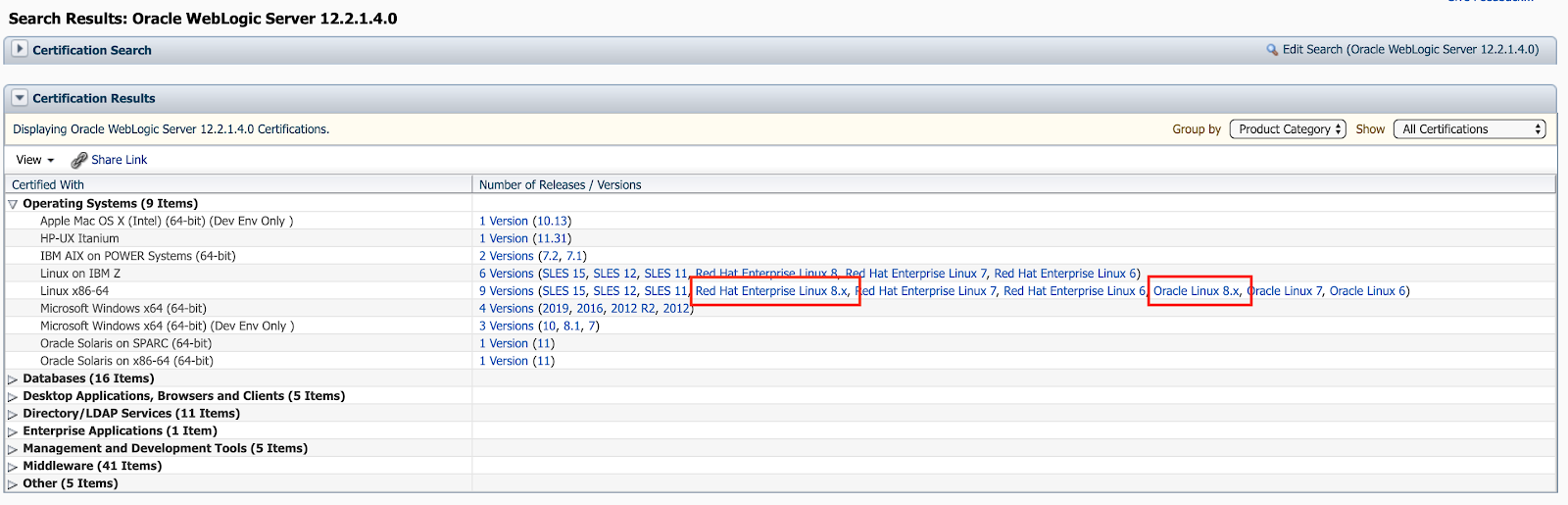
Currently Oracle certified the Oracle Fusion Middleware 12.2.1.4.0 Components for the use of Linux 8, which includes the Oracle Linux 8 and the Red Hat Enterprise Linux 8.

You can find the newly added certifications in My Oracle Support (https://support.oracle.com) under the tab Certifications:

Oracle WebLogic 12.2.1.4.0 Certification:


Oracle Forms & Reports 12.2.1.4.0 Certification:


Oracle SOA Suite 12.2.1.4.0 Certification:


Moreover you can find the corresponding Oracle Fusion Middleware 12c Certifications under https://www.oracle.com/middleware/technologies/fusion-certification.html and there the Excel Sheet https://www.oracle.com/technetwork/middleware/fmw-122140-certmatrix-5763476.xlsx which contains the newly added certification for Linux 8 (Oracle Linux 8 and Red Hat Enterprise Linux 8).

Under the "Oracle Fusion Middleware System Requirements and Specifications" documentation for 12.2.1.4.0 in the section "Linux Operating System Requirements" (https://docs.oracle.com/en/middleware/fusion-middleware/12.2.1.4/sysrs/system-requirements-and-specifications.html#GUID-37C51062-3732-4A4B-8E0E-003D9DFC8C26) you can find all required packages to be installed.
Take note that 2 of them are EL7 packages (compat-libcap1-1.10-7.el7.x86_64 and compat-libstdc++-33-3.2.3-72.el7.x86_64), which are not longer present in the Linux 8 distributions, so when you install your Fusion Middleware 12.2.1.4.0 components just ignore the warnings/failure for the 2 EL7 packages by using the Skip button in the graphical installer.


Friday, February 28, 2020

Weblogic Monitoring with Prometheus and Grafana

Since quite some time Oracle is providing in their GitHub Repository the weblogic-monitoring-exporter https://github.com/oracle/weblogic-monitoring-exporter.

This weblogic-monitoring-exporter is basically a war file, which uses the WebLogic Server RESTful Management API to collect defined metrics of your WebLogic Server and exports them in a Prometheus compatible format.

At first you will need to download the get[Version-Number].sh from the GitHub Repository https://github.com/oracle/weblogic-monitoring-exporter/releases. Next step is to create a YAML file in which you define which metrics you want to collect from your WebLogic Server.
Place both files in one directory and execute the get[Version-Number].sh with your YAML file as input parameter. The get[Version-Number].sh will simple download from GitHub the required war file, so make sure that your system on which you execute the script got internet connection, and merge your YAML file into the war file.

Example YAML file named exporter-config.yml

metricsNameSnakeCase: true
queries:
- key: name
  keyName: location
  prefix: wls_server_
  applicationRuntimes:
    key: name
    keyName: app
    componentRuntimes:
      prefix: wls_webapp_config_
      type: WebAppComponentRuntime
      key: name
      values: [deploymentState, contextRoot, sourceInfo, sessionsOpenedTotalCount, openSessionsCurrentCount, openSessionsHighCount]
      servlets:
        prefix: wls_servlet_
        key: servletName
- JVMRuntime:
    prefix: wls_jvm_
    key: name
- executeQueueRuntimes:
    prefix: wls_socketmuxer_
    key: name
    values: [pendingRequestCurrentCount]
- workManagerRuntimes:
    prefix: wls_workmanager_
    key: name
    values: [stuckThreadCount, pendingRequests, completedRequests]
- threadPoolRuntime:
    prefix: wls_threadpool_
    key: name
    values: [executeThreadTotalCount, queueLength, stuckThreadCount, hoggingThreadCount]
- JMSRuntime:
    key: name
    keyName: jmsruntime
    prefix: wls_jmsruntime_
    JMSServers:
      prefix: wls_jms_
      key: name
      keyName: jmsserver
      destinations:
        prefix: wls_jms_dest_
        key: name
        keyName: destination

- persistentStoreRuntimes:
    prefix: wls_persistentstore_
    key: name
- JDBCServiceRuntime:
    JDBCDataSourceRuntimeMBeans:
      prefix: wls_datasource_
      key: name
- JTARuntime:
    prefix: wls_jta_
    key: name


Now let's merge the exporter-config.yml into the wls-exporter.war

 #
./get1.1.1.sh exporter-config.yml 
  % Total    % Received % Xferd  Average Speed   Time    Time     Time  Current
                                 Dload  Upload   Total   Spent    Left  Speed
100   607  100   607    0     0   2872      0 --:--:-- --:--:-- --:--:--  2876
100 2018k  100 2018k    0     0  1165k      0  0:00:01  0:00:01 --:--:-- 2247k
created /tmp/ci-21tVFvZiR4
/tmp/ci-21tVFvZiR4 /u00/app/oracle/install
in temp dir
  adding: config.yml (deflated 64%)
/u00/app/oracle/install

As next we can deploy the generated wls-exporter.war on your WebLogic Server, just connect with a browser to your WebLogic Console (http://<servername>:<AdminServerPort>/console)

Navigate under the Domain Structure to the Option Deployments, click the "Lock & Edit" button in the Change Center, if you are running your WebLogic Domain in Production Mode and click the "Install" button under the Configuration tab in the Deployments.


Now navigate to the location of the wls-exporter.war file and select it and hit the button "Next"


Make sure that the option "Install this deployment as an application" is marked and hit the button "Next"


Target the deployment of the wls-exporter.war to your Servers and hit the button "Next"


Leave the default and hit the button "Next"


Leave the default and hit the button "Next"


Click the button "Save" and finally click the button "Activate Changes" in the Change Center


After the successful activation you should see as follows


Now we are done with the deployment of the wls-exporter.war and we can start the application, just go to the tab "Control" and click under "Start" the option "Servicing all requests"


Confirm the startup of the application with "Yes"


After that you should see under the Control tab that the wls-exporter application is now in state Active


The next step is to configure your Prometheus environment to collect the metrics from the wls-exporter application. Just add under the scrape_configs section in your prometheus.yml configuration file the necessary entries for the WebLogic Servers.
Simply add under the scrape_config section in the prometheus.yml a job_name for each WebLogic Managed Server (including your AdminServer). If you are adding multiple WebLogic Servers, its advisable to use the metric_relabel_configs option, to prefix each metric collected by Prometheus with for example the name of the WebLogic Server:

 
# Align the job_name with your settings
# Align the IP address and Ports for the targets with your settings
# Align the metric_relabel_configs with your settings

global:
  scrape_interval:     15s
  evaluation_interval: 15s
  scrape_timeout: 10s
. . .
. . .
scrape_configs:
. . .
. . .
  - job_name: 'WebLogicAdminServer'
    scrape_interval: 10s
    metrics_path: /wls-exporter/metrics
    static_configs:
      - targets: ['172.17.0.1:7001']
    basic_auth:
       username: weblogic
       password: Oracle12c
    metric_relabel_configs:
      - source_labels: [__name__]
        target_label: __name__
        replacement: "DemoAdminServer_${1}"

  - job_name: 'WebLogicDEMOMS1'
    scrape_interval: 10s
    metrics_path: /wls-exporter/metrics
    static_configs:
      - targets: ['172.17.0.1:7003']
    basic_auth:
       username: weblogic
       password: Oracle12c
    metric_relabel_configs:
      - source_labels: [__name__]
        target_label: __name__
        replacement: "DEMOMS1_${1}"

  - job_name: 'WebLogicDEMOMS2'
    scrape_interval: 10s
    metrics_path: /wls-exporter/metrics
    static_configs:
      - targets: ['172.17.0.1:7004']
    basic_auth:
       username: weblogic
       password: Oracle12c
    metric_relabel_configs:
      - source_labels: [__name__]
        target_label: __name__
        replacement: "DEMOMS2_${1}"
. . .
. . .

fter this changes, just restart your Prometheus and check under the Prometheus Console - Targets the status of your job_name.


You can see that we have now 3 Endpoints, one for each WebLogic Server (one AdminServer and two Managed Servers).

Under the Prometheus Console - Graph you can see all your defined metrics for your WebLogic Servers.


As next you can create a Dashboard in your Grafana environment.


So with a little bit of work you can easily monitor your WebLogic Environment with Prometheus and Grafana. In addition you can configure thresholds for your metrics and trigger alerts either via the alertmanager from Prometheus or via Grafana.

One point you should take care of with the weblogic-monitoring-exporter is the usage of the configuration option "domainQualifier: true". As documented this configuration is the metrics with the domain name, but currently the option "domainQualifier: true" will cause a non-Prometheus-conform formatted metric.

name{domain="demo_domain"} demo_domain
DemoAdminServer_wls_server_activation_time{domain="demo_domain",location="DemoAdminServer"} 1581419617765
DemoAdminServer_wls_server_admin_server_listen_port{domain="demo_domain",location="DemoAdminServer"} 7001
DemoAdminServer_wls_server_open_sockets_current_count{domain="demo_domain",location="DemoAdminServer"} 4
DemoAdminServer_wls_server_state_val{domain="demo_domain",location="DemoAdminServer"} 2

As you can see from above listing, the wls-exporter is generating the first line wrong, as the metric value is a string and therefor it can not be parsed by Prometheus.

I have currently opened an issue in the GitHub Repository for the weblogic-monitoring-exporter and I hope to get soon a feedback and/or solution https://github.com/oracle/weblogic-monitoring-exporter/issues/82

But nevertheless, the weblogic-monitoring-exporter is a great add-on for the Oracle WebLogic Server in order to monitor your environment with Prometheus and visualise your metrics with Grafana.

UPDATE 2nd April 2020: the above mentioned problem with the non-conform Prometheus formatted metric is resolved by the Oracle Development Team for the WebLogic-Monitoring-Exporter, just get the release 1.1.2 (https://github.com/oracle/weblogic-monitoring-exporter/releases)


Thursday, February 20, 2020

Cleanup Oracle Fusion Middleware 12c Repository manually

Currently I was cleaning up some of my Oracle Fusion Middleware Forms & Reports test and demo environments manually and wanted to setup them freshly.

As I was lazy, I didn't used the RCU (Repository Creation Utility) for the cleanup, I just did a manual drop user and drop tablespace and cleaned up my $DOMAIN_HOME.

In my case it was a Forms & Reports environment with the Prefix FR12213, so I manually dropped all the Repository Users starting with FR12213 and the corresponding tablespaces.

#
sqlplus / as sysdba

SQL> drop user FR12213_OPSS cascade;
SQL> drop user FR12213_STB cascade;
SQL> drop user FR12213_MDS cascade;
SQL> drop user FR12213_IAU_APPEND cascade;
SQL> drop user FR12213_IAU_VIEWER cascade;
SQL> drop user FR12213_IAU cascade;
SQL> drop user FR12213_WLS_RUNTIME cascade;
SQL> drop user FR12213_WLS cascade;
SQL> drop user FR12213_UMS cascade;

SQL> drop tablespace FR12213_IAS_OPSS including content and datafiles;
SQL> drop tablespace FR12213_IAS_TEMP including content and datafiles;
SQL> drop tablespace FR12213_IAS_UMS including content and datafiles;
SQL> drop tablespace FR12213_IAU including content and datafiles;
SQL> drop tablespace FR12213_MDS including content and datafiles;
SQL> drop tablespace FR12213_STB including content and datafiles;
SQL> drop tablespace FR12213_WLS including content and datafiles;

After that I simply cleaned up the $DOMAIN_HOME and wanted to create the complete WebLogic Domain again including the run of the RCU, everything in silent mode.

While running the RCU following error came up:

#
Processing command line ....
Repository Creation Utility - Checking Prerequisites
Checking Global Prerequisites

ERROR - RCU-6016 Invalid prefix specified.
CAUSE - RCU-6016 The specified prefix already exists.
ACTION - RCU-6016 Specify another prefix.

ERROR - RCU-6091 Component validation failed.
CAUSE - RCU-6091 One or more component specific validation failed.
ACTION - RCU-6091 Check log for more details and fix the validation error.

After a bit of searching around and think, I came to the table SYSTEM.SCHEMA_VERSION_REGISTRY$

#
sqlplus / as sysdba
SQL> select distinct(MRC_NAME) from SYSTEM.SCHEMA_VERSION_REGISTRY$;

MRC_NAME
------------------------------
FR12213

SQL> delete from SYSTEM.SCHEMA_VERSION_REGISTRY$ where MRC_NAME = 'FR12213';
SQL> commit;

After deleting the corresponding rows in the SYSTEM.SCHEMA_VERSION_REGISTRY$ table, the silent execution of the RCU was running without any errors.
So don't forget to cleanup the SYSTEM.SCHEMA_VERSION_REGISTRY$ if you are performing a manual cleanup :-)

The above concept applies to any Oracle Fusion Middleware Component which is using Repository Users created by the RCU (SOA Suite, Forms & Reports and so on)


Thursday, February 6, 2020

Huge Number of component_event.xlf* and pki_data*.tmp files in /tmp in Oracle Forms & Reports 12c

If you are running an Oracle Forms and Reports 12c (12.2.1.+) environment over quite some time, you might discover that under the /tmp directory are a quite huge number of files named component_event.xlf* and pki_data*.tmp are generated and filling up your /tmp space.

The pki_data*.tmp files are usually 0 Bytes, but the component_event.xlf* files are between some Bytes up to some 100 Bytes. Over some time, these files are really fill up your /tmp.

These files are generated by the Oracle Platform Security for Java component and they are holding temporarily cache data.

In order to get rid of the component_event.xlf* files, you will just to have modify two configuration files of your WebLogic Domain.

In the configuration file $DOMAIN_HOME/config/fmwconfig/jps-config.xml find the following line and comment this line out.

#
# Original line
<serviceInstanceRef ref="audit.db"/>

# Modified line
<!-- serviceInstanceRef ref="audit.db"/ -->

The second configuration file is the $DOMAIN_HOME/config/fmwconfig/jps-config-jse.xml. Find the following line and comment this line out.

#
# Original line
<serviceInstanceRef ref="audit.db"/>

# Modified line
<!-- serviceInstanceRef ref="audit.db"/ -->

After the above modifications are done, you will have to restart your WebLogic Domain and you can see that no more component_event.xlf* are generated.
There are just the pki_data*.tmp files, but these files are usually 0 Bytes. For this files you can use a normal housekeeping job to clean them up regulary.


Monday, February 3, 2020

Patching Oracle WebLogic Server 12.2.1.4.0 Slim Edition

In my last blog I was showing how to install the new Oracle WebLogic Server 12.2.1.4.0 Slim Installer (https://dirknachbar.blogspot.com/2020/02/oracle-weblogic-server-122140-slim.html), now let's see how the minimised Oracle WebLogic Server 12.2.1.4.0 Slim Edition will handle a patching.

For this I will use the Oracle WLS PATCH SET UPDATE 12.2.1.4.191220 (Patch No. 30689820).

Login as oracle User to your server hosting the Oracle WebLogic Server 12.2.1.4.0 Slim Installation. Transfer the above mentioned Patch to your server and extract the zip file:

#
# set the necessary environment variables
[oracle@wlstest] export ORACLE_HOME=/u00/app/oracle/product/fmw-wls-slim-12.2.1.4.0
# switch to the extracted patch directory
[oracle@wlstest] cd /u00/app/oracle/patches/30689820
# Lets check the current patch status
[oracle@wlstest] $ORACLE_HOME/OPatch/opatch lsinventory
Oracle Interim Patch Installer version 13.9.4.2.1
Copyright (c) 2020, Oracle Corporation.  All rights reserved.


Oracle Home       : /u00/app/oracle/product/fmw-wls-slim-12.2.1.4.0
Central Inventory : /u00/app/oracle/oraInventory
   from           : /u00/app/oracle/product/fmw-wls-slim-12.2.1.4.0/oraInst.loc
OPatch version    : 13.9.4.2.1
OUI version       : 13.9.4.0.0
Log file location : /u00/app/oracle/product/fmw-wls-slim-12.2.1.4.0/cfgtoollogs/opatch/opatch2020-02-03_14-02-27PM_1.log


OPatch detects the Middleware Home as "/u00/app/oracle/product/fmw-wls-slim-12.2.1.4.0"

Lsinventory Output file location : /u00/app/oracle/product/fmw-wls-slim-12.2.1.4.0/cfgtoollogs/opatch/lsinv/lsinventory2020-02-03_14-02-27PM.txt

--------------------------------------------------------------------------------
Local Machine Information::
Hostname: wlstest.oracle-stuff.com
ARU platform id: 226
ARU platform description:: Linux x86-64


There are no Interim patches installed in this Oracle Home.


--------------------------------------------------------------------------------

OPatch succeeded.

As you can see, no patches so far installed on my fresh WebLogic Server 12.2.1.4.0 Slim Edition, now let's install the WLS PATCH SET UPDATE

#
# set the necessary environment variables
[oracle@wlstest] export ORACLE_HOME=/u00/app/oracle/product/fmw-wls-slim-12.2.1.4.0
# switch to the extracted patch directory
[oracle@wlstest] cd /u00/app/oracle/patches/30689820
[oracle@wlstest] $ORACLE_HOME/OPatch/opatch apply
Oracle Interim Patch Installer version 13.9.4.2.1
Copyright (c) 2020, Oracle Corporation.  All rights reserved.


Oracle Home       : /u00/app/oracle/product/fmw-wls-slim-12.2.1.4.0
Central Inventory : /u00/app/oracle/oraInventory
   from           : /u00/app/oracle/product/fmw-wls-slim-12.2.1.4.0/oraInst.loc
OPatch version    : 13.9.4.2.1
OUI version       : 13.9.4.0.0
Log file location : /u00/app/oracle/product/fmw-wls-slim-12.2.1.4.0/cfgtoollogs/opatch/opatch2020-02-03_14-02-41PM_1.log


OPatch detects the Middleware Home as "/u00/app/oracle/product/fmw-wls-slim-12.2.1.4.0"

Verifying environment and performing prerequisite checks...
OPatch continues with these patches:   30689820  

Do you want to proceed? [y|n]
y
User Responded with: Y
All checks passed.

Please shutdown Oracle instances running out of this ORACLE_HOME on the local system.
(Oracle Home = '/u00/app/oracle/product/fmw-wls-slim-12.2.1.4.0')


Is the local system ready for patching? [y|n]
y
User Responded with: Y
Backing up files...
Applying interim patch '30689820' to OH '/u00/app/oracle/product/fmw-wls-slim-12.2.1.4.0'
ApplySession: Optional component(s) [ oracle.wls.admin.console.en, 12.2.1.4.0 ] , [ oracle.wls.admin.console.en, 12.2.1.4.0 ]  not present in the Oracle Home or a higher version is found.

Patching component oracle.wls.libraries, 12.2.1.4.0...

Patching component oracle.wls.core.app.server, 12.2.1.4.0...
Patch 30689820 successfully applied.
Log file location: /u00/app/oracle/product/fmw-wls-slim-12.2.1.4.0/cfgtoollogs/opatch/opatch2020-02-03_14-02-41PM_1.log

OPatch succeeded.


# Let's verify the patch apply

[oracle@wlstest] $ORACLE_HOME/OPatch/opatch lsinventory
Oracle Interim Patch Installer version 13.9.4.2.1
Copyright (c) 2020, Oracle Corporation.  All rights reserved.


Oracle Home       : /u00/app/oracle/product/fmw-wls-slim-12.2.1.4.0
Central Inventory : /u00/app/oracle/oraInventory
   from           : /u00/app/oracle/product/fmw-wls-slim-12.2.1.4.0/oraInst.loc
OPatch version    : 13.9.4.2.1
OUI version       : 13.9.4.0.0
Log file location : /u00/app/oracle/product/fmw-wls-slim-12.2.1.4.0/cfgtoollogs/opatch/opatch2020-02-03_14-03-05PM_1.log


OPatch detects the Middleware Home as "/u00/app/oracle/product/fmw-wls-slim-12.2.1.4.0"

Lsinventory Output file location : /u00/app/oracle/product/fmw-wls-slim-12.2.1.4.0/cfgtoollogs/opatch/lsinv/lsinventory2020-02-03_14-03-05PM.txt

--------------------------------------------------------------------------------
Local Machine Information::
Hostname: wlstest.oracle-stuff.com
ARU platform id: 226
ARU platform description:: Linux x86-64


Interim patches (1) :

Patch  30689820     : applied on Mon Feb 03 14:02:57 CET 2020
Unique Patch ID:  23281789
Patch description:  "WLS PATCH SET UPDATE 12.2.1.4.191220"
   Created on 20 Dec 2019, 17:56:29 hrs PST8PDT
   Bugs fixed:
     26444945, 29671344, 29769772, 30067299, 30153412, 30230430, 30341541
     30342923, 30362026, 30362086, 30589563


--------------------------------------------------------------------------------

OPatch succeeded.


You can see, that the Patch apply went through without any problems, only the Patch apply prints you out some informations, that the to be patched component "oracle.wls.admin.console.en" is not present in the target ORACLE_HOME:

Optional component(s) [ oracle.wls.admin.console.en, 12.2.1.4.0 ] , [ oracle.wls.admin.console.en, 12.2.1.4.0 ]  not present in the Oracle Home or a higher version is found.

Thats just an information, as in the WebLogic Server 12.2.1.4.0 Slim Edition is no WebLogic Server Console present.

Oracle WebLogic Server 12.2.1.4.0 Slim Installer

Since WebLogic Server 12.2.1.4.0 you have a new edition of the Oracle WebLogic Server, it's the Slim Installer. The corresponding software you can download under:

https://www.oracle.com/middleware/technologies/weblogic-server-installers-downloads.html


The Slim Installer is much smaller than the Generic or the Fusion Middleware Infrastructure Installers.
  • WebLogic Generic Installer: 826 MB
  • Fusion Middleware Infrastructure Installer: 1.5 GB
  • WebLogic Slim Installer: 182 MB
Basically the Slim Installer is a full WebLogic Server, but without any examples, no WebLogic Console, no WebLogic Clients, no Maven Plugin and no Java DB.

The installation comes without any graphical installer, its pure command line. So be aware of the command line option for the invoking of the Slim Installer.
In case you will start the Slim Installer, as you are used to the Generic Installer, just with "java -jar fmw_12.2.1.4.0_wls_quick_slim.jar", the installer will install the WebLogic Slim Edition in your present work directory/wls12214 and the corresponding Oracle Inventory will be created under $HOME/oraInventory.

#
# Set the necessary environment variables
# align them to your environment settings
[oracle@wlstest] export JAVA_HOME=/u00/app/oracle/product/jdk1.8.0_221
[oracle@wlstest] export PATH=$JAVA_HOME/bin:$PATH
[oracle@wlstest] pwd
/u00/app/oracle/install
[oracle@wlstest] java -jar fmw_12.2.1.4.0_wls_quick_slim.jar 
Launcher log file is /tmp/OraInstall2020-02-03_10-20-45AM/launcher2020-02-03_10-20-45AM.log.
Extracting the installer . . . . Done
Checking if CPU speed is above 300 MHz.   Actual 2194.918 MHz    Passed
Checking swap space: must be greater than 512 MB.   Actual 3071 MB    Passed
Checking if this platform requires a 64-bit JVM.   Actual 64    Passed (64-bit not required)
Checking temp space: must be greater than 300 MB.   Actual 11025 MB    Passed
Preparing to launch the Oracle Universal Installer from /tmp/OraInstall2020-02-03_10-20-45AM
Log: /tmp/OraInstall2020-02-03_10-20-45AM/install2020-02-03_10-20-45AM.log

*****************************************************


Distribution Name : Oracle Fusion Middleware 12c WebLogic and Coherence Developer Slim
Distribution Version : 12.2.1.4.0

Oracle Inventory : /home/oracle/oraInventory

Oracle Home : /u00/app/oracle/install/wls12214
Java Home : /u00/app/oracle/product/jdk1.8.0_221

Note: Oracle Home not supplied (defaulted to <present dir="" working="">/wls12214)

*****************************************************

Copyright (c) 1996, 2019, Oracle and/or its affiliates. All rights reserved.
Skipping Software Updates
Starting check : CertifiedVersions
Expected result: One of oracle-6, oracle-7, redhat-7, redhat-6, SuSE-11, SuSE-12, SuSE-15
Actual Result: oracle-7.4
Check complete. The overall result of this check is: Passed
CertifiedVersions Check: Success.


Starting check : CheckJDKVersion
Expected result: 1.8.0_191
Actual Result: 1.8.0_221
Check complete. The overall result of this check is: Passed
CheckJDKVersion Check: Success.


Validations are enabled for this session.
Verifying data
Copying Files
Percent Complete : 10
Percent Complete : 20
Percent Complete : 30
Percent Complete : 40
Percent Complete : 50
Percent Complete : 60
Percent Complete : 70
Percent Complete : 80
Percent Complete : 90
Percent Complete : 100

The installation of Oracle Fusion Middleware 12c WebLogic and Coherence Developer Slim 12.2.1.4.0 completed successfully.
Logs successfully copied to /u00/app/oracle/install/wls12214/cfgtoollogs/oui.

As you can see from above listing, the ORACLE_HOME location for the new installation is chosen automatically with my present work directory/wls122140 and the Oracle Inventory goes into $HOME/oraInventory.

Second trial, this time with the command line option "java -jar fmw_12.2.1.4.0_wls_quick_slim.jar ORACLE_HOME=$ORACLE_HOME"

#
# Set the necessary environment variables
# align them to your environment settings
[oracle@wlstest] export ORACLE_HOME=/u00/app/oracle/product/fmw-wls-slim-12.2.1.4.0
[oracle@wlstest] export JAVA_HOME=/u00/app/oracle/product/jdk1.8.0_221
[oracle@wlstest] export PATH=$JAVA_HOME/bin:$PATH
[oracle@wlstest] java -jar fmw_12.2.1.4.0_wls_quick_slim.jar ORACLE_HOME=$ORACLE_HOME
Launcher log file is /tmp/OraInstall2020-02-03_10-27-21AM/launcher2020-02-03_10-27-21AM.log.
Extracting the installer . . . . Done
Checking if CPU speed is above 300 MHz.   Actual 2194.918 MHz    Passed
Checking swap space: must be greater than 512 MB.   Actual 3071 MB    Passed
Checking if this platform requires a 64-bit JVM.   Actual 64    Passed (64-bit not required)
Checking temp space: must be greater than 300 MB.   Actual 10469 MB    Passed
Preparing to launch the Oracle Universal Installer from /tmp/OraInstall2020-02-03_10-27-21AM
Log: /tmp/OraInstall2020-02-03_10-27-21AM/install2020-02-03_10-27-21AM.log
Setting ORACLE_HOME...

*****************************************************


Distribution Name : Oracle Fusion Middleware 12c WebLogic and Coherence Developer Slim
Distribution Version : 12.2.1.4.0

Oracle Inventory : /home/oracle/oraInventory

Oracle Home : /u00/app/oracle/product/fmw-wls-slim-12.2.1.4.0
Java Home : /u00/app/oracle/product/jdk1.8.0_221

*****************************************************

Copyright (c) 1996, 2019, Oracle and/or its affiliates. All rights reserved.
Skipping Software Updates
Starting check : CertifiedVersions
Expected result: One of oracle-6, oracle-7, redhat-7, redhat-6, SuSE-11, SuSE-12, SuSE-15
Actual Result: oracle-7.4
Check complete. The overall result of this check is: Passed
CertifiedVersions Check: Success.


Starting check : CheckJDKVersion
Expected result: 1.8.0_191
Actual Result: 1.8.0_221
Check complete. The overall result of this check is: Passed
CheckJDKVersion Check: Success.


Validations are enabled for this session.
Verifying data
Copying Files
Percent Complete : 10
Percent Complete : 20
Percent Complete : 30
Percent Complete : 40
Percent Complete : 50
Percent Complete : 60
Percent Complete : 70
Percent Complete : 80
Percent Complete : 90
Percent Complete : 100

The installation of Oracle Fusion Middleware 12c WebLogic and Coherence Developer Slim 12.2.1.4.0 completed successfully.
Logs successfully copied to /u00/app/oracle/product/fmw-wls-slim-12.2.1.4.0/cfgtoollogs/oui.

This looks a bit better now, our target installation directory is now under our desired £ORACLE_HOME, but the Oracle Inventory is still under $HOME/oraInventory.

3rd attempt, now with the command line option "java -jar fmw_12.2.1.4.0_wls_quick_slim.jar ORACLE_HOME=$ORACLE_HOME -invPtrLoc /u00/app/oracle/install/oraInst.loc" and a prepare oraInst.loc file in which we define the Oracle Inventory location and the group ownership for the Oracle Inventory.

#
[oracle@wlstest] cat /u00/app/oracle/oraInst.loc

inventory_loc=/u00/app/oracle/oraInventory
inst_group=oinstall

# Set the necessary environment variables
# align them to your environment settings
[oracle@wlstest] export ORACLE_HOME=/u00/app/oracle/product/fmw-wls-slim-12.2.1.4.0
[oracle@wlstest] export JAVA_HOME=/u00/app/oracle/product/jdk1.8.0_221
[oracle@wlstest] export PATH=$JAVA_HOME/bin:$PATH
[oracle@wlstest] java -jar fmw_12.2.1.4.0_wls_quick_slim.jar ORACLE_HOME=$ORACLE_HOME -invPtrLoc /u00/app/oracle/install/oraInst.loc 
Launcher log file is /tmp/OraInstall2020-02-03_12-32-47PM/launcher2020-02-03_12-32-47PM.log.
Extracting the installer . . . . Done
Checking if CPU speed is above 300 MHz.   Actual 2194.918 MHz    Passed
Checking swap space: must be greater than 512 MB.   Actual 3071 MB    Passed
Checking if this platform requires a 64-bit JVM.   Actual 64    Passed (64-bit not required)
Checking temp space: must be greater than 300 MB.   Actual 10468 MB    Passed
Preparing to launch the Oracle Universal Installer from /tmp/OraInstall2020-02-03_12-32-47PM
Log: /tmp/OraInstall2020-02-03_12-32-47PM/install2020-02-03_12-32-47PM.log
Setting ORACLE_HOME...

*****************************************************


Distribution Name : Oracle Fusion Middleware 12c WebLogic and Coherence Developer Slim
Distribution Version : 12.2.1.4.0

Oracle Inventory : /u00/app/oracle/oraInventory

Oracle Home : /u00/app/oracle/product/fmw-wls-slim-12.2.1.4.0
Java Home : /u00/app/oracle/product/jdk1.8.0_221

*****************************************************

Copyright (c) 1996, 2019, Oracle and/or its affiliates. All rights reserved.
Skipping Software Updates
Starting check : CertifiedVersions
Expected result: One of oracle-6, oracle-7, redhat-7, redhat-6, SuSE-11, SuSE-12, SuSE-15
Actual Result: oracle-7.4
Check complete. The overall result of this check is: Passed
CertifiedVersions Check: Success.


Starting check : CheckJDKVersion
Expected result: 1.8.0_191
Actual Result: 1.8.0_221
Check complete. The overall result of this check is: Passed
CheckJDKVersion Check: Success.


Validations are enabled for this session.
Verifying data
Copying Files
Percent Complete : 10
Percent Complete : 20
Percent Complete : 30
Percent Complete : 40
Percent Complete : 50
Percent Complete : 60
Percent Complete : 70
Percent Complete : 80
Percent Complete : 90
Percent Complete : 100

The installation of Oracle Fusion Middleware 12c WebLogic and Coherence Developer Slim 12.2.1.4.0 completed successfully.
Logs successfully copied to /u00/app/oracle/product/fmw-wls-slim-12.2.1.4.0/cfgtoollogs/oui.

This time everything is located and installed as we want :-)

Now lets compare the space usage between the Oracle WebLogic Generic, Fusion Middleware Infrastructure and the WebLogic Slim:

#
[oracle@wlstest] cd /u00/app/oracle/product
[oracle@wlstest] du -sh fmw*
2.1G fmw-infra-12.2.1.4.0
1.1G fmw-wls-12.2.1.4.0
452M fmw-wls-slim-12.2.1.4.0

As you can see, the WebLogic Generic (fmw-wls-12.2.1.4.0) needs 1.1 GB disk space, the Fusion Middleware Infrastructure (fmw-infra-12.2.1.4.0) needs 2.1 GB and the WebLogic Slim (fmw-wls-slim-12.2.1.4.0) just needs 452 MB (more than half lesser than the Generic Installer and more than 4 times lesser than the Fusion Middleware Infrastructure Installer).

Specially when you will use the WebLogic Slim Installer in a Docker Image, you will gain a lot of disk savings.

After you have installed the WebLogic Slim Installer you can as normal startup the $ORACLE_HOME/oracle_common/common/bin/config.sh to configure and create your WebLogic Domain with the graphical wizard, but be aware, you dont have any WebLogic Console (http://<servername>:<AdminServerPort>/console) afterwards. Everything you need to configure, you will have to do it through wlst or via RESTful Management API.


Monday, January 27, 2020

WebLogic Server Future Releases - An educated guess

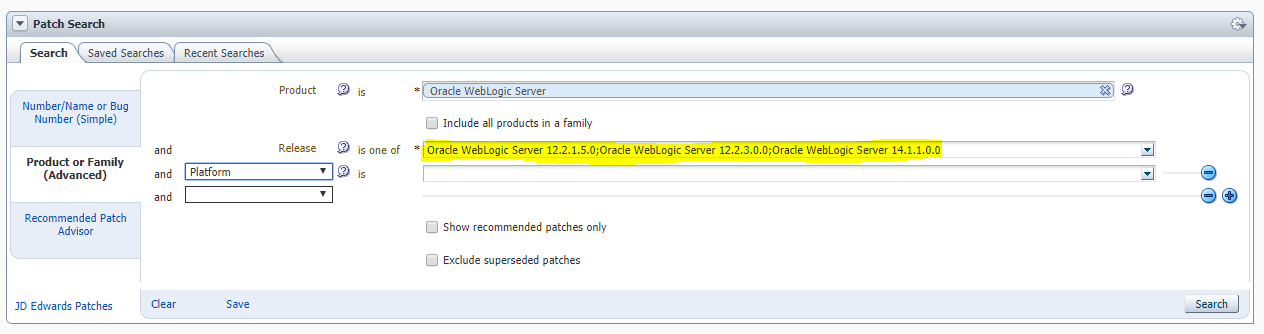
Today I was checking as usual the available patches for Oracle WebLogic Server and I discovered some new WebLogic Server Releases within the drop list of the available releases.


It seems that for the current supported WebLogic Server 12.2.1.x will be a future PatchSet 5 (12.2.1.5.0).

The given Release with 12.2.3.0.0, I personally doubt that this will come.

For the future WebLogic Server, which is currently in Beta Testing, it seems that Oracle will really name it 14.1.1.0.0. I have no clue why Oracle is choosing this naming convention for the new Oracle WebLogic Server Release, seems they want to be back to the good old days with various naming conventions between Oracle DB, Oracle Enterprise Manager and Oracle Fusion Middleware products.

Monday, November 18, 2019

Deprecated Functionality for WebLogic Server 12.2.1.4.0

Since around 6 weeks the last Oracle WebLogic Server 12.2.1.4.0 Release is available and I got some spare time to read the necessary documentations.

In the "What's new Guide" https://docs.oracle.com/en/middleware/fusion-middleware/weblogic-server/12.2.1.4/notes/whatsnew.html I found 2 interesting deprecated features, which weren't announced somewhere else.

Meaning of deprecated features (source MOS Note 888028.1)

Oracle Fusion Middleware deprecation process is to announce a feature deprecated in a given release where it will continue to be fully supported for bug fixes until the next major release. In the next major release, the feature will then be removed. In some cases it may remain, but only to extend the transition period where error correction support is no longer expected.

Oracle Traffic Director is in deprecated status for Oracle WebLogic Server 12.2.1.4.0 https://docs.oracle.com/en/middleware/fusion-middleware/weblogic-server/12.2.1.4/notes/whatsnew.html#GUID-362AA8C0-082A-4744-B7F2-2BD4E0194F30. Oracle recommends as alternatives the usage of the Oracle HTTP Server, Microsoft IIS, Apache HTTPD Server with the corresponding Server Plugins and so on.

The second interesting feature which is in deprecated status for Oracle WebLogic Server 12.2.1.4.0 is the WebLogic Multitenant feature and the Resource Consumption Management https://docs.oracle.com/en/middleware/fusion-middleware/weblogic-server/12.2.1.4/notes/whatsnew.html#GUID-B95FF848-893D-44A7-925E-1F87279F6CAE. As an alternative Oracle mentions the usage of Container-Based Solutions.


Saturday, September 28, 2019

Oracle Forms & Reports 12.2.1.4.0 - First Look

Yesterday I was blogging about the new Oracle Forms & Reports 12.2.1.4.0 Release.

Today I got some spare time to install and configure the latest Oracle Forms & Reports 12.2.1.4.0 Release on one of my test VM's.

My configuration is as follows:
The installation and configuration is the same as under the previous Oracle Forms & Reports 12.2.1.3.0 Release.
At first install and configure your Oracle Database, I have created an Oracle 19c Instance with one PDB, which will be my target Database for the required Metadata Repository for Oracle Forms & Reports 12.2.1.4.0.
Next step is to install the JDK (or better to say unzip your Oracle Server JRE 8u221, you can even use a full JDK).
After that, install your Oracle WebLogic Server Infrastructure 12.2.1.4.0 and when this is done, install into the same MW_HOME your Oracle Forms & Reports 12.2.1.4.0 software.

Now, we can start to configure the required stuff. At first you need to run the Repository Creation Utility ($MW_HOME/oracle_common/bin/rcu), when this is done, we can configure the Oracle WebLogic Domain for Forms & Reports with the config.sh script located under $MW_HOME/oracle_common/common/bin).

When the configuration part is done, just startup your Node Manager with $DOMAIN_HOME/bin/startNodeManager.sh and after that your AdminServer with $DOMAIN_HOME/startWebLogic.sh

Now you can either start the Managed Servers (WLS_FORMS and WLS_REPORTS) from the WebLogic Console http://:7001/console or with the script $DOMAIN_HOME/bin/startManagedWebLogic.sh

Just to test, if your Forms Environment is working, get the frmsal.jar (located under $MW_HOME/forms/java) to your Desktop and execute following command:

#
# java -jar frmsal.jar -url "Full Qualified Server including the Configuration" [-t <timeout in milliseconds>] [-showConfig false|true]
java -jar frmsal.jar -url "http://<Your_ServerName>:9001/forms/frmservlet?config=standalone" -showConfig true

Config parameters from server are:
    CODEBASE=/forms/java
    ARCHIVE=frmall.jar
    WIDTH=750
    HEIGHT=600
    NAME=
    serverURL=/forms/lservlet?ifcfs=/forms/frmservlet?config=standaloneapp&standaloneapp=1&ifsessid=WLS_FORMS.formsapp.2&acceptLanguage=en-us
    networkRetries=0
    splashScreen=
    background=
    lookAndFeel=Oracle
    colorScheme=swan
    customColorScheme=
    serverApp=
    logo=
    imageBase=codebase
    formsMessageListener=
    recordFileName=
    EndUserMonitoringEnabled=false
    EndUserMonitoringURL=
    heartBeat=
    MaxEventWait=
    disableValidateClipboard=false
    allowAlertClipboard=true
    digitSubstitution=context
    highContrast=false
    disableMDIScrollbars=
    clientDPI=
    applet_stop_timeout=800
    guiMode=0
    idleTimeout=
    isResizable=
    centerOnStartup=
    alwaysOnTop=
    mediaBase=codebase
    webFormsTitle=Oracle Fusion Middleware Forms Services
Inspecting archive files in cache directory /var/folders/b_/ldw8b91n7h7dp58hd3xf2qmc0000gn/T/frmsal/greenfield/12.2.1.4
Downloading archive file frmall.jar to cache subdirectory ermz9mn700rz58gniz4ftx8un
Forms Session ID is WLS_FORMS.formsapp.2
The proxy host is null, and the proxy port is 0.
Native HTTP implementation is being used for the connection.
The connection mode is HTTP.
Forms Applet version is 12.2.1.4

With the optional option "-showConfig true" your java call on the frmsal.jar will display you the Forms Configuration in your shell or Command Prompt.

Now you should see following:


Enjoy the new Oracle Forms & Reports 12.2.1.4.0 Release, I will post in the next days more blog posts about the latest Oracle Forms & Reports 12.2.1.4.0 Release ...


Friday, September 27, 2019

Oracle WebLogic Server 12.2.1.4.0 available

Since today the new Oracle WebLogic Server 12.2.1.4.0 is available for download :-)

Currently I was just able to find the download under https://edelivery.oracle.com.


But I hope that the Oracle WebLogic Server 12.2.1.4.0 will be soon available under Oracle Technical Resources (former OTN)

The documentation is already available under https://docs.oracle.com/en/middleware/fusion-middleware/weblogic-server/12.2.1.4/index.html

As this WebLogic 12.2.1.4.0 is mainly a PatchSet, there are not so many new features, checkout the "What's New in Oracle WebLogic Server" document under https://docs.oracle.com/en/middleware/fusion-middleware/weblogic-server/12.2.1.4/notes/whatsnew.html#GUID-DF8CFD1C-9DD1-423E-ACA6-9717D5738385

Enjoy the new WebLogic Server 12.2.1.4.0 Release

Update 28th September 2019: The Oracle WebLogic Server 12.2.1.4.0 can now be found under Oracle Technical Resources (former OTN): https://www.oracle.com/middleware/technologies/fusionmiddleware-downloads.html

Oracle Forms & Reports 12.2.1.4.0 available

Since today the new long awaited Oracle Forms & Reports Release 12.2.1.4.0 is available, this is after 2 years now the next release of Oracle Forms & Reports.

The software can be found under: https://www.oracle.com/middleware/technologies/forms/downloads.html


The corresponding documentation can be found under https://docs.oracle.com/en/middleware/developer-tools/forms/12.2.1.4/index.html


As expected the new features are as follows:

  • SSO Support for Forms Standalone Launcher (FSAL)
  • Forms Standalone Launcher (FSAL) is compatible with Java 11.0.2 (LTS)
  • Increased Text Length for Text or Display Items, from 65534 to 2097151
  • The Oracle Database Client Software within the Middleware Home is now updated to 12.1.0.2190716

Also Oracle added a new System Requirements and Supported Platforms for Oracle Fusion Middleware 12c (12.2.1.4.0) Excel Sheet under https://www.oracle.com/technetwork/middleware/fmw-122140-certmatrix-5763476.xlsx

Enjoy the new Oracle Forms & Reports 12.2.1.4.0 Release :-)


Thursday, September 19, 2019

OOW19: WebLogic News

During the Oracle Open World 2019 were some announcements regarding Oracle WebLogic Server.

The last year announced WebLogic Server 19c for Q1/2019 disappeared ...
There will be no WebLogic Server 13 Release ...

But there will be:

  • WebLogic Server 12.2.1.4, which should come up shortly, as usual what shortly means in Oracle terms is not clearly defined :-)
    • The WebLogic Server 12.2.1.4 Release will be the Final Maintenance Release for 12.2.1.x, so don't expect too many new features
  • BETA Program for WebLogic Server 14.1.1 is announced and to be started shortly.
    • I really wonder who came to the idea with this Version numbering??? Is there any chance to consolidate the Version numbering of the Middleware Products with the Oracle Database Version numbering?
  • Oracle WebLogic Server on Microsoft Azure IaaS

Please note: WebLogic Server 14.1.1 is currently ONLY in BETA Program, so no downloads on "Technical Resources from Oracle (former OTN)" or on edelivery.oracle.com 
The new WebLogic 14.1.1 will support Java EE 8 and Jakarta EE 8.

If you are interested, you can register for the Beta Program under https://pdpm.oracle.com and if you are lucky, Oracle will select you to join the Beta Program.


Friday, June 28, 2019

Oracle 19c Certified for Oracle Fusion Middleware 12.2.1.2.0 and 12.2.1.3.0

Since a few days Oracle updated the Certified Matrix for the Oracle Fusion Middleware Products concerning certified Oracle Databases.

Now Oracle 19c (19.3+) is certified with Oracle Fusion Middleware 12.2.1.2.0 and 12.2.1.3.0.

For example Oracle WebLogic Server 12.2.1.3.0 / 12.2.1.2.0 can use an Oracle 19c Database as target database for AppData, Repository Creation Utility (RCU) and WLS Features.


The same applies to Oracle Forms & Repors 12.2.1.3.0 / 12.2.1.2.0.


As well for Oracle SOA Suite 12.2.1.3.0 / 12.2.1.2.0


The complete certification matrix can be retrieved either in My Oracle Support https://support.oracle.com under the tab "Certifications" or on the Oracle Technical Resources (formerly Oracle Technology Network) website https://www.oracle.com/technetwork/middleware/ias/downloads/fusion-certification-100350.html


Thursday, June 27, 2019

Offline Updating WebLogic Images using Oracle WebLogic Image Tool

This is next article about the Oracle WebLogic Image Tool https://github.com/oracle/weblogic-image-tool, in which I will show you, how to update an existing Oracle WebLogic Server Image in an offline environment (no access to the internet).

The previous articles can be found under:

Let's say you have a Docker image with Oracle WebLogic Server 12.2.1.3.0 plus PSU April 2019 (12.2.1.3.190416), in my environment called oracle/wls_new:1.0, and you want to update your Docker Image with the patch 29921455 (CVE-2019-2729 https://www.oracle.com/technetwork/security-advisory/alert-cve-2019-2729-5570780.html).

Just download the Patch 29921455 for the release 12.2.1.3.190416 and copy the Zip File to your target server, assuming to /work/software. The only tricky part here is to provide the correct format for the parameter --patchID for the command cache addPatch of the imagetool. The Patch is 29921455, but this Patch ID exists for multiple Oracle WebLogic Releases (e.g. 12.2.1.3.190416, 12.2.1.3.190115). So you need to define your --patchID as <PatchNumber>_<WebLogicRelease>.
So for the shown example 29921455_12.2.1.3.190419.

#
$ docker images | grep oracle/wls_new
oracle/wls_new         1.0                        dad1b3068c40        2 hours ago         1.22GB


$ cd <Path to your imagetool bin directory>

# Source the setup.sh
$ . ./setup.sh

# Add the Patch to the imagetool cache
$ imagetool cache addPatch --patchId=29921455_12.2.1.3.190416 --path=/work/software/p29921455_12213190416_Generic.zip
[2019-06-27 13:02:28] [com.oracle.weblogic.imagetool.cli.cache.AddPatchEntry] [INFO   ] adding key 29921455_12.2.1.3.190416 
[2019-06-27 13:02:28] [com.oracle.weblogic.imagetool.cli.cache.AddPatchEntry] [INFO   ] adding key 29921455_12.2.1.3.190416 
[2019-06-27 13:02:28] [com.oracle.weblogic.imagetool.cli.cache.AddPatchEntry] [INFO   ] Added Patch entry 29921455_12.2.1.3.190416=/work/software/p29921455_12213190416_Generic.zip for wls

# Check if the Patch was correctly added to the imagetool cache
$ imagetool cache listItems
Cache contents
cache.dir=/home/din/cache
jdk_8u202=/work/software/server-jre-8u202-linux-x64.tar.gz
29016089_12.2.1.3.0=/home/din/cache/p29016089_122130_Generic.zip
wls_12.2.1.3.0=/work/software/fmw_12.2.1.3.0_wls_Disk1_1of1.zip
28186730_opatch=/home/din/cache/p28186730_139400_Generic.zip
29921455_12.2.1.3.190416=/work/software/p29921455_12213190416_Generic.zip


As you can see, the patch 29921455 was added to the imagetool cache as entry id "29921455_12.2.1.3.190416".

Now we can update the existing Docker image. In my environment the Docker image is called oracle/wls_new:1.0. My new target image should be oracle/wls_new:2.0 and should contain the patch 29921455.
For this you need to execute the imagetool with the command "update", declare the source image (--fromImage) and the target image (--tag) and reference the patch to be applied (--patches). For the option "--patches" you have to use the cache entry with which you added the patch to the imagetool cache. In my example "29921455_12.2.1.3.190416".

#
$ imagetool update --fromImage oracle/wls_new:1.0 --tag oracle/wls_new:2.0 --patches 29921455_12.2.1.3.190416
[2019-06-27 13:17:25] [com.oracle.weblogic.imagetool.cli.menu.UpdateImage] [INFO   ] tmp directory in for docker run: /home/din/wlsimgbuilder_temp1812783530686130006 
[2019-06-27 13:17:32] [com.oracle.weblogic.imagetool.cli.menu.UpdateImage] [INFO   ] OPatch patch number 28186730 cached file /home/din/cache/p28186730_139400_Generic.zip version 13.9.4.2.0 
[2019-06-27 13:17:32] [com.oracle.weblogic.imagetool.cli.menu.UpdateImage] [INFO   ] ID="ol" 
[2019-06-27 13:17:32] [com.oracle.weblogic.imagetool.cli.menu.UpdateImage] [INFO   ] OPATCH_VERSION=13.9.4.2.0 
[2019-06-27 13:17:32] [com.oracle.weblogic.imagetool.cli.menu.UpdateImage] [INFO   ] WLS_VERSION=12.2.1.3.0 
[2019-06-27 13:17:32] [com.oracle.weblogic.imagetool.cli.menu.UpdateImage] [INFO   ] ORACLE_HOME=/u01/oracle 
[2019-06-27 13:17:32] [com.oracle.weblogic.imagetool.cli.menu.UpdateImage] [INFO   ] VERSION_ID="7.6" 
. . .
. . .
Backup area for restore has been cleaned up. For a complete list of files/directories
deleted, Please refer log file.

OPatch succeeded.
Removing intermediate container c7487cd7ea8b
 ---> 6669bd543ace
Successfully built 6669bd543ace
Successfully tagged oracle/wls_new:2.0

# Lets check
$ docker images | grep oracle/wls_new
oracle/wls_new         2.0                        6669bd543ace        15 minutes ago      1.35GB
oracle/wls_new         1.0                        dad1b3068c40        2 hours ago         1.22GB

# Get inside the new Docker Image and check if the patch was applied correctly
$ docker run --rm -it oracle/wls_new:2.0 /bin/bash
[oracle@0eae36070e05 oracle]$ cd OPatch
[oracle@0eae36070e05 OPatch]$ ./opatch lsinventory
. . .
. . .
Local Machine Information::
Hostname: 0eae36070e05
ARU platform id: 226
ARU platform description:: Linux x86-64


Interim patches (6) :

Patch  29921455     : applied on Thu Jun 27 11:17:56 GMT 2019
Unique Patch ID:  22975494
Patch description:  "One-off"
   Created on 18 Jun 2019, 13:22:28 hrs PST8PDT
   Bugs fixed:
     29921455
   This patch overlays patches:
     29016089
   This patch needs patches:
     29016089
   as prerequisites
. . .
. . .
OPatch succeeded.
[oracle@0eae36070e05 OPatch]$ exit


Now we have a new Docker image which was build as oracle/wls_new:2.0 and it contains the patch 29921455.


Monday, June 24, 2019

Updating WebLogic Images using Oracle WebLogic Image Tool

On 21st June 2019 I was showing in a blog post the Oracle WebLogic Image Tool and how to create Oracle WebLogic Images on Docker with the Oracle WebLogic Image Tool https://dirknachbar.blogspot.com/2019/06/oracle-weblogic-image-tool.html


Today, I will show how to update an existing Oracle WebLogic Image on Docker with the Oracle WebLogic Image Tool https://github.com/oracle/weblogic-image-tool

Let's assume, I have one Oracle WebLogic 12.2.1.3.0 Docker Image named oracle/wls_serverjre:1.0 and I want to apply the Patch 29637821 and tag the Image as oracle/wls_serverjre:2.0

#
$ docker images | grep oracle/wls_serverjre
oracle/wls_serverjre   1.0                        ca40e90b620f        3 hours ago         1.22GB

# Lets get into the oracle/wls_serverjre:1.0 Image
# and check which Patches are already applied

$ docker run --rm -it oracle/wls_serverjre:1.0 /bin/bash

[oracle@c629e274ef67 oracle]$ cd OPatch/
[oracle@c629e274ef67 OPatch]$ ./opatch lsinventory
Oracle Interim Patch Installer version 13.9.4.2.0
Copyright (c) 2019, Oracle Corporation.  All rights reserved.


Oracle Home       : /u01/oracle
Central Inventory : /u01/oracle/oraInventory
   from           : /u01/oracle/oraInst.loc
OPatch version    : 13.9.4.2.0
OUI version       : 13.9.4.0.0
Log file location : /u01/oracle/cfgtoollogs/opatch/opatch2019-06-24_10-28-39AM_1.log


OPatch detects the Middleware Home as "/u01/oracle"

Lsinventory Output file location : /u01/oracle/cfgtoollogs/opatch/lsinv/lsinventory2019-06-24_10-28-39AM.txt

--------------------------------------------------------------------------------
Local Machine Information::
Hostname: c629e274ef67
ARU platform id: 226
ARU platform description:: Linux x86-64


Interim patches (5) :

Patch  29016089     : applied on Mon Jun 24 08:02:18 GMT 2019
Unique Patch ID:  22640288
Patch description:  "WLS PATCH SET UPDATE 12.2.1.3.190416"
   Created on 31 Jan 2019, 00:50:49 hrs PST8PDT
   Bugs fixed:
     23076695, 23103220, 25387569, 25488428, 25580220, 25665727, 25750303
     25800186, 25987400, 25993295, 26026959, 26080417, 26098043, 26144830
     26145911, 26248394, 26267487, 26268190, 26353793, 26439373, 26473149
     26499391, 26502060, 26547016, 26589850, 26608537, 26624375, 26626528
     26731253, 26791760, 26806438, 26828499, 26835012, 26929163, 26936500
     26943614, 26985581, 27033250, 27055227, 27086845, 27111664, 27117282
     27118731, 27131483, 27187631, 27213775, 27234961, 27272911, 27284496
     27397287, 27411153, 27417245, 27445260, 27469756, 27486993, 27516977
     27561226, 27603087, 27617877, 27693510, 27803728, 27819370, 27912485
     27927071, 27928833, 27934864, 27947832, 27948303, 27988175, 28071913
     28103938, 28110087, 28138954, 28140800, 28142116, 28149607, 28166483
     28171852, 28172380, 28311332, 28313163, 28319690, 28360225, 28375173
     28375702, 28409586, 28503638, 28550962, 28559579, 28594324, 28626991
     28632521, 28651365, 28748179, 28774974, 28874066, 28891448, 28895280
     28958819, 28984617, 29140508, 29140516, 29140540, 29140549, 29140551
     29140555

Patch  26355633     : applied on Mon Jun 24 08:00:52 GMT 2019
Unique Patch ID:  21447583
Patch description:  "One-off"
   Created on 1 Aug 2017, 21:40:20 hrs UTC
   Bugs fixed:
     26355633

Patch  26287183     : applied on Mon Jun 24 08:00:43 GMT 2019
Unique Patch ID:  21447582
Patch description:  "One-off"
   Created on 1 Aug 2017, 21:41:27 hrs UTC
   Bugs fixed:
     26287183

Patch  26261906     : applied on Mon Jun 24 08:00:29 GMT 2019
Unique Patch ID:  21344506
Patch description:  "One-off"
   Created on 12 Jun 2017, 23:36:08 hrs UTC
   Bugs fixed:
     25559137, 25232931, 24811916

Patch  26051289     : applied on Mon Jun 24 08:00:25 GMT 2019
Unique Patch ID:  21455037
Patch description:  "One-off"
   Created on 31 Jul 2017, 22:11:57 hrs UTC
   Bugs fixed:
     26051289


--------------------------------------------------------------------------------

OPatch succeeded.
[oracle@c629e274ef67 OPatch]$ exit

As you can see from the above displayed opatch lsinventory, on the oracle/wls_serverjre:1.0 are just the 4 Patches which are applied during the base software installation and the latest PSU 29016089 from April 2019.

Now let's start to update the Docker Image oracle/wls_serverjre:1.0 and apply the Patch 29637821

#
$ imagetool update \
          --fromImage oracle/wls_serverjre:1.0 \
          --tag oracle/wls_serverjre:2.0 \
          --user <Your MyOracleSupport UserAccount> \
          --password=<Your MyOracleSupport Password> \
          --patches p29637821
[2019-06-24 12:31:42] [com.oracle.weblogic.imagetool.cli.menu.UpdateImage] [INFO   ] tmp directory in for docker run: /home/din/wlsimgbuilder_temp3197293039367443425 
[2019-06-24 12:31:50] [com.oracle.weblogic.imagetool.cli.menu.UpdateImage] [INFO   ] ID="ol" 
[2019-06-24 12:31:50] [com.oracle.weblogic.imagetool.cli.menu.UpdateImage] [INFO   ] OPATCH_VERSION=13.9.4.2.0 
[2019-06-24 12:31:50] [com.oracle.weblogic.imagetool.cli.menu.UpdateImage] [INFO   ] WLS_VERSION=12.2.1.3.0 
[2019-06-24 12:31:50] [com.oracle.weblogic.imagetool.cli.menu.UpdateImage] [INFO   ] ORACLE_HOME=/u01/oracle 
[2019-06-24 12:31:50] [com.oracle.weblogic.imagetool.cli.menu.UpdateImage] [INFO   ] VERSION_ID="7.6" 
[2019-06-24 12:31:50] [com.oracle.weblogic.imagetool.cli.menu.UpdateImage] [INFO   ] opatch-lsinventory file exists at: /home/din/wlsimgbuilder_temp3197293039367443425/opatch-lsinventory.txt 
[Fatal Error] :11:11: Open quote is expected for attribute "rel" associated with an  element type  "link".
[2019-06-24 12:32:23] [com.oracle.weblogic.imagetool.cli.CLIDriver] [SEVERE ] Response code: -1, message: Malformed XML document 

First trial => FAILED ! Unfortunately the documentation is is a bit confusing on this section, it just states that sometimes you have to use p[nnnnnnnn] and sometimes just the PatchNumber without the starting "p".  So in case you receive above shown error, just try it without the leading "p" and use just the plain PatchNumber.

#
$ imagetool update \
          --fromImage oracle/wls_serverjre:1.0 \
          --tag oracle/wls_serverjre:2.0 \
          --user <Your MyOracleSupport UserAccount> \
          --password=<Your MyOracleSupport Password> \
          --patches 29637821

[2019-06-24 12:34:38] [com.oracle.weblogic.imagetool.cli.menu.UpdateImage] [INFO   ] tmp directory in for docker run: /home/din/wlsimgbuilder_temp402222832861943526 
[2019-06-24 12:34:46] [com.oracle.weblogic.imagetool.cli.menu.UpdateImage] [INFO   ] ID="ol" 
[2019-06-24 12:34:46] [com.oracle.weblogic.imagetool.cli.menu.UpdateImage] [INFO   ] OPATCH_VERSION=13.9.4.2.0 
[2019-06-24 12:34:46] [com.oracle.weblogic.imagetool.cli.menu.UpdateImage] [INFO   ] WLS_VERSION=12.2.1.3.0 
[2019-06-24 12:34:46] [com.oracle.weblogic.imagetool.cli.menu.UpdateImage] [INFO   ] ORACLE_HOME=/u01/oracle 
[2019-06-24 12:34:46] [com.oracle.weblogic.imagetool.cli.menu.UpdateImage] [INFO   ] VERSION_ID="7.6" 
[2019-06-24 12:34:46] [com.oracle.weblogic.imagetool.cli.menu.UpdateImage] [INFO   ] opatch-lsinventory file exists at: /home/din/wlsimgbuilder_temp402222832861943526/opatch-lsinventory.txt 
[2019-06-24 12:35:17] [com.oracle.weblogic.imagetool.cli.menu.UpdateImage] [INFO   ] patch conflict check successful 
[2019-06-24 12:35:26] [com.oracle.weblogic.imagetool.cli.menu.UpdateImage] [INFO   ] docker cmd = docker build --force-rm=true --no-cache --tag oracle/wls_serverjre:2.0 --build-arg BASE_IMAGE=oracle/wls_serverjre:1.0 --build-arg PATCHDIR=patches /home/din/wlsimgbuilder_temp6168038296324443485 
Sending build context to Docker daemon  22.53kB
. . . 
. . .
Backup area for restore has been cleaned up. For a complete list of files/directories
deleted, Please refer log file.

OPatch succeeded.
Removing intermediate container d47fbeb76474
 ---> 1556d1cd3aa7
Successfully built 1556d1cd3aa7
Successfully tagged oracle/wls_serverjre:2.0

Now, we can check if the new Docker Image was build correctly and if the Patch 29637821 was correctly applied on the new Image.

#
$ docker images | grep oracle/wls_serverjre
oracle/wls_serverjre   2.0                        1556d1cd3aa7        2 minutes ago      1.22GB
oracle/wls_serverjre   1.0                        ca40e90b620f        3 hours ago         1.22GB

$ docker run --rm -it oracle/wls_serverjre:2.0 /bin/bash

[oracle@7170ca6878ab oracle]$ cd OPatch/
[oracle@7170ca6878ab OPatch]$ ./opatch lsinventory
Oracle Interim Patch Installer version 13.9.4.2.0
Copyright (c) 2019, Oracle Corporation.  All rights reserved.


Oracle Home       : /u01/oracle
Central Inventory : /u01/oracle/oraInventory
   from           : /u01/oracle/oraInst.loc
OPatch version    : 13.9.4.2.0
OUI version       : 13.9.4.0.0
Log file location : /u01/oracle/cfgtoollogs/opatch/opatch2019-06-24_10-36-41AM_1.log


OPatch detects the Middleware Home as "/u01/oracle"

Lsinventory Output file location : /u01/oracle/cfgtoollogs/opatch/lsinv/lsinventory2019-06-24_10-36-41AM.txt

--------------------------------------------------------------------------------
Local Machine Information::
Hostname: 7170ca6878ab
ARU platform id: 226
ARU platform description:: Linux x86-64


Interim patches (6) :

Patch  29637821     : applied on Mon Jun 24 10:35:39 GMT 2019
Unique Patch ID:  22888395
Patch description:  "One-off"
   Created on 24 Apr 2019, 22:39:34 hrs PST8PDT
   Bugs fixed:
     29637821

Patch  29016089     : applied on Mon Jun 24 08:02:18 GMT 2019
Unique Patch ID:  22640288
Patch description:  "WLS PATCH SET UPDATE 12.2.1.3.190416"
   Created on 31 Jan 2019, 00:50:49 hrs PST8PDT
   Bugs fixed:
     23076695, 23103220, 25387569, 25488428, 25580220, 25665727, 25750303
     25800186, 25987400, 25993295, 26026959, 26080417, 26098043, 26144830
     26145911, 26248394, 26267487, 26268190, 26353793, 26439373, 26473149
     26499391, 26502060, 26547016, 26589850, 26608537, 26624375, 26626528
     26731253, 26791760, 26806438, 26828499, 26835012, 26929163, 26936500
     26943614, 26985581, 27033250, 27055227, 27086845, 27111664, 27117282
     27118731, 27131483, 27187631, 27213775, 27234961, 27272911, 27284496
     27397287, 27411153, 27417245, 27445260, 27469756, 27486993, 27516977
     27561226, 27603087, 27617877, 27693510, 27803728, 27819370, 27912485
     27927071, 27928833, 27934864, 27947832, 27948303, 27988175, 28071913
     28103938, 28110087, 28138954, 28140800, 28142116, 28149607, 28166483
     28171852, 28172380, 28311332, 28313163, 28319690, 28360225, 28375173
     28375702, 28409586, 28503638, 28550962, 28559579, 28594324, 28626991
     28632521, 28651365, 28748179, 28774974, 28874066, 28891448, 28895280
     28958819, 28984617, 29140508, 29140516, 29140540, 29140549, 29140551
     29140555

Patch  26355633     : applied on Mon Jun 24 08:00:52 GMT 2019
Unique Patch ID:  21447583
Patch description:  "One-off"
   Created on 1 Aug 2017, 21:40:20 hrs UTC
   Bugs fixed:
     26355633

Patch  26287183     : applied on Mon Jun 24 08:00:43 GMT 2019
Unique Patch ID:  21447582
Patch description:  "One-off"
   Created on 1 Aug 2017, 21:41:27 hrs UTC
   Bugs fixed:
     26287183

Patch  26261906     : applied on Mon Jun 24 08:00:29 GMT 2019
Unique Patch ID:  21344506
Patch description:  "One-off"
   Created on 12 Jun 2017, 23:36:08 hrs UTC
   Bugs fixed:
     25559137, 25232931, 24811916

Patch  26051289     : applied on Mon Jun 24 08:00:25 GMT 2019
Unique Patch ID:  21455037
Patch description:  "One-off"
   Created on 31 Jul 2017, 22:11:57 hrs UTC
   Bugs fixed:
     26051289


--------------------------------------------------------------------------------

OPatch succeeded.

You can see, that the new WebLogic Server Image oracle/wls_serverjre:2.0 was correctly build and the Patch 29637821 was applied correctly to the new Image. The only minor problem is the handling of the Patch Number with the Oracle WebLogic Image Tool, if Oracle can with a unique approach how to pass the Patches (either with leading "p" or without), the tool becomes really useful.


Friday, June 21, 2019

Oracle WebLogic Image Tool

As I am currently working mainly with Oracle Products on Docker (Oracle Databases, Oracle JDK's and Oracle WebLogic Servers) I had a quick look on the Oracle WebLogic Image Tool https://github.com/oracle/weblogic-image-tool

This utility provided by Oracle is creating for you Docker Images of Oracle WebLogic Servers, downloads Patches directly from My Oracle Support and applying these patches into your Docker Image.

What you will need to do, at first get the Oracle WebLogic Image Tool from GitHub, and build the project with Maven, take note that you need to create upfront the build a cache directory under $HOME !

#
# Clone the Oracle WebLogic Image Tool from GitHub
$ git clone https://github.com/oracle/weblogic-image-tool.git
Cloning into 'weblogic-image-tool'...
remote: Enumerating objects: 303, done.
remote: Counting objects: 100% (303/303), done.
remote: Compressing objects: 100% (169/169), done.
remote: Total 2339 (delta 117), reused 243 (delta 81), pack-reused 2036
Receiving objects: 100% (2339/2339), 410.24 KiB | 1.24 MiB/s, done.
Resolving deltas: 100% (985/985), done.

# Create the required cache directory under $HOME
$ mkdir $HOME/cache

# Build the project with Maven
$ mvn clean package
. . .
. . .
[INFO] 
[INFO] --- maven-jar-plugin:3.1.1:jar (default-jar) @ imagetool ---
[INFO] Building jar: /work/projects/weblogic-image-tool/imagetool/target/imagetool.jar
[INFO] 
[INFO] --- exec-maven-plugin:1.6.0:exec (generate-autocompletion-script) @ imagetool ---
[INFO] 
[INFO] --- maven-assembly-plugin:2.2-beta-5:single (build-zip-installer) @ imagetool ---
[INFO] Reading assembly descriptor: src/assembly/zip.xml
[INFO] Building zip: /work/projects/weblogic-image-tool/imagetool/target/imagetool-1.0.1-SNAPSHOT.zip
[INFO] ------------------------------------------------------------------------
[INFO] Reactor Summary:
[INFO] 
[INFO] Build Tools 1.0 .................................... SUCCESS [  0.789 s]
[INFO] WebLogic Image Tool (parent) 1.0.1-SNAPSHOT ........ SUCCESS [  0.001 s]
[INFO] WebLogic Image Tool 1.0.1-SNAPSHOT ................. SUCCESS [  4.835 s]
[INFO] ------------------------------------------------------------------------
[INFO] BUILD SUCCESS
[INFO] ------------------------------------------------------------------------
[INFO] Total time:  5.742 s
[INFO] Finished at: 2019-06-21T09:17:03+02:00
[INFO] ------------------------------------------------------------------------

# Copy and extract the packaged Oracle WebLogic Image Tool to your target destination
$ mkdir -p /work/tools
$ cp imagetool/target/imagetool-1.0.1-SNAPSHOT.zip /work/tools
$ cd /work/tools
$ unzip imagetool-1.0.1-SNAPSHOT.zip
$ cd imagetool-1.0.1-SNAPSHOT
$ tree
.
├── bin
│   ├── logging.properties
│   └── setup.sh
└── lib
    ├── commons-codec-1.10.jar
    ├── commons-logging-1.2.jar
    ├── fluent-hc-4.5.6.jar
    ├── httpclient-4.5.6.jar
    ├── httpcore-4.4.10.jar
    ├── httpmime-4.5.6.jar
    ├── imagetool_completion.sh
    ├── imagetool.jar
    ├── json-20180813.jar
    └── picocli-3.8.0.jar

2 directories, 12 files

As next modify the imagetool-1.0.1-SNAPSHOT/bin/setup.sh script and add your JAVA_HOME

#
# Align the bin/setup.sh with the required JAVA_HOME, must be a JDK 1.8
# Add just below the line "umask 27" a line with your JAVA_HOME
$ vi bin/setup.sh

. . .
umask 27

export JAVA_HOME=/usr/lib/jvm/jdk1.8.0_211
. . .

Now we can add the required Oracle JDK 1.8 software and the Oracle WebLogic Server installation software to the imagetool cache. The Oracle JDK 1.8 and Oracle WebLogic Server installation software you will need to download upfront and transfer them to your target server.

#
# Assuming that you have downloaded and transferred already the installation software
# to your target server, e.g. /work/software
$ ls /work/software/
fmw_12.2.1.3.0_wls_Disk1_1of1.zip  jdk-8u211-linux-x64.tar.gz

# Source the setup.sh script
$ cd /work/tools/imagetool-1.0.1-SNAPSHOT/bin
$ . ./setup.sh

# Adding Oracle JDK 1.8.0_211 to the Oracle WebLogic Image Tool cache
$ imagetool cache addInstaller --type jdk --version 8u211 --path /work/software/jdk-8u211-linux-x64.tar.gz

# Adding Oracle WebLogic Server 12.2.1.3.0 to the Oracle WebLogic Image Tool cache
$ imagetool cache addInstaller --type wls --version 12.2.1.3.0 --path /work/software/fmw_12.2.1.3.0_wls_Disk1_1of1.zip

# Check the content of the imagetool cache
$ imagetool cache listItems

Cache contents
cache.dir=/home/din/cache
jdk_8u211=/work/software/jdk-8u211-linux-x64.tar.gz
wls_12.2.1.3.0=/work/software/fmw_12.2.1.3.0_wls_Disk1_1of1.zip

Now as we have added the required installation software to the imagetool cache we can start to create our image.

Just create under imagetool-1.0.1-SNAPSHOT/bin a new Shell script called create-wls-image.sh with following content and align the JAVA_HOME variable to your environment and the path to the imagetool lib directory. On top set the --tag to your desired Image Name

#!/bin/sh

export JAVA_HOME=/usr/lib/jvm/jdk1.8.0_211
export PATH=$JAVA_HOME/bin:$PATH
alias imagetool='java -cp "/work/tools/imagetool-1.0.1-SNAPSHOT/lib/*" com.oracle.weblogic.imagetool.cli.CLIDriver'
imagetool create \
          --tag=oracle/wls:1.0 \
          --fromImage=oraclelinux:7-slim \
          --jdkVersion=8u211 \
          --latestPSU \
          --version=12.2.1.3.0 \
          --type=wls \
          --user=<Your MyOracleSupport UserAccount> \
          --password=<Your MyOracleSupport Password>

# Cleanup dangling images
echo " ***********************************"
echo " Cleanup dangling images"
echo " ***********************************"
docker rmi $(docker images --filter "dangling=true" -q --no-trunc)

Now we can start to create our Docker Image

#
$ chmod +x create-wls-image.sh

$ ./create-wls-image.sh

Jun 21, 2019 9:51:34 AM com.oracle.weblogic.imagetool.cli.menu.CreateImage call
INFO: tmp directory used for build context: /home/din/wlsimgbuilder_temp770248339375336616
Jun 21, 2019 9:51:35 AM com.oracle.weblogic.imagetool.cli.menu.CreateImage call
INFO: tmp directory for docker run: /home/din/wlsimgbuilder_temp8049214846342972141
Jun 21, 2019 9:51:36 AM com.oracle.weblogic.imagetool.cli.menu.CreateImage lambda$call$0
INFO: ID="ol"
Jun 21, 2019 9:51:36 AM com.oracle.weblogic.imagetool.cli.menu.CreateImage lambda$call$0
INFO: VERSION_ID="7.6"
Jun 21, 2019 9:52:48 AM com.oracle.weblogic.imagetool.cli.menu.CreateImage call
INFO: docker cmd = docker build --force-rm=true --no-cache --tag oracle/wls:1.0 --build-arg WLS_PKG=fmw_12.2.1.3.0_wls_Disk1_1of1.zip --build-arg JAVA_PKG=jdk-8u211-linux-x64.tar.gz --build-arg BASE_IMAGE=oraclelinux:7-slim --build-arg PATCHDIR=patches /home/din/wlsimgbuilder_temp770248339375336616
Sending build context to Docker daemon  1.108GB
. . .
. . .
Removing intermediate container f37f08f14b51
 ---> 067e69f6d893
Successfully built 067e69f6d893
Successfully tagged oracle/wls:1.0
 ***********************************
 Cleanup dangling images
 ***********************************
. . .
. . .
Deleted: sha256:64ad73b32a2b8912c122fede17be996843f570999e74faec5a6bacafa4932714

Lets check.

#
$ docker images | grep oracle/wls

oracle/wls           1.0                        067e69f6d893        3 minutes ago       1.48GB

# Lets check the cache content of the Oracle WebLogic Image Tool
$ imagetool cache listItems
Cache contents
cache.dir=/home/din/cache
jdk_8u211=/work/software/jdk-8u211-linux-x64.tar.gz
null_12.2.1.3.0=/home/din/cache/p29016089_122130_Generic.zip
wls_12.2.1.3.0=/work/software/fmw_12.2.1.3.0_wls_Disk1_1of1.zip
28186730_opatch=/home/din/cache/p28186730_139400_Generic.zip

As you can see, the imagetool added the latest PSU for our Oracle WebLogic Server 12.2.1.3.0 and the OPatch Patch, so that when we build the next image, these patches are already added to the cache and don't need to be downloaded again. The only minor problem which I see, is the key value for the latest PSU is just given with "null_12.2.1.3.0", my personal wish would be, that Oracle is displaying instead of the "null" the Patch Number.

You can even use this utility in an "Offline-Mode" with no internet connection, you just need to download upfront the required patches from My Oracle Support and transfer them to your server and add them manually into the imagetool cache.