This Blog is discontinued, its only read-only

Showing posts with label Oracle WebLogic Server. Show all posts

Monday, November 2, 2020

CVE-2020-14750 - Oracle WebLogic Server

 Today on 2nd November 2020 Oracle released overlay patches for the CVE-2020-14750 (https://www.oracle.com/security-alerts/alert-cve-2020-14750.html).

This CVE-2020-14750 got a score of 9.8 out of 10. According to SANS ISC InfoSec the exploitation of this vulnerability is really trivial, see https://isc.sans.edu/forums/diary/PATCH+NOW+CVE202014882+Weblogic+Actively+Exploited+Against+Honeypots/26734/

Oracle released already overlay patches, which needs to be applied over an already patched Oracle WebLogic Server with the CPU October 2020.

Following Oracle WebLogic released are affected (https://support.oracle.com/epmos/faces/DocContentDisplay?id=2724951.1):

Oracle WebLogic Server 10.3.6

Oracle WebLogic Server 12.1.3

Oracle WebLogic Server 12.2.1.3

Oracle WebLogic Server 12.2.1.4

Oracle WebLogic Server 14.1.1

It's strongly recommended to apply this overlay patch to your Oracle WebLogic Server environments.


Thursday, April 2, 2020

Oracle WebLogic Server 14.1.1.0.0 and Oracle WebLogic Monitoring Exporter

As the latest release of Oracle WebLogic Server 14.1.1.0.0 is available (see my blogposts https://dirknachbar.blogspot.com/2020/03/oracle-weblogic-141100-available.html and https://dirknachbar.blogspot.com/2020/03/oracle-weblogic-141100-first-look.html), it's time to test Oracle WebLogic Server 14.1.1.0.0 and the Oracle WebLogic Monitoring Exporter https://github.com/oracle/weblogic-monitoring-exporter

In a previous blogpost (https://dirknachbar.blogspot.com/2020/02/weblogic-monitoring-with-prometheus-and.html) I was already talking about the Oracle WebLogic Monitoring Exporter, which is generating Prometheus conform metrics out of the Oracle WebLogic Server 12.2.x.

In the WebLogic Monitoring Exporter release 1.1.1 was a small issue with the option "domainQualifier: true". This option was causing, that a non Prometheus conform metric was generated and therefor your Prometheus Server couldn't capture the metrics.
With the actual release 1.1.2 of the WebLogic Monitoring Exporter this issue is fixed, many thanks to the Development Team behind the WebLogic Monitoring Exporter.

So, what you will need, is a running WebLogic Server 14.1.1.0.0 domain, download the get1.1.2.sh file from https://github.com/oracle/weblogic-monitoring-exporter/releases and create a YAML file for the to be generated metrics:

#
$ cat exporter-config.yml

metricsNameSnakeCase: true
domainQualifier: true
queries:
- key: name
  keyName: location
  prefix: wls_server_
  applicationRuntimes:
    key: name
    keyName: app
    componentRuntimes:
      prefix: wls_webapp_config_
      type: WebAppComponentRuntime
      key: name
      values: [deploymentState, contextRoot, sourceInfo, sessionsOpenedTotalCount, openSessionsCurrentCount, openSessionsHighCount]
      servlets:
        prefix: wls_servlet_
        key: servletName
- JVMRuntime:
    prefix: wls_jvm_
    key: name
- executeQueueRuntimes:
    prefix: wls_socketmuxer_
    key: name
    values: [pendingRequestCurrentCount]
- workManagerRuntimes:
    prefix: wls_workmanager_
    key: name
    values: [stuckThreadCount, pendingRequests, completedRequests]
- threadPoolRuntime:
    prefix: wls_threadpool_
    key: name
    values: [executeThreadTotalCount, queueLength, stuckThreadCount, hoggingThreadCount]
- JMSRuntime:
    key: name
    keyName: jmsruntime
    prefix: wls_jmsruntime_
    JMSServers:
      prefix: wls_jms_
      key: name
      keyName: jmsserver
      destinations:
        prefix: wls_jms_dest_
        key: name
        keyName: destination
 
- persistentStoreRuntimes:
    prefix: wls_persistentstore_
    key: name
- JDBCServiceRuntime:
    JDBCDataSourceRuntimeMBeans:
      prefix: wls_datasource_
      key: name
- JTARuntime:
    prefix: wls_jta_
    key: name

Place the get1.1.2.sh and the YAML file in one directory and execute from your Shell following command, which will add your YAML file into the wls-exporter.war file.

#
$ ls -la
-rw-r--r--    1 oracle  oinstall     1401 Apr  2 11:46 exporter-config.yml
-rwxr-xr-x@   1 oracle  oinstall      373 Apr  2 11:43 get1.1.2.sh

$ ./get1.1.2.sh exporter-config.yml 
  % Total    % Received % Xferd  Average Speed   Time    Time     Time  Current
                                 Dload  Upload   Total   Spent    Left  Speed
100   607  100   607    0     0   1568      0 --:--:-- --:--:-- --:--:--  1564
100 2018k  100 2018k    0     0   937k      0  0:00:02  0:00:02 --:--:-- 2009k
created /var/folders/b_/ldw8b91n7h7dp58hd3xf2qmc0000gn/T/ci-XXXXXXXXXX.EUmQ8eka
/var/folders/b_/ldw8b91n7h7dp58hd3xf2qmc0000gn/T/ci-XXXXXXXXXX.EUmQ8eka ~/Downloads/test
in temp dir
updating: config.yml
 zip warning: Local Entry CRC does not match CD: config.yml
 (deflated 64%)
~/Downloads/test

$ ls -la wls-exporter.war
-rw-r--r--    1 oracle  oinstall  2066869 Apr  2 11:47 wls-exporter.war

Now, just deploy the newly generated war file wls-exporter.war on your WebLogic 14.1.1.0.0 domain, start the webapp and you can access the metrics over the URL http://<Your Servername>:<Port of Managed Server or AdminServer>/wls-exporter/metrics

Snippet from an AdminServer
Snippet from a Managed Server

How to integrate the metrics from your WebLogic Server 14.1.1.0.0 into your Prometheus, just have a look on my previous blogpost "Weblogic Monitoring with Prometheus and Grafana" https://dirknachbar.blogspot.com/2020/02/weblogic-monitoring-with-prometheus-and.html. The method remains the same as for Oracle WebLogic Server 12.2.x


Wednesday, April 1, 2020

Oracle WebLogic Server 14.1.1.0.0 Docker Image

As since around 2 days the latest Oracle WebLogic Server 14.1.1.0.0 was released, I had some time to create Docker Images for the Oracle WebLogic Server 14.1.1.0.0

I have created two versions based on WebLogic Server 14.1.1.0.0 Generic with JDK 11:
  • General Docker Image (not optimized with space usage)
  • Optimized Docker Image (nearly 50% space savings)
The corresponding Dockerfiles and so on you can find in my GitHub Repository https://github.com/DirkNachbar/Docker/tree/master/OracleWebLogic
The Readme for the usage is under https://github.com/DirkNachbar/Docker/blob/master/OracleWebLogic/README1411.md

So just clone the above mentioned GitHub Repository, get the 2 required installation files:
Drop the WebLogic 14.1.1.0.0 Generic installer into the directory Docker/OracleWebLogic/dockerfiles/14.1.1.0.0
Drop the JDK 11.0.6 installer into the directory Docker/OracleWebLogic/dockerfiles/14.1.1.0.0/serverjre/java-11

At first you need to run the script Docker/OracleWebLogic/dockerfiles/14.1.1.0.0/serverjre/java-11/buildDockerImage.sh
After that you should have a Docker Image for your JDK 11.

#
docker images | grep jdk
REPOSITORY          TAG                    IMAGE ID            CREATED             SIZE
oracle/jdk          11                     19088de5fc56        23 minutes ago      422MB

As next you have to run the script Docker/OracleWebLogic/dockerfiles/buildDockerImage.sh

#
$ ./buildDockerImage.sh -v 14.1.1.0.0 -o
Checking if required packages are present and valid...
fmw_14.1.1.0.0_wls_Disk1_1of1.zip: OK
=====================
Building image 'oracle/weblogic:14.1.1.0.0-optimized' ...
Sending build context to Docker daemon  1.111GB
Step 1/17 : FROM oracle/jdk:11 as base
. . .
. . .
Successfully built ebe06a93a85b
Successfully tagged oracle/weblogic:14.1.1.0.0-optimized

  WebLogic Docker Image for 'optimized' version 14.1.1.0.0 is ready to be extended:

    --> oracle/weblogic:14.1.1.0.0-optimized

  Build completed in 76 seconds.

$ docker images | grep weblogic
REPOSITORY          TAG                    IMAGE ID            CREATED             SIZE
oracle/weblogic     14.1.1.0.0-optimized   ebe06a93a85b        5 minutes ago       1.62GB

In order to get a running WebLogic 14.1.1.0.0 Container you just need to align at first the domain.properties under Docker/OracleWebLogic/dockerfiles/14.1.1.0.0/properties with your preferred WebLogic username and password and execute your docker run command

#
# Define the Docker Image based on your above Docker Image build
# Either its "oracle/weblogic:14.1.1.0.0-optimized" or "oracle/weblogic:14.1.1.0.0-generic"

$ docker run -d --name <ContainerName> \
             -p 7001:7001 -p 9002:9002 \
             -v <Host Path to subdirectory properties>:/u01/oracle/properties \
             -e ADMINISTRATION_PORT_ENABLED=true -e DOMAIN_NAME=<DomainName> \
             oracle/weblogic:14.1.1.0.0-optimized

$ docker logs -f <ContainerName>

# For Example:

$ docker run -d --name wls1411optimized \
             -p 7001:7001 -p 9002:9002 \
             -v /projects/Docker/OracleWebLogic/dockerfiles/14.1.1.0.0/properties:/u01/oracle/properties \
             -e ADMINISTRATION_PORT_ENABLED=true -e DOMAIN_NAME=OptimizedDomain \
             oracle/weblogic:14.1.1.0.0-optimized

$ docker logs -f wls1411optimized

. . .
. . .
<Apr 1, 2020, 12:40:28,980 PM Greenwich Mean Time> <Notice> <WebLogicServer> <BEA-000329> <Started the WebLogic Server Administration Server "AdminServer" for domain "OptimizedDomain" running in production mode.> 
<Apr 1, 2020, 12:40:28,980 PM Greenwich Mean Time> <Notice> <Server> <BEA-002613> <Channel "DefaultSecure" is now listening on 172.17.0.2:7002 for protocols iiops, t3s, ldaps, https.> 
<Apr 1, 2020, 12:40:28,981 PM Greenwich Mean Time> <Notice> <Server> <BEA-002613> <Channel "Default" is now listening on 172.17.0.2:7001 for protocols iiop, t3, ldap, snmp, http.> 
<Apr 1, 2020, 12:40:28,981 PM Greenwich Mean Time> <Notice> <Server> <BEA-002613> <Channel "Default[1]" is now listening on 127.0.0.1:7001 for protocols iiop, t3, ldap, snmp, http.> 
<Apr 1, 2020, 12:40:28,982 PM Greenwich Mean Time> <Notice> <Server> <BEA-002613> <Channel "DefaultSecure[1]" is now listening on 127.0.0.1:7002 for protocols iiops, t3s, ldaps, https.> 
<Apr 1, 2020, 12:40:28,983 PM Greenwich Mean Time> <Notice> <Server> <BEA-002613> <Channel "DefaultSecure" is now listening on 172.17.0.2:7002 for protocols iiops, t3s, ldaps, https.> 
<Apr 1, 2020, 12:40:28,983 PM Greenwich Mean Time> <Notice> <Server> <BEA-002613> <Channel "Default" is now listening on 172.17.0.2:7001 for protocols iiop, t3, ldap, snmp, http.> 
<Apr 1, 2020, 12:40:28,984 PM Greenwich Mean Time> <Notice> <Server> <BEA-002613> <Channel "Default[1]" is now listening on 127.0.0.1:7001 for protocols iiop, t3, ldap, snmp, http.> 
<Apr 1, 2020, 12:40:29,010 PM Greenwich Mean Time> <Notice> <WebLogicServer> <BEA-000360> <The server started in RUNNING mode.> 
<Apr 1, 2020, 12:40:29,021 PM Greenwich Mean Time> <Notice> <WebLogicServer> <BEA-000365> <Server state changed to RUNNING.> 


Tuesday, March 31, 2020

Oracle WebLogic 14.1.1.0.0 - First Look

Since last night the Oracle WebLogic Server 14.1.1.0.0 is available for download (see my previous blog post https://dirknachbar.blogspot.com/2020/03/oracle-weblogic-141100-available.html).

Now let's have a look on the new Oracle WebLogic Server 14.1.1.0.0

At first we can use now a JDK 11 with the WebLogic Server 14.1.1.0.0, for the following showcase I am using a JDK 11.0.6.

At first download the required software installation files:


Then transfer the above files to your target server. For the JDK installation, my personal preferences are, that I install the JDK under the oracle software user, so that I am independent from the Java delivered and maintained by the Linux distribution. For example:

# Align the target directory
# for the JDK 11 to your settings
mv /tmp/jdk-11.0.6_linux-x64_bin.tar.gz /u00/app/oracle/product
gunzip jdk-11.0.6_linux-x64_bin.tar.gz
tar -xvf jdk-11.0.6_linux-x64_bin.tar
export JAVA_HOME=/u00/app/oracle/product/jdk-11.0.6
export PATH=$JAVA_HOME/bin:$PATH

As next unzip the WebLogic Server 14.1.1.0.0 Generic Installer zip file.

cd /tmp
unzip fmw_14.1.1.0.0_wls_Disk1_1of1.zip
java -jar fmw_14.1.1.0.0_wls.jar 
Launcher log file is /tmp/OraInstall2020-03-31_11-35-42AM/launcher2020-03-31_11-35-42AM.log.
Extracting the installer . . . . . . Done
Checking if CPU speed is above 300 MHz.   Actual 2194.918 MHz    Passed
Checking monitor: must be configured to display at least 256 colors.   Actual 16777216    Passed
Checking swap space: must be greater than 512 MB.   Actual 3071 MB    Passed
Checking temp space: must be greater than 300 MB.   Actual 10290 MB    Passed
Preparing to launch the Oracle Universal Installer from /tmp/OraInstall2020-03-31_11-35-42AM

At first set your Oracle Inventory and align the operating system group

Then confirm the Welcome screen with the button Next

Select Skip Auto Updates and proceed with the Next button

Set the target ORACLE_HOME to your environment

Choose the Installation Type, either WebLogic or Coherence or Complete with Examples

The Prerequisite Checks are executed, be sure that they successfully completed

Confirm the Installation Summary with the Next button

The installation is starting now

When the Installation Progress is reaching 100% you can proceed with the Next button.

Under the Installation Complete screen you can find a summing up of the installation.

As next go to the $MW_HOME/oracle_common/common/bin directory and start the Configuration Wizard to create a WebLogic 14.1.1.0.0 Domain.

#
cd $MW_HOME/oracle_common/common/bin
./config.sh

The Configuration Wizard is the same as in the previous releases of Oracle WebLogic Server, so just get through the various settings and configure and create your WebLogic Domain, then startup your NodeManager ($DOMAIN_HOME/bin/startNodeManager.sh) and the WebLogic Server AdminServer ($DOMAIN_HOME/startWebLogic.sh).

Now you can connect to the WebLogic Console http://<Your ServerName>:<AdminServerPort>/console and login with your weblogic user and password


As you can see under the Domain Structure Navigation, that under the entry Environment the element Partition is gone. From WebLogic 14.1.1.0.0 the Multitenant (Partitions) option is removed


Oracle WebLogic 14.1.1.0.0 available

Since last night the latest release of the Oracle WebLogic Server 14.1.1.0.0 is available for download.

There are 3 different installation types available for download:

  • Generic Installer (888 MB)
  • Quick Installer (514 MB)
  • Slim Installer (474 MB)

The software download files can be found under: https://www.oracle.com/middleware/technologies/fusionmiddleware-downloads.html


The overall Oracle WebLogic Server 14.1.1.0.0 documentation can be found under https://docs.oracle.com/en/middleware/standalone/weblogic-server/14.1.1.0/index.html


The "What's new in WebLogic Server" guide can be found under: https://www.oracle.com/pls/topic/lookup?ctx=en/middleware/standalone/weblogic-server/14.1.1.0&id=NOTES107

Now with the latest Oracle WebLogic 14.1.1.0.0 you will have the official certification for Java 11. A complete overview of the Oracle WebLogic 14.1.1.0.0 Certification you can find in the Excel Sheet https://www.oracle.com/technetwork/middleware/fmw-141100-certmatrix-6400512.xlsx


Monday, January 27, 2020

WebLogic Server Future Releases - An educated guess

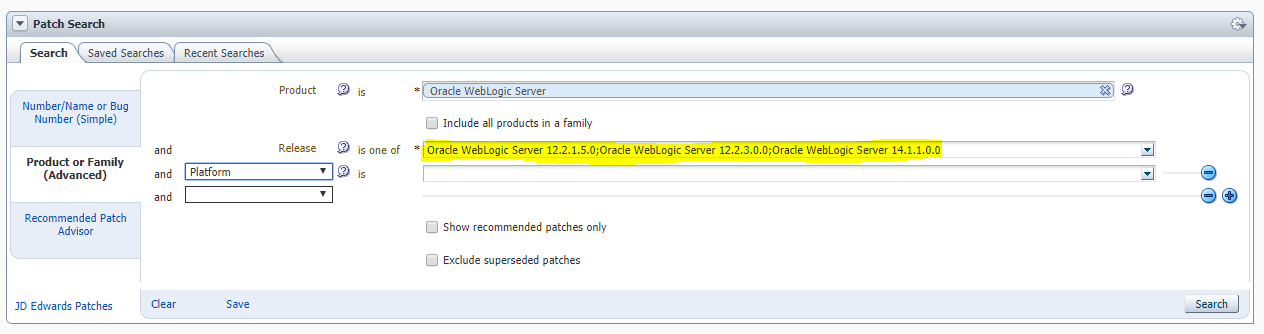
Today I was checking as usual the available patches for Oracle WebLogic Server and I discovered some new WebLogic Server Releases within the drop list of the available releases.


It seems that for the current supported WebLogic Server 12.2.1.x will be a future PatchSet 5 (12.2.1.5.0).

The given Release with 12.2.3.0.0, I personally doubt that this will come.

For the future WebLogic Server, which is currently in Beta Testing, it seems that Oracle will really name it 14.1.1.0.0. I have no clue why Oracle is choosing this naming convention for the new Oracle WebLogic Server Release, seems they want to be back to the good old days with various naming conventions between Oracle DB, Oracle Enterprise Manager and Oracle Fusion Middleware products.

Tuesday, May 9, 2017

Fully unintended CPU Patch Download for Oracle WebLogic Server

In case you are owning different versions of Oracle WebLogic Server, e.g. 10.3.6, 12.1.3, 12.2.1.2 and so on and you are regularly applying the Oracle Critical Patch Updates, you will have to download various different Patches.

Mainly you will have to click through different Websites and My Oracle Support Notes until you can download the required patches.

For this purpose I have developed a handy script, with which you can perform a fully unintended download of the latest Oracle WebLogic Server CPU Patches.

All what you need is:

Instructions

At first generate the required folder structure on your Linux Server:

root@server> cd /
root@server> mkdir -p CPU_TOOL/em_catalog
root@server> mkdir -p CPU_TOOL/archive
root@server> mkdir CPU_PATCHES

Create in the directory CPU_TOOL the following 2 files:
patch_download.ksh (afterwards make it executable chmod +x patch_download.ksh

#!/bin/ksh
# Author: Dirk Nachbar, http://dirknachbar.blogspot.com
#
# Purpose:    Wrapper Script for automated Critical Patch Update
#             download from My Oracle Suppurt (MOS)
#             
# Requirements: getMOSPatch, Author: Maris Elsins
#               Source: https://github.com/MarisElsins/getMOSPatch
#
#
# Parameters: -i <PropertiesFile> 
#       e.g.: -i mos.properties
#
#
# Exit Codes:
#             - 1 = Exit Code of Usage Function
#             - 2 = Missing Property or Value in configfile
#
#---------------------------------------------------------------------


#---------------------------------------------------------------------
# CONSTANTS
#---------------------------------------------------------------------

MyName="$(basename $0)"
StartDate="$(date '+%Y-%m-%d_%H:%M:%S')"
LogDir=/work/logs
WorkDir=`pwd`

#---------------------------------------------------------------------
Usage()
#
# PURPOSE: Displays the Usage of the script
#---------------------------------------------------------------------
{
cat << EOF
Usage: patch_download.ksh -i <ConfigFile>
       Wrapper Script for automated Critical Patch Update
       download from My Oracle Support (MOS)
       for Oracle WebLogic Server Release 10.3.6, 12.1.x, 12.2.x

Parameters:
   -i: config file with required parameters

EOF
exit 1
}

#---------------------------------------------------------------------
DoMsg()
#
# PURPOSE: Displays the TimeStamp in front of each status line
#---------------------------------------------------------------------
{
    if [ "${DoAppend}" = "TRUE" ]; then
        echo "`date +%Y-%m-%d_%H:%M:%S` `printf "%05d" $$` ${1}" | tee -a ${LogFile}
    else
        echo "`date +%Y-%m-%d_%H:%M:%S` `printf "%05d" $$` ${1}"
    fi

    shift

    while [ "${1}" != "" ]; do

        if [ "${DoAppend}" = "TRUE" ]; then
            echo "                     ${1}" | tee -a ${LogFile}
        else
            echo "                     ${1}"
        fi

        shift
    done
}


#---------------------------------------------------------------------
CheckParams()
#
# PURPOSE: Checks the input Parmeter -i
#---------------------------------------------------------------------
{
    if [ "${ConfigFile}" = "" ] ; then
        DoMsg "  ERR: Missing parameter(s), the flags -i must be used."
        Usage
    fi
}


#---------------------------------------------------------------------
ReadParams()
#
# PURPOSE: Reads the Parmeters of the Configfile and validate them
#---------------------------------------------------------------------
{
DoMsg "Reading provided Configuration File"
DoMsg "..."

TheMOSUser="$(cat ${ConfigFile} | grep -i "^MOSUser=" | head -n 1 | cut -d= -f2-)"
TheMOSPassword="$(cat ${ConfigFile} | grep -i "^MOSPassword=" | head -n 1 | cut -d= -f2-)"
TheUploadDir="$(cat ${ConfigFile} | grep -i "^UploadDir=" | head -n 1 | cut -d= -f2-)"

    if [ "${TheMOSUser}" = "" ] ; then
        echo "  ERR: Missing value MOSUser in the provided Config File."
        exit 2
    fi

    if [ "${TheMOSPassword}" = "" ] ; then
        echo "  ERR: Missing value MOSPassword in the provided Config File."
        exit 2
    fi

    if [ "${TheUploadDir}" = "" ] ; then
        echo "  ERR: Missing value UploadDir in the provided Config File."
        exit 2
    fi
}


#---------------------------------------------------------------------
DownloadEMCatalog()
#
# PURPOSE: Download of actual Patch List from MOS
#---------------------------------------------------------------------
{

DoMsg "Starting to download latest Version of em_catalog.zip from My Oracle Support"

# Cleanup the em_catalog directory from previous executions
rm -f ${WorkDir}/em_catalog/*.*

TheCookieFile=/tmp/$$.cookies
TheEM_CatalogLogFile=${LogDir}/wget_em_catalog_download_${StartDate}.log

# Contact updates site so that we can get SSO Params for logging in
SSO_Response=`wget https://updates.oracle.com/Orion/Services/download 2>&1|grep Location`

# Extract request parameters for SSO
SSO_Token=`echo $SSO_Response| cut -d '=' -f 2|cut -d ' ' -f 1`
SSO_Server=`echo $SSO_Response| cut -d ' ' -f 2|cut -d 'p' -f 1,2`
SSO_Auth_URL=sso/auth
Auth_Data="ssousername=${TheMOSUser}&password=${TheMOSPassword}&site2pstoretoken=$SSO_Token"

wget --post-data $Auth_Data --save-cookies=${TheCookieFile} --keep-session-cookies $SSO_Server$SSO_Auth_URL >> ${TheEM_CatalogLogFile} 2>&1
wget  --load-cookies=${TheCookieFile} --save-cookies=${TheCookieFile} --keep-session-cookies "https://updates.oracle.com/download/em_catalog.zip" -O em_catalog.zip >> ${TheEM_CatalogLogFile} 2>&1

# Cleanup the Cookie File
rm -f ${TheCookieFile}
rm -f auth

# Extract the em_catalog.zip
unzip ${WorkDir}/em_catalog.zip -d ${WorkDir}/em_catalog/

mv ${WorkDir}/em_catalog.zip ${WorkDir}/archive/em_catalog_${StartDate}.zip

DoMsg "Done to download latest Version of em_catalog.zip from My Oracle Support"

}

#---------------------------------------------------------------------
#
DownloadPatches()
# PURPOSE: Download the actual Patches for Oracle WLS
#---------------------------------------------------------------------
{

# Calculate actual Quarter Year
TheQYear=`echo $(date +%Y)_Q$(( ($(date +%-m)-1)/3+1 ))`
TheDownloadLogFile=${LogDir}/download_patches_${StartDate}.log
DoMsg "Starting to download Oracle WLS CPU's" | tee -a ${TheDownloadLogFile}


# Patch Download for WLS 10.3.6
PatchNumber=`grep -B 2 "<psu_bundle>WLS 10.3" em_catalog/patch_recommendations.xml | grep "<name>" | sed -e 's,.*<name>\([^<]*\)</name>.*,\1,g'`

ThePatchDir=${TheUploadDir}/WLS10.3.6.0/${TheQYear}/${PatchNumber}
mkdir -p ${ThePatchDir}
cd ${ThePatchDir}

DoMsg "Downloading CPU Patch ${PatchNumber} for WLS 10.3.6" | tee ${TheDownloadLogFile}

java -jar ${WorkDir}/getMOSPatch/getMOSPatch.jar MOSUser=${TheMOSUser} MOSPass=${TheMOSPassword} patch=${PatchNumber} regexp=.*Generic.* download=all platform=1234P >> ${TheDownloadLogFile}

cd ${TheUploadDir}/WLS10.3.6.0
rm -f actual
ln -s ${ThePatchDir} actual
cd ${WorkDir}

# Patch Download for WLS 12.1.2
PatchNumber=`grep -B 2 "<psu_bundle>WLS 12.1.2" em_catalog/patch_recommendations.xml | grep "<name>" | sed -e 's,.*<name>\([^<]*\)</name>.*,\1,g'`

ThePatchDir=${TheUploadDir}/WLS12.1.2.0.0/${TheQYear}/${PatchNumber}
mkdir -p ${ThePatchDir}
cd ${ThePatchDir}

DoMsg "Downloading CPU Patch ${PatchNumber} for WLS 12.1.2" | tee -a ${TheDownloadLogFile}

java -jar ${WorkDir}/getMOSPatch/getMOSPatch.jar MOSUser=${TheMOSUser} MOSPass=${TheMOSPassword} patch=${PatchNumber} regexp=.*Generic.* download=all platform=1234P >> ${TheDownloadLogFile}

cd ${TheUploadDir}/WLS12.1.2.0.0
rm -f actual
ln -s ${ThePatchDir} actual
cd ${WorkDir}

# Patch Download for WLS 12.1.3
PatchNumber=`grep -B 2 "<psu_bundle>Oracle WebLogic Server 12.1.3" em_catalog/patch_recommendations.xml | grep "<name>" | sed -e 's,.*<name>\([^<]*\)</name>.*,\1,g'`

ThePatchDir=${TheUploadDir}/WLS12.1.3.0.0/${TheQYear}/${PatchNumber}
mkdir -p ${ThePatchDir}
cd ${ThePatchDir}

DoMsg "Downloading CPU Patch ${PatchNumber} for WLS 12.1.3" | tee -a ${TheDownloadLogFile}

java -jar ${WorkDir}/getMOSPatch/getMOSPatch.jar MOSUser=${TheMOSUser} MOSPass=${TheMOSPassword} patch=${PatchNumber} regexp=.*Generic.* download=all platform=1234P >> ${TheDownloadLogFile}

cd ${TheUploadDir}/WLS12.1.3.0.0
rm -f actual
ln -s ${ThePatchDir} actual
cd ${WorkDir}

# Patch Download for WLS 12.2.1.0
PatchNumber=`grep -B 2 "<psu_bundle>Oracle WebLogic Server 12.2.1.0" em_catalog/patch_recommendations.xml | grep "<name>" | sed -e 's,.*<name>\([^<]*\)</name>.*,\1,g'`

ThePatchDir=${TheUploadDir}/WLS12.2.1.0.0/${TheQYear}/${PatchNumber}
mkdir -p ${ThePatchDir}
cd ${ThePatchDir}

DoMsg "Downloading CPU Patch ${PatchNumber} for WLS 12.2.1.0" | tee -a ${TheDownloadLogFile}

java -jar ${WorkDir}/getMOSPatch/getMOSPatch.jar MOSUser=${TheMOSUser} MOSPass=${TheMOSPassword} patch=${PatchNumber} regexp=.*Generic.* download=all platform=1234P >> ${TheDownloadLogFile}

cd ${TheUploadDir}/WLS12.2.1.0.0
rm -f actual
ln -s ${ThePatchDir} actual
cd ${WorkDir}

# Patch Download for WLS 12.2.1.1
PatchNumber=`grep -B 2 "<psu_bundle>Oracle WebLogic Server 12.2.1.1" em_catalog/patch_recommendations.xml | grep "<name>" | sed -e 's,.*<name>\([^<]*\)</name>.*,\1,g'`

ThePatchDir=${TheUploadDir}/WLS12.2.1.1.0/${TheQYear}/${PatchNumber}
mkdir -p ${ThePatchDir}
cd ${ThePatchDir}

DoMsg "Downloading CPU Patch ${PatchNumber} for WLS 12.2.1.1" | tee -a ${TheDownloadLogFile}

java -jar ${WorkDir}/getMOSPatch/getMOSPatch.jar MOSUser=${TheMOSUser} MOSPass=${TheMOSPassword} patch=${PatchNumber} regexp=.*Generic.* download=all platform=1234P >> ${TheDownloadLogFile}

cd ${TheUploadDir}/WLS12.2.1.1.0
rm -f actual
ln -s ${ThePatchDir} actual
cd ${WorkDir}

# Patch Download for WLS 12.2.1.2
PatchNumber=`grep -B 2 "<psu_bundle>Oracle WebLogic Server 12.2.1.2" em_catalog/patch_recommendations.xml | grep "<name>" | sed -e 's,.*<name>\([^<]*\)</name>.*,\1,g'`

ThePatchDir=${TheUploadDir}/WLS12.2.1.2.0/${TheQYear}/${PatchNumber}
mkdir -p ${ThePatchDir}
cd ${ThePatchDir}

DoMsg "Downloading CPU Patch ${PatchNumber} for WLS 12.2.1.2" | tee -a ${TheDownloadLogFile}

java -jar ${WorkDir}/getMOSPatch/getMOSPatch.jar MOSUser=${TheMOSUser} MOSPass=${TheMOSPassword} patch=${PatchNumber} regexp=.*Generic.* download=all platform=1234P >> ${TheDownloadLogFile}

cd ${TheUploadDir}/WLS12.2.1.2.0
rm -f actual
ln -s ${ThePatchDir} actual
cd ${WorkDir}

DoMsg "Done to download Oracle WLS CPU's" | tee -a ${TheDownloadLogFile}

}

#---------------------------------------------------------------------
# MAIN
#---------------------------------------------------------------------

ConfigFile=""

# All required ConfigParameters are initially set to empty
TheMOSUser=
TheMOSPassword=

while getopts i: CurOpt; do
    case ${CurOpt} in
        i) ConfigFile="${OPTARG}" ;;
        ?) Usage
           exit 1 ;;
    esac
done

shift $((${OPTIND}-1))

if [ $# -ne 0 ]; then
    Usage
fi

# Check Input Params
CheckParams

# Read the Params from the Config File
ReadParams
# Downloading EM Catalog zip file
DownloadEMCatalog
# Downloading the latest available Patches
DownloadPatches


mos.properties
# Configuration File for Automated Critical Patch Download
#
# Author: Dirk Nachbar, http://dirknachbar.blogspot.com
#

# My Oracle Support Credentials

MOSUser=<your_email>
MOSPassword=<your_mos_password>

# Upload Directory for CPU Patches

UploadDir=/CPU_PATCHES

Download the getMOSPatch.jar from https://github.com/MarisElsins/getMOSPatch and place it under /CPU_TOOL/getMOSPatch

root@server> mkdir -p /CPU_TOOL/getMOSPatch
root@server> cp /tmp/getMOSPatch.jar /CPU_TOOL/getMOSPatch

Make sure that you have a java 1.6 or higher in your PATH
root@server> which java
/bin/java
root@server> java -version
openjdk version "1.8.0_102"
OpenJDK Runtime Environment (build 1.8.0_102-b14)
OpenJDK 64-Bit Server VM (build 25.102-b14, mixed mode)

How does it work?

The trick behind the unintended CPU download is really simple, I am using the em_catalog.zip provided by My Oracle Support, which is used by Oracle Cloud Control for the so called Offline Patching (see MOS Note https://support.oracle.com/epmos/faces/DocContentDisplay?id=1931891.1)
In the patch_download.ksh script within the function DownloadEMCatalog() I am downloading the latest version of the em_catalog.zip, place it in the subdirectory /CPU_TOOL/em_catalog, unzip the file.
In the function DownloadPatches() I am using grep to identify the latest available CPU Patches for various WebLogic Server Releases within the file /CPU_TOOL/em_catalog/patch_recommendations.xml and through Maris Elsins' getMOSPatch I am downloading unintended the identified Patches, place them in the directory /CPU_PATCHES/WLS/<VersionNumber>/YYYY_Q[1|2|3|4] and creating a symlink on the latest CPU Patch to actual.

Get your Patches

To download the latest available patches, simply execute following commands:

root@server> cd /CPU_TOOL
root@server> ./patch_download.ksh -i mos.properties

2017-05-09_11:46:19 08102 Reading provided Configuration File
2017-05-09_11:46:19 08102 ...
2017-05-09_11:46:19 08102 Starting to download latest Version of em_catalog.zip from My Oracle Support
Archive:  /CPU_TOOL/em_catalog.zip
  inflating: /CPU_TOOL/em_catalog/aru_products.xml  
  inflating: /CPU_TOOL/em_catalog/aru_releases.xml  
  inflating: /CPU_TOOL/em_catalog/aru_platforms.xml  
  inflating: /CPU_TOOL/em_catalog/aru_languages.xml  
  inflating: /CPU_TOOL/em_catalog/aru_product_groups.xml  
  inflating: /CPU_TOOL/em_catalog/aru_product_releases.xml  
  inflating: /CPU_TOOL/em_catalog/aru_component_releases.xml  
  inflating: /CPU_TOOL/em_catalog/aru_targets.xml  
  inflating: /CPU_TOOL/em_catalog/components.xml  
  inflating: /CPU_TOOL/em_catalog/certifications.xml  
  inflating: /CPU_TOOL/em_catalog/patch_recommendations.xml  
 extracting: /CPU_TOOL/em_catalog/README.txt  
2017-05-09_11:46:56 08102 Done to download latest Version of em_catalog.zip from My Oracle Support
2017-05-09_11:46:56 08102 Starting to download Oracle WLS CPU's
2017-05-09_11:46:57 08102 Downloading CPU Patch 25388747 for WLS 10.3.6
2017-05-09_11:47:39 08102 Downloading CPU Patch 22505331 for WLS 12.1.2
2017-05-09_11:48:07 08102 Downloading CPU Patch 25388793 for WLS 12.1.3
2017-05-09_11:48:34 08102 Downloading CPU Patch 25388847 for WLS 12.2.1.0
2017-05-09_11:48:54 08102 Downloading CPU Patch 25388843 for WLS 12.2.1.1
2017-05-09_11:49:18 08102 Downloading CPU Patch 25388866 for WLS 12.2.1.2
2017-05-09_11:49:41 08102 Done to download Oracle WLS CPU's


Now you will find under the directory /CPU_PATCHES/WLS<VersionNumber>/YYYY_Q[1|2|3|4] the latest available CPU Patch for your Oracle WebLogic Server.
You can easily change in the mos.properties configuration file the target location for the CPU Patches to e.g. a mounted NAS drive, which you can attach to your WebLogic hosts, so that the patches are immediately available on your hosts for WebLogic Server.

Tuesday, September 4, 2012

Oracle WebLogic Server 11g: Interactive Quick Reference

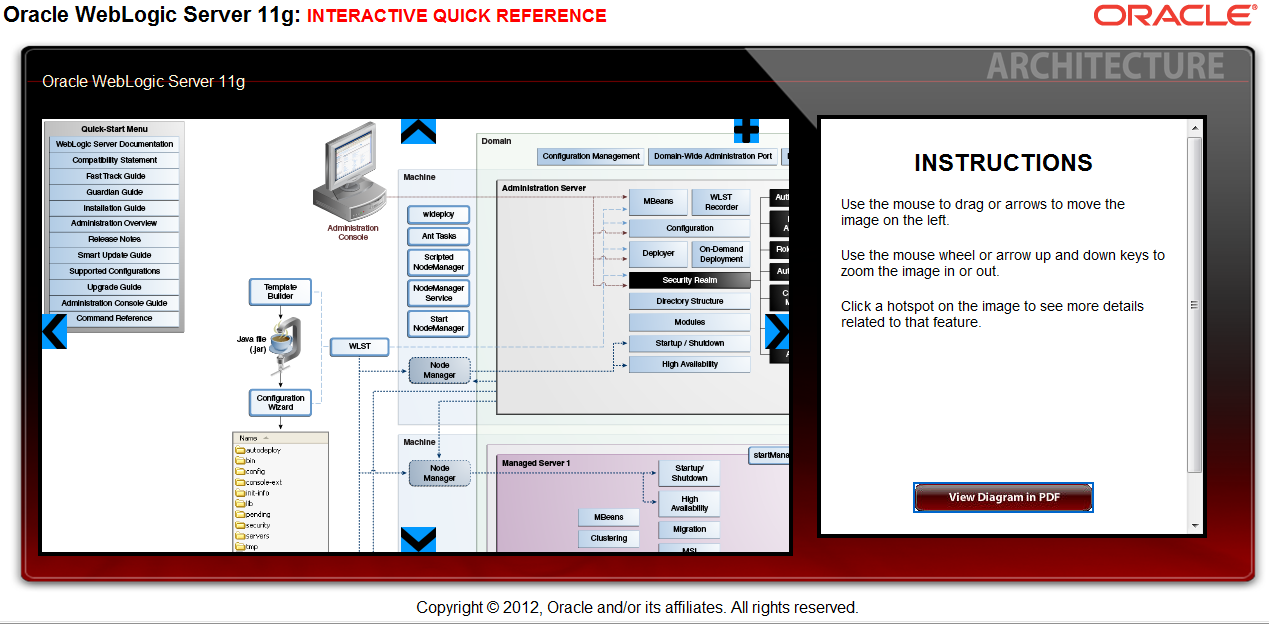
Oracle has published a really nice and useful Oracle WebLogic Server 11g Interactive Quick Reference under the following link http://www.oracle.com/webfolder/technetwork/tutorials/obe/fmw/wls/Poster/poster.html


The Quick Reference shows you an architecural overview of the Oracle WebLogic Server processes, tools, configuration files, log files and so on including a short description of each section and the corresponding link to the Oracle WebLogic Server Documentation.

In addition you can also download the architecural overview picture as a PDF under following link http://www.oracle.com/webfolder/technetwork/tutorials/obe/fmw/wls/Poster/pdf/Oracle-WebLogic-Server-11g.pdf

Its really a quite useful Quick Reference for everybody who is working with Oracle WebLogic Server.

Wednesday, August 15, 2012

Startup or Shutdown of multiple WebLogic Managed Servers via WLST script

Normally you will have multiple Managed Servers within one WebLogic Server Domain. The classical approach to startup or shutdown these multiple Managed Servers are:

  • using the WebLogic Server provided scripts startManagedWebLogic.[sh|cmd] and stopManagedWebLogic.[sh|cmd] in your Domain Directory
  • using a WLST script with the command shutdown()
The first option by using the startManagedWebLogic.[sh|cmd] and stopManagedWebLogic.[sh|cmd] requires that you provide the name of the Managed Server and the AdminURL, which is not quite flexible.   The second option has a small disadvantage in case you run the command shutdown() against a Managed Server which is currently not running. You will receive error messages like:
 
weblogic.server.ServerLifecycleException: Can not get to the relevant ServerRuntimeMBean for server DemoManaged

Specially when you are trying to shutdown multiple Managed Servers within such a WLST script that uses the command shutdown(), if you hit such an error the WLST script will terminate and the potential following shutdown() commands for other Managed Servers will not be executed.

With below WLST script, you can avoid this problem and perform your startup or shutdown tasks in a more elegant way.

The WLST script is using a properties file, in my case named domain.properties which contains following:

adminurl=t3://localhost:7001
adminusername=weblogic
adminpassword=weblogic
serverlist=DemoManaged,ManagedServer

The property serverlist is containing a comma seperated list of Managed Servers which you want to control.

The WLST script is moreover using an input value (start or stop). Before performing either the start() or the shutdown() command, the script will check for the MBean ServerRuntimeMBean if its existing or not for the given Managed Server.

import getopt
# Load the properties file with all necessary values
loadProperties('domain.properties')
# Split the provided Server List String for the FOR LOOP in start and stop command
serverlistSplit=String(serverlist).split(",")
 
# Get the command, must be 'start' or 'stop'
getcommand=sys.argv[1]

# Check the provided command
if getcommand != 'start' and getcommand != 'stop':
  print 'usage: <start stop="stop">'
  exit()

# Connect to the Weblogic Admin Server
# Connection Details are retrieved from properties file
connect(adminusername, adminpassword, adminurl)

# Change to the root of the MBean hierarchy
domainRuntime()

# Start Block
if getcommand == 'start':
   # Loop over the splitted Server List string
   for s in serverlistSplit:
     # Is a ServerRuntime MBean existing for current Managed Server?
     # If yes, the current Managed Server is already running and we dont need to do anything
     bean = getMBean('ServerRuntimes/' + s)
     if bean:
       print 'Server ' + s + ' is ' + bean.getState()
     else:
       start(s, 'Server', block='false')
       print 'Started Server ' + s

# Stop Block
if getcommand == 'stop':
   # Loop over the splitted Server List string
   for s in serverlistSplit:
     # Is a ServerRuntime MBean existing for current Managed Server?
     # If no, the current Managed Server is already down and we dont need to do anything
     bean = getMBean('ServerRuntimes/' + s)
     if bean:
       shutdown(s, 'Server')
       print 'Stopped Server ' + s
     else:
       print 'Server ' + s + ' is not running'

disconnect()
exit()

Place the properties file domain.properties and the WLST script start_stop_managedservers.py in one directory, adjust the properties file to your landscape.

To call the WLST script start_stop_managedservers.py just source the required script setWLSEnv.[sh|cmd] out of your WLS_HOME/server/bin directory and then execute following command:

java weblogic.WLST start_stop_managedservers.py [start|stop]

Sunday, December 11, 2011

Oracle WebLogic Server 12c (12.1.1) for download available

Since Friday 9th December 2011 the latest release of the Oracle WebLogic Server 12c (12.1.1) is available for download in the Oracle Technology Network under following link: http://www.oracle.com/technetwork/middleware/weblogic/downloads/wls-main-097127.html

Following Versions are available:
  • Installer with Oracle WebLogic Server 12c, Oracle Coherence and Oracle Enterprise Pack for Eclipse (for Linux x86 with JVM 32bit, Windows x86 with JVM 32bit and Mac OS X with 32bit)
  • Installer with Oracle WebLogic Server 12c and Oracle Coherence (for Linux x86 with JVM 32bit, Windows 32bit with JVM 32bit and a generic version for 64bit platforms)
  • Zip Distribution with Oracle WebLogic Server 12c only intended for WebLogic Server development only (for Linux, Windows and Mac OS X)


The documentation for the new Oracle WebLogic Server 12c (12.1.1) can be found under following Link: http://docs.oracle.com/cd/E24329_01/index.htm

Thursday, December 1, 2011

Bye bye WebCache - Welcome Oracle Traffic Director

I am currently sitting here and listen to the WebCasts for the new Oracle WebLogic Server 12c Release.

Some highlights:

  • More then 200 new features
  • Java EE 6 fully profile certified
  • Seamless upgrades (let's see the reality :-) )
  • Introduction of Oracle Traffic Director
In my opinion one of the highlights is the introduction of the Oracle Traffic Director, which will be the replacement of the Oracle WebCache on Exalogic platforms. I will miss the WebCache, I really learnt over the years to love this tool ;-)
Oracle Traffic Directory will be officially supported only with Exalogic platforms, but also runable on 64bit OEL platforms ;-)

The downloads for the new Oracle WebLogic Server 12c (12.1.1.0) should be available on Oracle Technology Network from the 5th of December 2011 going.

Note 2nd December 2011: There is also a Data Sheet for the new Oracle Traffic Director available http://www.oracle.com/us/products/middleware/application-server/oracle-traffic-director-ds-1389582.pdf

Wednesday, November 16, 2011

Oracle Weblogic Server 12c Launch announced

The Oracle Weblogic Server Release 12c is coming soon :-)

Oracle will unveiling the Oracle Weblogic Server 12c on 1st December 2011.

For the Online Launch Event registration just go here: http://tinyurl.com/cfpud2v

Wednesday, May 11, 2011

Implementing Oracle WebLogic AdminServer as Windows Service

Today my fight with the Oracle Internet Directory 11.1.1.4.0 from yesterday continues (http://dirknachbar.blogspot.com/2011/05/fighting-with-tns-03505-failed-to.html), but this time the problem were related to the Oracle WebLogic Server. I wanted to implement the startup of the underlying Oracle WebLogic AdminServer and ManagedServer of the Oracle Internet Directory installation as a Windows Service.

For this Oracle provides an installation script %WL_HOME%\server\bin\installSvc.cmd which should be called by a wrapper script which we have to create by ourself. (see http://download.oracle.com/docs/cd/E17904_01/web.1111/e13708/winservice.htm), but unfortunally if you follow this instruction, you will not be able to startup your AdminServer with a Windows Service. In the corresponding logfiles of the AdminServer you will find entries like:

<BEA-000286> <Failed to invoke startup class "JRF Startup Class" ...

After a little bit of Google Search, I found some articles, which point to the fact that a Java Class (ORACLE_COMMON\modules\oracle.jrf_11.1.1\jrf.jar) is missing in the CLASSPATH variable. So I try this, therefore I modified the %WL_HOME%\common\bin\commEnv.cmd which will be called in the installSvc.cmd and added the fullpath including the jar-file name to the variable WEBLOGIC_CLASSPATH. BIG MISTAKE :-) I did this, and re-created the Windows Service for the WebLogic AdminServer newly and try to startup the new Windows Service. This time I got new and strange exceptions . . .

After some investigations and testings I found a valid and working way, which is really simple :-)
At first in the %WL_HOME%\common\bin\commEnv.cmd I modify the line:

# Original:
@rem PRODUCTION_MODE, default to the development mode
set  PRODUCTION_MODE=
# To:
@rem PRODUCTION_MODE, default to the development mode
set  PRODUCTION_MODE=true

As in my case I am running in Production Mode and the declared variable in my wrapper script which calls the %WL_HOME%\server\bin\installSvc.cmd was not taken correctly and secondly I added one line in the %WL_HOME%\server\bin\installSvc.cmd script in order to call the %MW_HOME%\user_projects\domains\<YourDomain>\bin\setDomainEnv.cmd in which all necessary CLASSPATH declarations are included:

# Just add after the first call of the commEnv.cmd
# the call of your setDomainEnv.cmd
. . .
call "%WL_HOME%\common\bin\commEnv.cmd"
call "<YourMW_HOME>\user_projects\domains\<YourDomain>\bin\setDomainEnv.cmd"

After this changes just re-create your Windows Services for the WebLogic AdminServer newly, start the service up and be happy :-)

Wednesday, December 1, 2010

WebLogic Server Logfiles

I am actually giving an Oracle University Course "Oracle WebLogic Server 11g: Administration Essentials". Today we reach the chapter Logfiles and an interesting question came up from one student:

Is it possible to define one logfile for multiple Managed Server and the global Domain Logfile? So that I don't have to go through multiple logfiles for investigation of problems or errors

So, we just tested it live as I never came to this idea to merge the Managed Server Logfiles into the Domain Logfile.
I just copy the fullpath of the Domain Logfile into the logfile defintion of one Managed Server of the Domain, saved this changes and did a restart of the Managed Server and ... Its working :-) All Managed Server related log entries were captured in the Domain Logfile :-)

Even as a teacher you can learn from time to time something during holding a course :-)

Friday, September 17, 2010

Creating a Windows Service for Oracle WebLogic Server

In case you are using the Oracle WebLogic Server under Windows, you may want to run your WebLogic Server as a Windows Service instead of all time running the provided cmd files to startup your WebLogic Server.
For this Oracle provides us a small script to create a Windows Service for our WebLogic Server, the script is located in %WL_HOME%\server\bin with the name installsvc.cmd. The best way to use this script is to build up a small wrapper script with all the necessary variable declarations and a call on the installsvc.cmd:

echo off

SETLOCAL
set DOMAIN_NAME=DemoDomain
set USERDOMAIN_HOME=D:\oracle\fmw-11.1.1\user_projects\domains\DemoDomain
set SERVER_NAME=DemoAdminServer
set PRODUCTION_MODE=true
set JAVA_VENDOR=BEA
set JAVA_HOME=D:\oracle\fmw-11.1.1\jrmc-4.0.1-1.6.0
set MEM_ARGS=-Xms256m -Xmx512m
call "D:\oracle\fmw-11.1.1\wlserver-10.3.3\server\bin\installSvc.cmd"
ENDLOCAL

Just adjust the above example to your settings and run the wrapper script, this will create you a Windows Service "beas %DOMAIN_NAME%_%SERVER_NAME%", if you dont like the naming convention for the Windows Service to be created, just edit the installsvc.cmd script. Nearly at the end you will find following line:
"%WL_HOME%\server\bin\beasvc" -install -svcname:"beasvc %DOMAIN_NAME%_%SERVER_NAME%" -javahome:"%JAVA_HOME%" -execdir:"%USERDOMAIN_HOME%" -maxconnectretries:"%MAX_CONNECT_RETRIES%" -host:"%HOST%" -port:"%PORT%" -extrapath:"%EXTRAPATH%" -password:"%WLS_PW%" -cmdline:%CMDLINE%

Just adjust the option -svcname to your prefered settings.

Friday, July 9, 2010

Oracle Web Tier Utility Configuration Error INST-07281: JRF is not set up in the specific domain

You may receiving following the error message "INST-07281: JRF is not set up in the specific domain" during the configuration of the Oracle Web Tier in order to connect your Web Tier with an existing Oracle WebLogic Server.

The problem is really simple, the necessary JRF Libaries are not by installed configured in a WebLogic Server Domain if you had used the standard template for the domain configuration.

Therefor you have to extend your WebLogic Server Domain, just startup under the WL_HOME/common/bin the script config.sh and chose the option "Extend an existing WebLogic Server Domain". Then chose in the tree your WebLogic Server Domain, after that you will reach below provided screenshot and chose under "Extend my domain automatically to suppoprt the following added products" the option "Oracle JRF - 11.1.1.0".

After the extension of your WebLogic Server Domain is finished, you have to restart your WebLogic Server Domain AdminServer in order to load the newly added Libaries.

After the restart of the AdminServer you can try again your configuration of the Oracle Web Tier and you will see, that now the configuration process will proceed.

The most practical way is, if you install your Oracle Web Tier at first with the option "Install only", after that you run the WL_HOME/common/bin/config.sh script to add the necessary Oracle JRF components to your WebLogic Admin Server, perform a restart of your Admin Server and as last you run the config.sh script for the Oracle Web Tier in the directory WebTier_ORACLE_HOME/bin and go through the configuration steps.

Friday, June 4, 2010

Did you forget your WebLogic Admin User password?

Several month ago you install your Oracle Fusion Middleware Environment, you didn't connect to the WebLogic console and now you realize, that you forget the password of the WebLogic Server Admin User "weblogic".
Here is a small How To in order to reset the Admin User "weblogic" password.

1st Step: Stop your Weblogic Server, if it's running
oracle@server>cd $MW_HOME/user_projects/domains/<your_domain>/bin
oracle@server>./stopWebLogic.sh <your_server>

2nd Step: Source the necessary environment variables for your WebLogic Server
oracle@server>cd $MW_HOME/user_projects/domains/<your_domain>/bin
oracle@server>./setDomainEnv.sh

3rd Step: Creation of a new WebLogic Server Admin User
oracle@server>cd $MW_HOME/user_projects/domains/<your_domain>/security

# the first value after the command "java weblogic.security.utils.AdminAccount"
# is the new username
# the second value is the password for the new Admin User
# IMPORTANT !!! After the password value you must place a "." (dot) !!!!
# This command will update the DefaultAuthenticatorInit.ldift
# configuration file

oracle@server>java weblogic.security.utils.AdminAccount myadmin oracle11g .
4th Step: Delete the file DefaultAuthenticatormyrealmInit.initialized
oracle@server>cd $MW_HOME/user_projects/domains/<your_domain>/servers/AdminServer/data/ldap
oracle@server>rm DefaultAuthenticatormyrealmInit.initialized

5th Step: Startup the WebLogic Server
# Depending if you are using a boot.properties file
# you must choose between the two following options
# a) Without boot.properties configuration file

oracle@server>cd $MW_HOME/user_projects/domains/<your_domain>/bin
oracle@server> ./startWebLogic.sh <your_domain>

# Here you will be prompted for your WebLogic Server Admin User and his Password
# Use now your newly created Admin User

# b) With a configured boot.properties configuration file
# Remove your boot.properties configuration file

oracle@server>cd $MW_HOME/user_projects/domains/<your_domain>/servers/AdminServer/security
oracle@server>rm boot.properties

# Startup your WebLogic Server

oracle@server>cd $MW_HOME/user_projects/domains/<your_domain>/bin
oracle@server> ./startWebLogic.sh

# Here you will be prompted for your WebLogic Server Admin User and his Password
# Use now your newly created Admin User

For the above mentioned two options see my Blog Post http://dirknachbar.blogspot.com/2009/08/security-hole-in-fusion-middleware-11g.html

6th Step: Login to your WebLogic Server Console with your newly created Admin User and change the password of the original WebLogic Server Admin User "weblogic"
# Navigate to "Security Realms"
# There you'll see two Admin Users: weblogic and your newly created Admin User
# Change the password of the user weblogic

7th Step (optionally): If you was using a boot.properties configuration file before, you must recreate it with the new values for the Admin User and the reseted password

Additional Note (26.01.2011): Please be aware that the above described procedure is NOT working with a database security store !!! (Thanks for the input from Nazir, see comments below)

Wednesday, April 28, 2010

Oracle WebLogic Server Virtual Edition

Nearly silent Oracle announce this time a really cool new stuff: Oracle WebLogic Server Virtual Edition

The concept is really simple but cool: Install a JRockit Virtual Edition directly (native) on Oracle VM (without any Operating System) and run your WebLogic without any overhead of a Operating System directly on the JRockit Virtual Edition.

The download can be found under: http://www.oracle.com/technology/software/products/ias/htdocs/wlsve.html

A datasheet of the Oracle WebLogic Server Virtual Edition can be found under http://www.oracle.com/us/products/middleware/application-server/wls-virtualization-ds-067888.pdf
Within the next days I will test this cool new stuff :-)

Update January 2011: Oracle has moved the download page of the Oracle WebLogic Server Virtual Edition to http://www.oracle.com/technetwork/middleware/ias/downloads/wlsve-083102.html

Monday, February 15, 2010

Oracle WebLogic Security Patch CVE-2010-0073 released

A few days ago Oracle released a security patch for the Oracle WebLogic Server, mainly all releases of the Oracle WebLogic Server are affected

  • Oracle WebLogic Server 10.3.1 & 10.3.2
  • Oracle WebLogic Server 10.3.0
  • Oracle WebLogic Server 10.0
  • Oracle WebLogic Server 7.0 & 8.1 & 9.0 & 9.1 & 9.2

The CVSS Base Score for this security hole is 10 (!!), but only on Windows Platforms. On Unix Platforms the Base Score is just 7.5 (which is still high enough).

So it's really advisable to install this Security Patch, detailed informations can be found under http://www.oracle.com/technology/deploy/security/alerts/alert-cve-2010-0073.html

Thursday, August 7, 2008

Oracle WebLogic Server 10.3 available

Since yesterday the new Release of Oracle (BEA) WebLogic Server 10g Release 3 (10.3) is available. Now the BEA Products also get the same naming conventions like the Oracle Application Server Products, let's see how much confusion this will cause :-)

Under the OTN Webpage your can find some general informations and under OTN download page you can find the latest Release. Here you'll find two types of Installation binaries, the Fullinstaller and a Net Installer.

Some major new features/enhancements are:

  • Optional Service Startup
  • Web 2.0 Support
  • ADF/Toplink support (with 11g)
  • JDeveloper Support (with 11g)

Moreover a new Version of the Oracle Workshop for WebLogic 10.3 is released, also available with a Fullinstaller and a Net Installer. Workshop for WebLogic 10.3 is now IDE based on Eclipse 3.3 and WTP 2.0